Inventory Management
Track hotel inventory items, set reorder alerts, and manage stock levels across departments in HelloShift.
Track supplies, monitor stock levels, and get automatic alerts when items run low. Inventory Management helps you stay on top of restocking so your team always has what they need.
Overview
HelloShift's Inventory Management lets you:
Track any type of inventory (cleaning supplies, amenities, office supplies, etc.)
Set minimum stock levels (PAR) and get automatic alerts when items run low
Organize items by type and location
Assign owners who receive low-stock notifications
Add notes and attachments to inventory items
View usage history through the activity feed
Plan Required: Staff
Getting Started
Accessing Inventory
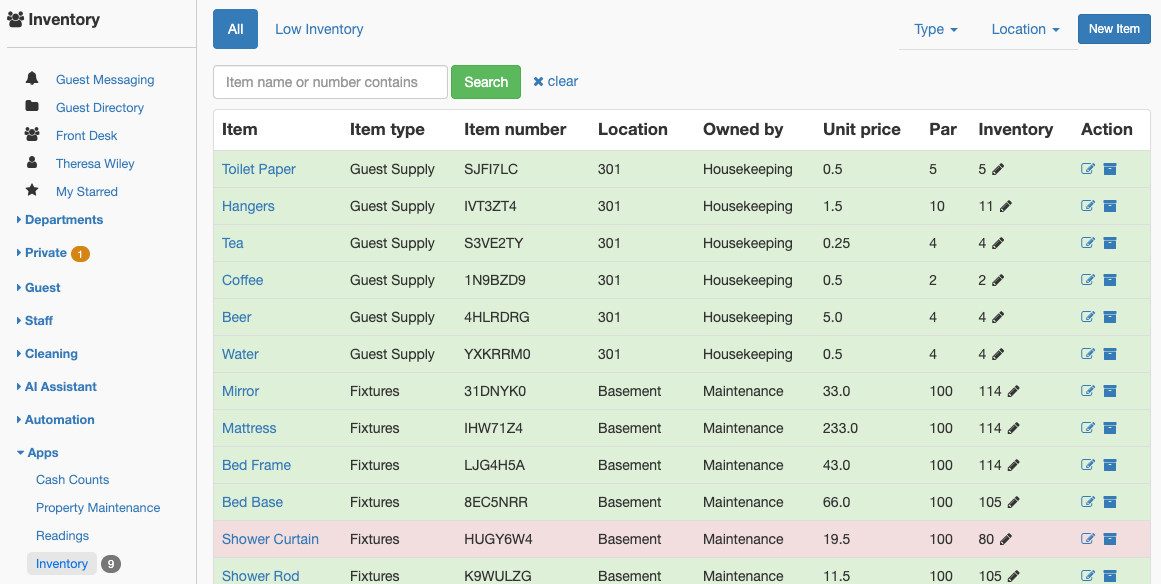
Click Inventory in the left sidebar under the Staff section
You'll see a list of all active inventory items
A badge shows how many items are currently low on stock
Adding Your First Inventory Item
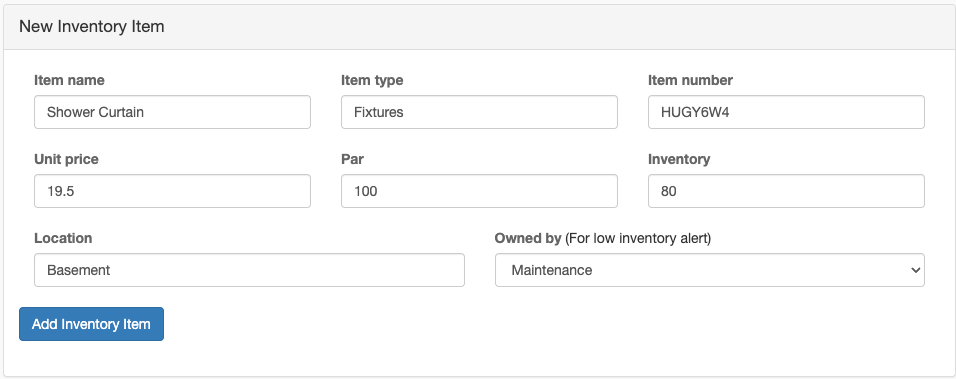
Click Add in the top menu
Select Add Inventory
Fill in the item details:
Click Add Inventory Item
Managing Inventory
Viewing Inventory
The inventory list shows all your items with key information at a glance:
Item: Name and location
Item Type: Category for filtering
Item Number: SKU or reference
Location: Storage location
Owned By: Who manages this item
Unit Price: Cost per unit
PAR: Minimum stock level
Inventory: Current quantity (highlighted red if below PAR)
Filtering and Searching
Filter by status:
Click All to see all active items
Click Low Inventory to see only items below PAR level
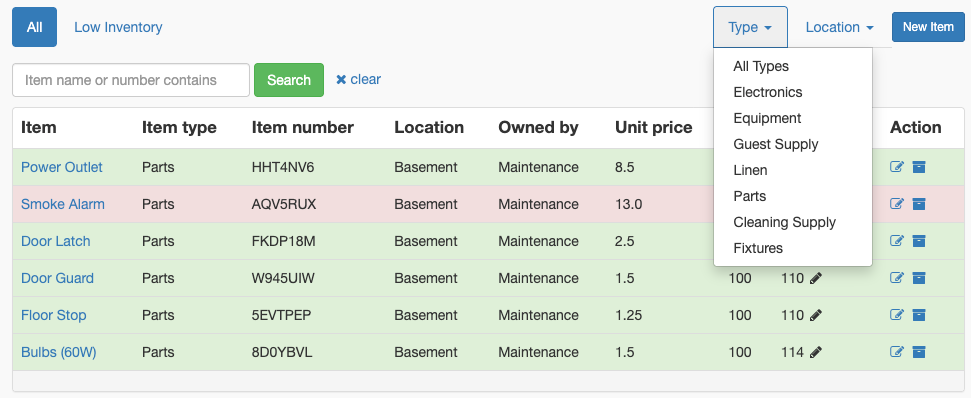
Filter by type or location:
Use the Type dropdown to filter by item category
Use the Location dropdown to filter by storage location
Search:
Use the search box to find items by name or item number
Click the X to clear your search
Updating Stock Levels
Click on an inventory item to open its detail page
Click the Edit icon (pencil)
Update the Inventory field with the new count
Click Update Inventory Item
Tip: You can also update inventory directly from the list view by clicking on the item row.
Archiving Items
When you no longer need to track an item:
Open the item detail page
Click the Archive icon (box icon)
The item will be hidden from the active list
To restore an archived item:
Search for the item or view inactive items
Click the Unarchive icon (box with up arrow)
Low Inventory Alerts
HelloShift automatically monitors your stock levels and creates tasks when items need reordering.
How It Works
PAR Level: Set the minimum quantity you want to keep on hand
Current Inventory: The system compares current stock to PAR
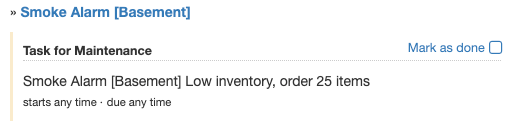
Alert Trigger: When inventory drops below PAR, a task is automatically created
Assignment: The task is assigned to the Owned By user you specified
Example
If you set:
PAR: 50
Current Inventory: 35
Owned By: John (Housekeeping Manager)
John will receive a task: "Low inventory, order 15 items"
Setting Up Alerts
To enable low inventory alerts for an item:
Edit the inventory item
Set the PAR level (minimum quantity)
Select an Owned By user
Save the item
When inventory falls below PAR:
A task is created and assigned to the owner
The task subject shows how many items to order
The task appears in the owner's task list
When you update inventory back above PAR:
The task is automatically marked as complete
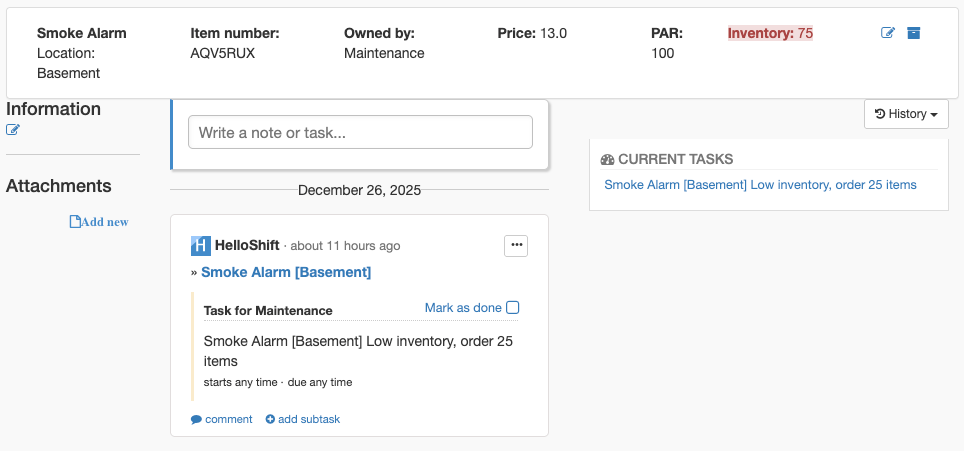
Item Detail Page
Click on any inventory item to see its full detail page, which includes:
Item Information
All item details (name, type, number, location, price, PAR, inventory)
Edit and archive controls
Visual highlight when inventory is low
Notes and Activity
Add notes about the item (e.g., "Supplier: ABC Company, Account #12345")
View activity history showing stock changes
Tag other team members in notes
Tasks
View related tasks (including low inventory alerts)
Create new tasks related to this item
See task completion status
Attachments
Upload product images, spec sheets, or supplier information
Attach invoices or purchase orders
Best Practices
Organizing Your Inventory
Use consistent item types:
Create standard categories like "Linens", "Cleaning Supplies", "Guest Amenities", "Office Supplies"
HelloShift remembers your item types for easy selection
Use meaningful locations:
Match locations to actual storage areas
Examples: "Main Storage Room", "Floor 2 Closet", "Front Desk Cabinet"
Set realistic PAR levels:
Consider your usage rate and reorder lead time
Set PAR high enough to avoid stockouts while waiting for delivery
Assigning Owners
Assign items to the person responsible for ordering
Consider creating a "Purchasing" department for centralized ordering
Owners can be individuals or department heads
Regular Stock Counts
Schedule regular inventory counts (weekly or monthly)
Update counts in HelloShift to keep alerts accurate
Use the Low Inventory view to prioritize counts
Troubleshooting
Low Inventory Alert Not Appearing
Symptom: Stock is below PAR but no task was created
Possible causes and solutions:
No PAR set: Edit the item and add a PAR value
No owner assigned: Edit the item and select an "Owned By" user
Item is inactive: Check if the item was archived
Item Not Showing in List
Symptom: Can't find an inventory item
Solutions:
Clear any active filters (Type, Location)
Clear the search box
Check if the item was archived
Search by item number if you know it
Badge Count Seems Wrong
Symptom: Low inventory badge number doesn't match what you see
Solution: The badge counts only active items that are below PAR. Archived items are not included.
Related Articles
Checklists - Create restocking checklists
Template Tasks - Set up recurring inventory count tasks
Creating Tasks with HelloShift - Manual task creation for special orders