How To Use Tags (#) & Mentions (@)
Use hashtags and @mentions in HelloShift to organize conversations, tag topics, and notify team members instantly.
Tags and mentions help you organize information and notify the right people. Use #hashtags to categorize notes and tasks, and @mentions to alert specific team members or departments.
Overview
#Hashtags - Categorize and link notes/tasks to rooms, equipment, or topics
@Mentions - Notify specific people or departments about important information
Tag Pages - View all activity related to a specific tag in one place
@Mentions: Notify People or Teams
Use @mentions to ensure the right people see your message and receive a notification.
How to Mention
Type @ followed by a name in any note or task:
When Notifications Are Sent
Mentioned users receive notifications via:
Mobile push notifications (if enabled)
Desktop notifications (via browser or Pusher)
In-app notification badge
Notifications are sent immediately when you click Add Note or create a task.
Mention Best Practices
Use
@allsparingly - only for truly urgent, property-wide announcementsMention department leads when issues affect their area
Mention specific people when you need a response from them
Include context in your message so recipients understand the urgency
Example
@Sam @housekeeping #103 #complaint Guest reported an odd smell in the room. Please investigate ASAP.
This note:
Notifies Sam and everyone in Housekeeping
Links to Room 103's tag page
Appears under the #complaint tag for tracking
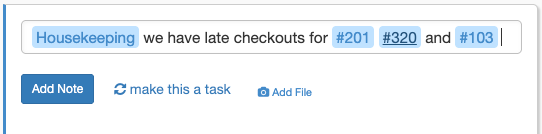
#Hashtags: Categorize Your Messages
Hashtags help organize notes so you can find them later and track recurring issues.
Tag Types
HelloShift supports several types of tags:
How Tags Work
Type
#followed by the tag name in any note or taskHelloShift automatically links the note to that tag
Click any tag to see all notes/tasks associated with it
Tags can be filtered and searched from the Task Dashboard
Viewing a Tag's History
Click on any tag (like #103 or #complaint) to open that tag's page, which shows:
All notes and tasks associated with the tag
Activity timeline in chronological order
Pinned items at the top (if any)
Current status of associated tasks
Creating New Tags
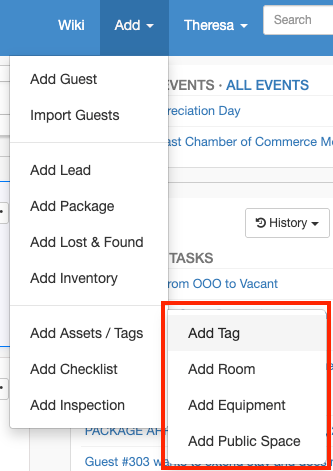
Adding Tags from the Add Menu
Click Add in the top-right corner of HelloShift
Hover over Add Assets / Tags
Select the type you want to create:
Add Room - Creates a room with its own profile
Add Public Space - For common areas like lobby, pool, gym
Add Equipment - For trackable assets like boilers, elevators
Add Tag - For custom tags like #complaint or #VIP
Enter the tag name
Click Create
Creating Tags On-the-Fly
You can also create new tags simply by using them:
Type
#newtagin a note or taskIf the tag doesn't exist, HelloShift creates it automatically
The new tag appears in your tag list
Note: Auto-created tags default to the "Site" (custom) type. To create room or equipment tags with full profiles, use the Add menu.
Room Tags: Complete Room Profiles
Room tags (#103, #205, etc.) are special because they create a full room profile that tracks everything about that room.
What Room Profiles Include
Activity Feed: All notes, tasks, and messages mentioning the room
Room Settings: Wi-Fi info, key codes, special instructions
Housekeeping Status: Current cleaning status and history
Assignment: Default cleaner and inspector
Equipment: Sub-tags for room equipment (TV, minibar, etc.)
Accessing Room Settings
From the Sidebar:
Go to Staff > Assets & Tags > Rooms
Click on the room number to open its profile
Click Edit Room to access settings
From the Task Dashboard:
Click Tasks in the left sidebar
Find your room number in the Tags section
Click the room tag to open its profile
Click Edit Room to access settings:
Add key codes for manual lock systems
Set Wi-Fi credentials for automated guest messages
Define cleaning rules and schedules
Assign default cleaners and inspectors
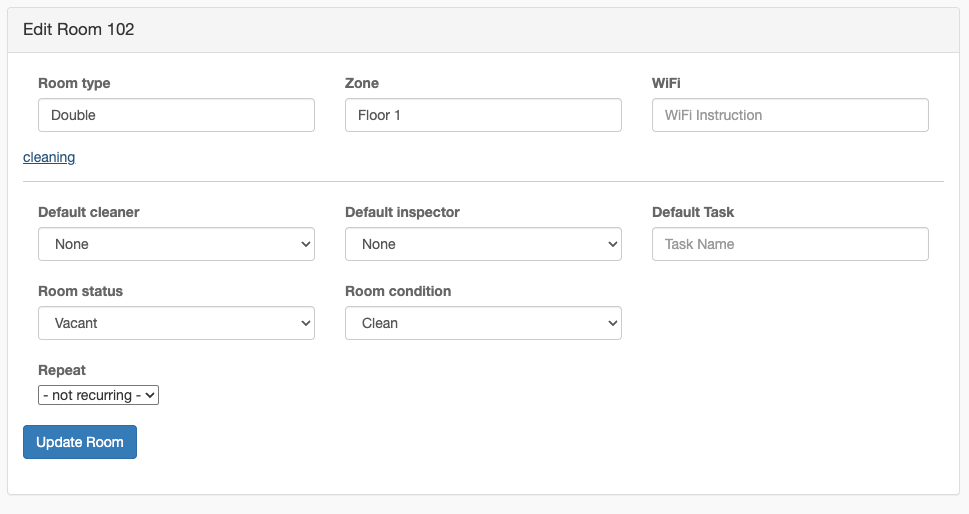
Room Information in Guest Messages
Room-specific information (Wi-Fi, key codes) can be automatically included in guest messages using placeholders like {{room.wifi}} or {{room.keycode}}.
Filtering by Tags
From the Task Dashboard
Go to Tasks in the left sidebar
Click the Filter button
Select tags from the dropdown
View only tasks associated with those tags
From Tag Pages
Click any tag in a note or task
View all activity for that tag
Use the search box to filter within the tag's history
Tag Status Indicators
Tags show status indicators based on their associated tasks:
Bulk Operations with Tags
Use Property Maintenance to create tasks or checklists for multiple rooms or equipment at once.
Accessing Property Maintenance
In the left sidebar, go to Apps > Property Maintenance
Use the dropdown to select the tag type: Rooms, Equipment, or Public Spaces
You'll see a list of all tags with checkboxes
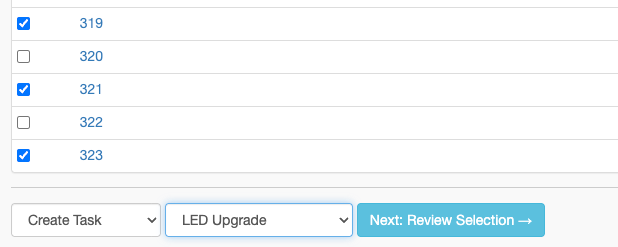
Creating Tasks for Multiple Tags
Check the boxes next to multiple tags (e.g., select rooms 101-110)
Use the "Select All" checkbox in the header to select all visible tags
In the Choose Action dropdown, select Create Task
Select a task template from the Choose Task dropdown
Click Next: Review Selection →
Confirm the selection and create the tasks
Creating Checklists for Multiple Tags
Check the boxes next to multiple tags
In the Choose Action dropdown, select Create Checklist
Select a checklist template from the Choose Checklist dropdown
Click Next: Review Selection →
Confirm and create the checklists
This is useful for:
Assigning deep cleaning to all rooms on a floor
Creating inspection tasks for all elevators
Setting up maintenance checks for all HVAC units
Default Site Tags
HelloShift automatically creates useful tags when you set up your site:
These can be customized or supplemented with your own tags.
Tag Analytics
HelloShift tracks statistics for each tag:
Note/Task Count: How many items are tagged
Completion Rate: What percentage of tasks are completed on time
Common Co-Tags: Which tags frequently appear together
Activity Trends: Daily/weekly patterns
Access tag reports from Reports > Tags to analyze trends and identify recurring issues.
Best Practices
Consistent Tag Naming
Use consistent formats:
#complaintnot sometimes#complaintsKeep names short but descriptive
Use lowercase for custom tags (room numbers can be uppercase)
Strategic Tag Usage
Tag every guest-related note with the room number
Use
#urgentor#priorityfor time-sensitive itemsCreate department-specific tags like
#maintenance-requestTag recurring issues to track patterns (e.g.,
#wifi-issues)
Reviewing Tag Activity
Check high-activity tags weekly to spot trends
Use the
#complainttag to identify service gapsReview equipment tags to predict maintenance needs
Troubleshooting
My tag isn't linking
Make sure you typed
#directly before the tag name (no space)Check that the tag exists or will be auto-created
Tags are case-insensitive for matching
I can't find a tag
Use the search bar on the Tags page
Check if the tag might have a slightly different name
Verify you're looking in the correct tag type (Room vs. Custom)
Notifications aren't reaching mentioned users
Verify the user has notifications enabled in their profile
Check that push notifications are enabled on their mobile device
Confirm the @mention format is correct (
@usernameor@department)
Related Articles
Creating Tasks with HelloShift - Task creation and management
Organizing Notes & Tasks - Pin and star important items
Checklists - Recurring task management