Voice AI Assistant
Learn about the Voice AI Assistant and post-call follow-up features
Enable 24/7 automated phone support with an AI voice assistant that handles guest calls naturally. The assistant can answer questions, take messages, and transfer calls to staff when needed.
Overview
Requirements
Before setting up, ensure your HelloShift subscription includes:
Guest+ plan
Accessing Voice AI Settings
Go to AI & Automation > Voice
Configure the voice assistant settings
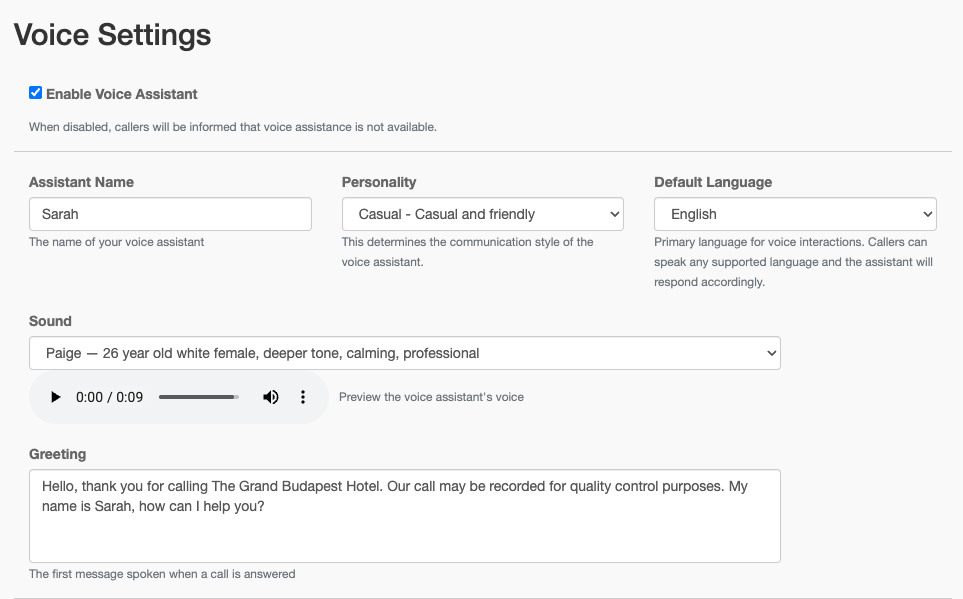
Basic Configuration
Step 1: Enable Voice Assistant
Toggle Enable Voice Assistant to On.
Step 2: Configure Assistant Identity
Available Personalities:
Cheerful: Warm, enthusiastic, upbeat
Casual: Relaxed, conversational, friendly
Formal: Professional, polished, business-like
Available Voices: Cole, Hana, Harry, Spencer, Neha, Paige, Lily, Savannah, Elliot, Rohan
Use the preview button to hear each voice before selecting.
Step 3: Set Default Language
Choose the primary language for the assistant. The assistant will automatically detect and respond in the caller's language when possible.
Supported Languages:
English
Spanish
French
German
Italian
Portuguese
Dutch
Polish
Russian
Japanese
Korean
Chinese (Mandarin)
Arabic
Step 4: Customize Greeting
Enter the first message the assistant says when answering calls.
Example:
Hello! Thank you for calling [Hotel Name]. How may I help you today?Greeting language: When Guest Information Matching (below) is on and a caller's language preference is already known from earlier messages or calls, the assistant greets them in their language from the first word — currently Spanish, Portuguese, and French, with English for everyone else. This applies to the standard greeting only: a custom greeting you write here is always spoken exactly as written, in the language you wrote it.
Guest Information Matching
When enabled, the system automatically looks up callers in your guest database.
How It Works
Caller's phone number is matched against guest records
If found, the assistant has access to:
Guest name
Current and upcoming reservations
Room numbers and confirmation codes
Special requests
The assistant greets the caller by name and skips collecting information already on file, providing a smoother experience for returning guests
Enabling Guest Matching
Go to AI & Automation > Voice
Enable Match Guest Information
Save settings
How It Works: When a known guest calls, the assistant greets them by name and skips asking for information already on file (name, email). For unknown callers, the assistant collects name and other details as needed.
Call Transfer Settings
Configure how calls are routed to staff.
Simple Transfer Mode
Route all transferred calls to a single destination.
When Transfer Happens:
Caller explicitly asks to speak with someone
Guest has a request the assistant can't fulfill
Reservation booking requires staff assistance
Conversation reaches a point requiring human help
IVR Routing Mode (Advanced)
Route calls to different departments based on caller intent.
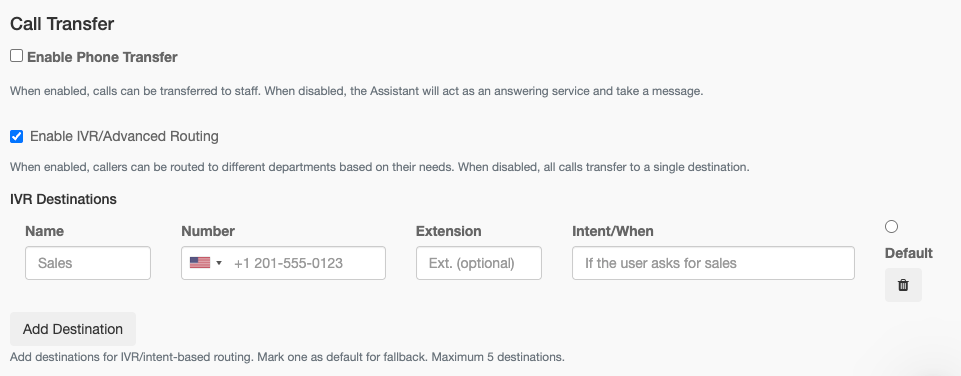
Enable IVR: Toggle on to configure multiple destinations.
Configure Destinations (up to 5):
Example IVR Setup:
Dial First (Staff Priority)
Route calls to staff first before the AI answers.
How It Works
Call comes in to your property number
System rings staff phone(s) for configured duration
If staff doesn't answer, AI assistant takes over
Staff can still transfer calls to AI if needed
Configuration
Use Case: During business hours, try staff first. After hours, go directly to AI.
Answering Service Mode
When transfers are disabled, the assistant acts purely as an answering service.
Behavior
Assistant answers all calls
Handles common questions using your FAQ data
Takes detailed messages for staff follow-up:
Caller's name
Phone number or email
Message content
Assures caller that staff will respond
Enabling Answering Mode
Disable all transfer destinations
Save settings
Assistant automatically switches to answering service mode
Service Hours
When Service Hours are configured in AI & Automation > Text, the Voice AI automatically adjusts its behavior during off-hours:
Acknowledges the guest's request without promising immediate service
Sets expectations for when staff will be available (e.g., "Our team will take care of this first thing when staff are available at 8:00")
Flags urgent safety or security matters for immediate staff attention
Tags call summaries with "After-hours request (staff available at [start]:00)"
See AI Assistant Configuration for setup instructions.
Service Policies
Service Policies let you tell the Voice AI exactly how to handle questions about services you offer — or services you don't offer. Each policy is a structured rule the assistant reads before answering, so it gives consistent answers about your restaurant, spa, parking, transportation, and any other guest service. For services with a link, phone number, or email, the assistant offers to text the value to the caller after the call instead of reading it aloud.
Use Service Policies when you want operator-level control over what the AI says about a specific service. They take precedence over FAQs for matching topics, and they prevent the assistant from inventing details about services your property doesn't actually offer.
Enabling Service Policies
Service Policies are off by default (Simple Mode). When disabled, the Voice AI relies on FAQs and Custom Instructions only.
Go to AI & Automation > Voice > Customization
Toggle Enable Service Policies to On (this switches to Advanced Mode)
Add rows for each service you want to define
Save settings
When enabled, Service Policies render into the assistant's system prompt above the FAQs section, so they read first when the AI decides how to answer.
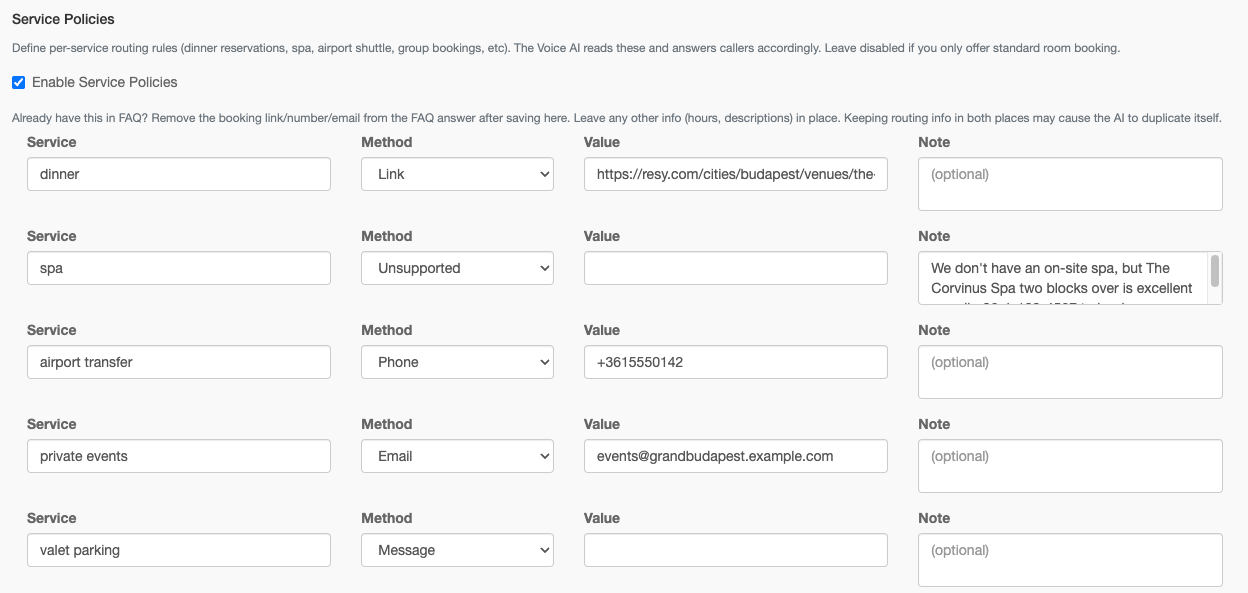
Policy Methods
Each row sets a Service name and a Method that tells the AI how to handle inquiries about it:
Examples
Post-Call Text Delivery
For Link, Phone, and Email methods, the assistant offers the value during the call but does not read it aloud. The actual delivery happens after the call through the Request Information AI automation:
During the call, the caller agrees to receive the info by text.
When the call ends, the system analyzes the transcript and detects the information request.
The seeded Voice-Info-Followup snippet is sent, which includes the
{{servicePolicies}}placeholder. That placeholder automatically expands into a formatted block of your Link, Phone, and Email rows (Message and Unsupported rows are skipped — they have no textable value).
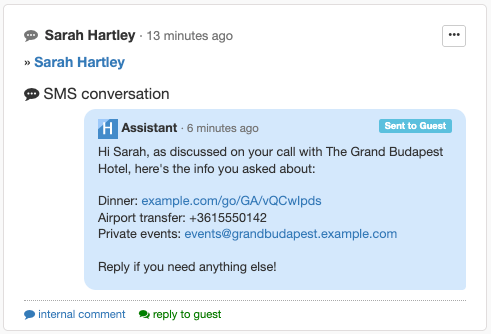
Example outbound text after a call to a property with the policies above:
Hi Sarah, as discussed on your call with The Grand Hotel, here's the info you asked about:
Dinner: https://opentable.com/r/example
Airport transfer: +15555550100
Private events: events@example.com
Reply if you need anything else!
To enable this delivery, activate the Information Follow-Up Handler automation under AI & Automation > Voice > AI Automations. The Voice-Info-Followup snippet is seeded automatically — you can edit its wording at Guest > Snippets > Voice-Info-Followup, just keep the {{servicePolicies}} placeholder so the policies are inserted at delivery time.
Rules & Limits
Service names are 3–60 characters, must be unique within your property, and cannot contain prompt-injection tokens (e.g.,
SYSTEM:,INSTRUCTIONS:,##).Reserved labels: room, rooms, reservation, reservations, booking, bookings are not allowed as service names — these are handled by the Room Booking flow. Use that section for room availability and reservations.
URLs must be HTTPS and well-formed. Unsafe schemes like
javascript:are rejected.Phone numbers should be in E.164 format with a leading
+and country code.Row order matters — policies render to the AI prompt in the order you list them.
Best Practices
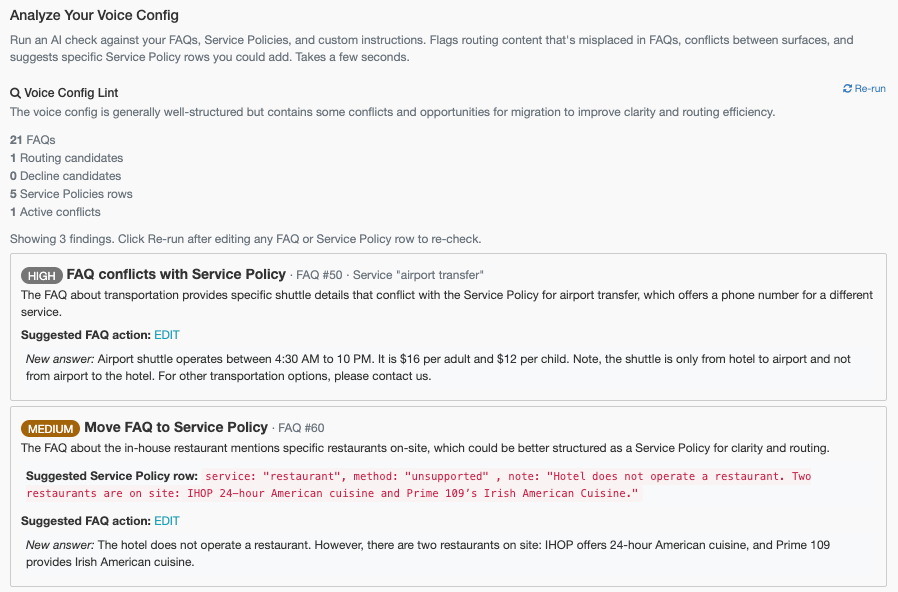
For automatic conflict detection between FAQs, Service Policies, and Custom Instructions, click Analyze Voice Config on the Customization tab. See AI Assistant Configuration for more on AI Automations setup.
Assistant Capabilities
What the Assistant Can Do
What the Assistant Cannot Do
Note: For booking inquiries, the assistant proactively offers to send a booking link via text. For requests it cannot fulfill, it takes a message for staff follow-up.
Post-Call Follow-Up
After a voice call ends, the system can automatically send follow-up text messages to guests based on the conversation content.
Booking Link Follow-Up
When a guest inquires about booking during a call, the assistant offers to send a booking link via text. After the call:
The system analyzes the call transcript to detect booking intent
Extracts dates and guest count from the conversation
Sends an SMS with a personalized booking link pre-filled with those details
This requires a Request Booking automation to be configured in AI Automations with the Send Booking Link action.
Information Follow-Up
When a guest requests information better delivered as text (directions, links, complex details), the assistant offers to text it after the call.
This requires a Request Information automation to be configured in AI Automations with the Send Snippet action.
Call Transcription & Recording
All calls are automatically transcribed and recorded.
Accessing Transcripts
Go to Guest Directory
Find the guest or search by phone number
Open the guest's conversation
Locate the "Voice Call" note
Transcript Contents:
Full conversation text
Call duration
Recording link (click to play)
Call summary
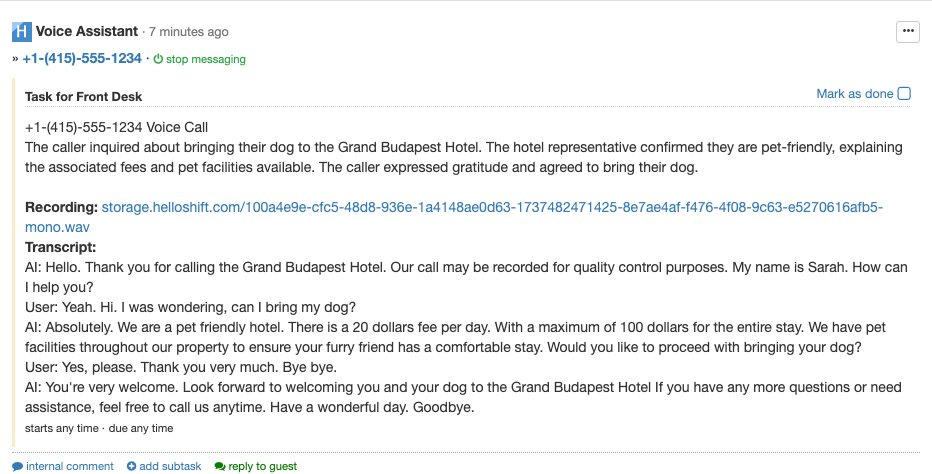
Voice Call Notes
Each call creates a note in HelloShift with:
AI Training with FAQs
The assistant uses your FAQ snippets to answer property-specific questions.
Adding FAQs
Go to Guest > Snippets
Create snippets with type FAQ
Enter common questions and answers
The assistant automatically learns from active FAQs
Best Practices for FAQs
Example FAQs:
"What are your check-in and check-out times?"
"Do you have parking available?"
"Is breakfast included?"
"What's the WiFi password?"
"Are pets allowed?"
Best Practices
Assistant Configuration
Choose an appropriate name: Match your brand voice
Test each voice: Listen to previews before selecting
Write a welcoming greeting: First impressions matter
Keep personality consistent: Match other guest communications
Transfer Rules
Set reasonable wait times: 15-30 seconds for dial-first
Configure hours accurately: Match actual staff availability
Have a default fallback: Ensure all calls get routed somewhere
Test your routing: Call your own number to verify
FAQ Content
Cover the top 10 questions: Check-in times, WiFi, parking, etc.
Update seasonally: Pool hours, restaurant schedules
Include local info: Nearby restaurants, attractions
Keep answers brief: 1-2 sentences is ideal
Troubleshooting
Calls not being answered
Possible Causes:
Voice assistant disabled
Phone number not configured
Integration issue
Solutions:
Verify assistant is enabled in settings
Check phone number is correctly set up
Contact support if issue persists
Transfers not working
Possible Causes:
Incorrect phone number format
Extension configuration issue
Destination phone not reachable
Solutions:
Use full phone number with country code
Verify extension is digits only
Test destination number directly
Guest not recognized
Possible Causes:
Phone number doesn't match records
Guest not in system
Guest calling from different number
Solutions:
Verify phone number in guest record
Ask guest to call from registered number
Manually add phone to guest profile
Poor transcription quality
Possible Causes:
Background noise on call
Poor connection
Non-supported language variant
Solutions:
Transcription is generally accurate for clear audio
Review recording for context
Report persistent issues to support
Availability & Booking Enquiries
When your property is connected to a supported PMS (Cloudbeds, Mews, or Opera), the Voice AI assistant can answer callers' questions about room availability and pricing in real time.
How It Works
A caller asks: "Do you have any rooms available next Friday through Sunday?"
The Voice AI extracts the dates and guest count from the conversation
HelloShift queries your PMS for live availability, rates, and inventory
The Voice AI reads back the options with pricing: "We have the King Suite available at $189 per night for a total of $378 for two nights. Would you like me to help you book?"
Booking Links
After providing availability, the Voice AI can also send the caller a direct booking link via SMS, pre-populated with their dates and preferences. This makes it easy for callers to complete the reservation on their phone.
Requirements
Voice AI enabled with a supported PMS (Cloudbeds, Mews, or Opera)
PMS integration must support availability queries
See AI Assistant Configuration > Availability & Booking Enquiries for rate selection settings
Related Articles
AI Assistant Configuration - Text AI and IVR setup
Guest Automations - Automated guest communications
Triggers - Event-based automations
All About Guest Messaging - Complete messaging guide