Housekeeping Time Tracking
Track housekeeper time per room with start/stop timers and view productivity reports in HelloShift.
Track cleaning times for every room to measure productivity, identify efficiency opportunities, and ensure fair workload distribution. Time tracking runs automatically when cleaners use the Start, Pause, and Complete buttons.
Overview
HelloShift automatically tracks how long each room takes to clean:
Real-time timer displays elapsed time on mobile and desktop
Pause/Resume support for interruptions (guest requests, breaks, supplies)
Per-room duration stored for historical analysis
Performance reports compare cleaners and identify trends
How Time Tracking Works
The Cleaning Timer
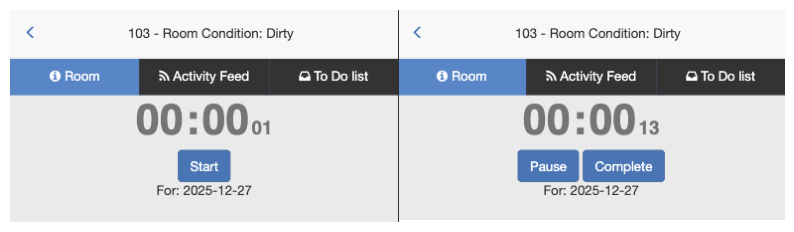
When a cleaner taps Start on a room assignment:
The timer begins counting from 00:00:00
A live clock displays hours:minutes:seconds on their device
Time accumulates until they tap Complete or Pause
Timer Status Flow
Using the Timer
Starting a Room
Open Housekeeping on your device
Tap the assigned room
Tap Start
The timer begins and displays elapsed time
Pausing for Interruptions
If you need to stop temporarily (guest knock, supply run, break):
Tap Pause
The timer stops and saves your current duration
Handle the interruption
Tap Restart to resume where you left off
Your paused time is preserved - when you restart, the timer continues from your previous duration.
Tapping DND or Refuse Service on a started room also pauses the timer — the guest action and the stop are recorded in one tap, so refused rooms don’t keep accumulating billable minutes.
Completing a Room
When the room is fully cleaned:
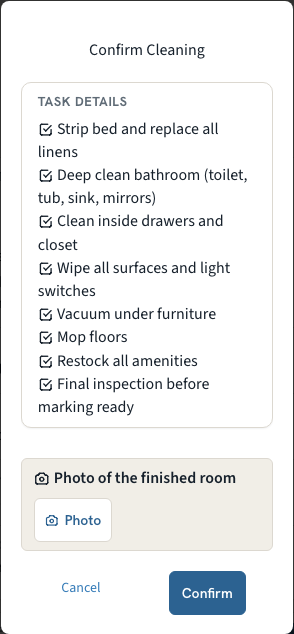
Tap Complete
Confirm the completion in the popup. If your property asks for a photo of the finished room, take it here: tap Photo and the camera opens directly (see All About Housekeeping, Photo Evidence)
The final duration is saved
The room condition changes to Clean
Cleaning Again (Re-cleaning)
If a room needs to be cleaned again after completion:
Go to the room's assignment
Tap Start to begin a new cleaning session
The timer resets and starts fresh
Viewing Cleaning Times
On the Room Page
After a room is completed, the cleaning time displays:
Desktop: In the assignment grid under "Cleaning Time"
Mobile: In the "Cleaning Time" section below the timer
Times display in human-readable format (e.g., "about 25 minutes", "less than 5 minutes").

In Reports
Access detailed time tracking data from Reports:
Go to Reports in the left sidebar
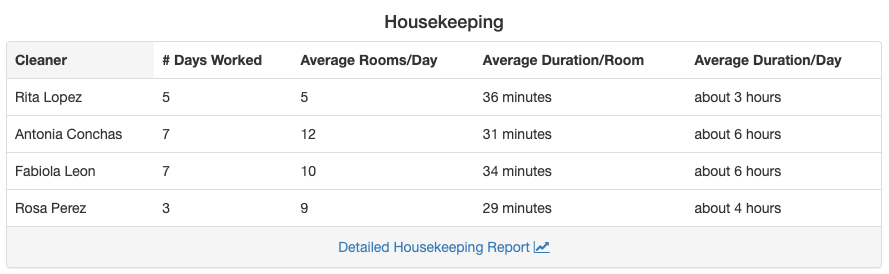
Scroll to the Housekeeping section
View summary metrics for each cleaner
The overview shows:
Detailed Housekeeping Report
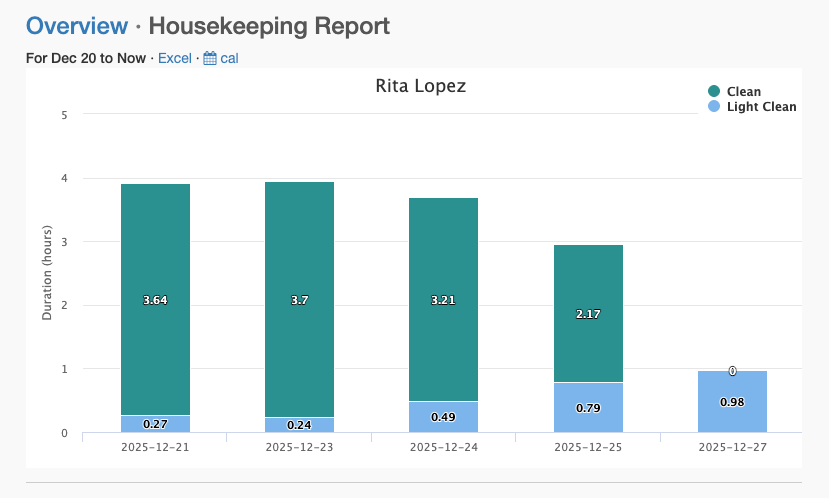
Click Detailed Housekeeping Report to see:
Per-cleaner stacked bar charts by date
Breakdown by cleaning task type (Checkout, Stayover, etc.)
Date range filtering
Excel export option
Exporting Time Data
Excel Export
Export detailed time tracking data for external analysis:
Go to Reports > Housekeeping
Set your date range using the calendar filter
Click Excel to download
The export includes:
On properties with a pre-cleaning (strip) phase, a Phase column also appears after Cleaner.
Admin Duration Override
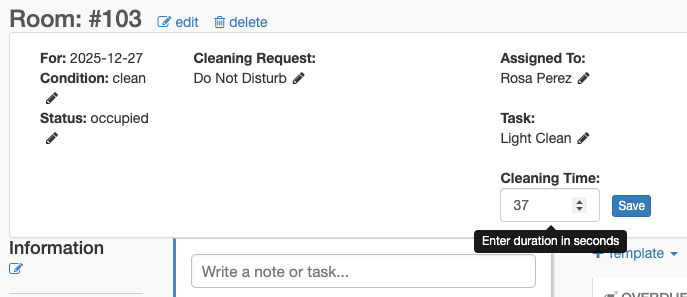
Admins can manually adjust recorded cleaning times when needed (for missed timer starts, interruptions not paused, etc.):
Editing Duration
Go to the room's assignment (after completion)
Click the pencil icon next to the displayed duration
Enter the new duration in seconds
Click Save
Note: Duration must be entered in seconds. For example:
30 minutes = 1800 seconds
1 hour = 3600 seconds
1 hour 15 minutes = 4500 seconds
Time Tracking Best Practices
For Cleaners
Start immediately when you begin a room
Pause for interruptions longer than a minute
Complete when done - don't leave rooms in "started" status
Check the timer is running before you begin cleaning
For Managers
Review weekly reports to spot efficiency trends
Compare task types - checkout cleans should take longer than stayovers
Investigate outliers - very fast or very slow times may indicate issues
Use credits with duration - compare actual time vs. expected credits
Setting Time Expectations
Use historical data to establish benchmarks:
Export 30 days of cleaning data
Calculate average duration by room type and task type
Set credit values to match realistic cleaning times
Monitor for improvements over time
Troubleshooting
Timer shows wrong time
The timer only runs when status is "Started" or "Restarted"
If you see time but didn't start, another cleaner may have started the room
Ask an admin to reset the duration if needed
Duration is missing after completion
Duration only records if the room went through Start → Complete flow
Manually setting room condition to "Clean" doesn't record duration
Always use the Start/Complete buttons for time tracking
Timer didn't pause during break
If you forgot to pause, the timer kept running
Ask an admin to manually adjust the final duration
Set a reminder to pause before stepping away
Can't see time tracking data
Time tracking requires rooms to be assigned and completed using the timer flow
Historical data only exists for rooms completed after time tracking was enabled
Check that cleaners are using Start/Complete buttons, not manual status changes
Related Articles
Room Assignment System - Assign rooms to cleaners
Housekeeping Credit System - Configure credit-based workloads
All About Housekeeping - Complete housekeeping overview
Pre-cleaning (Strip) Phase - Pre-cleaning and cleaning minutes tracked and reported separately
Was this helpful?
Still need help? Ask the team