Lost & Found
Log, track, and return lost items with HelloShift — search by description, location, or guest and manage claim status.
Track items that guests have lost or left behind, manage the claiming process, and ship items back to their owners. Lost & Found helps your team handle these situations professionally and keep guests happy.
Overview
HelloShift's Lost & Found feature lets you:
Log items that are found on property
Track items guests report as lost
Record where items are stored
Link items to guest profiles for easy contact
Manage the return shipping process
Attach photos for identification
Add notes and communicate with your team about items
Plan Required: Staff
Getting Started
Accessing Lost & Found
Click Guest Items in the left sidebar
Select Lost & Found from the navigation tabs
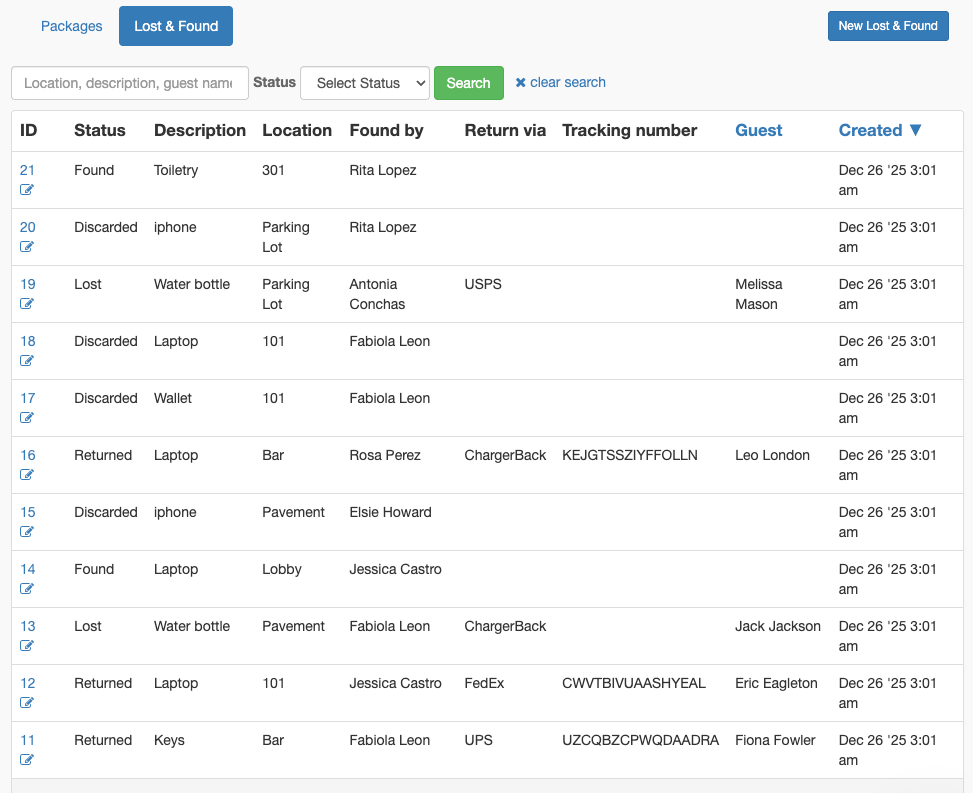
You'll see a list of all logged items with their status
Logging a Found Item
When a staff member finds an item:
Click Add in the top menu
Select Add Lost & Found
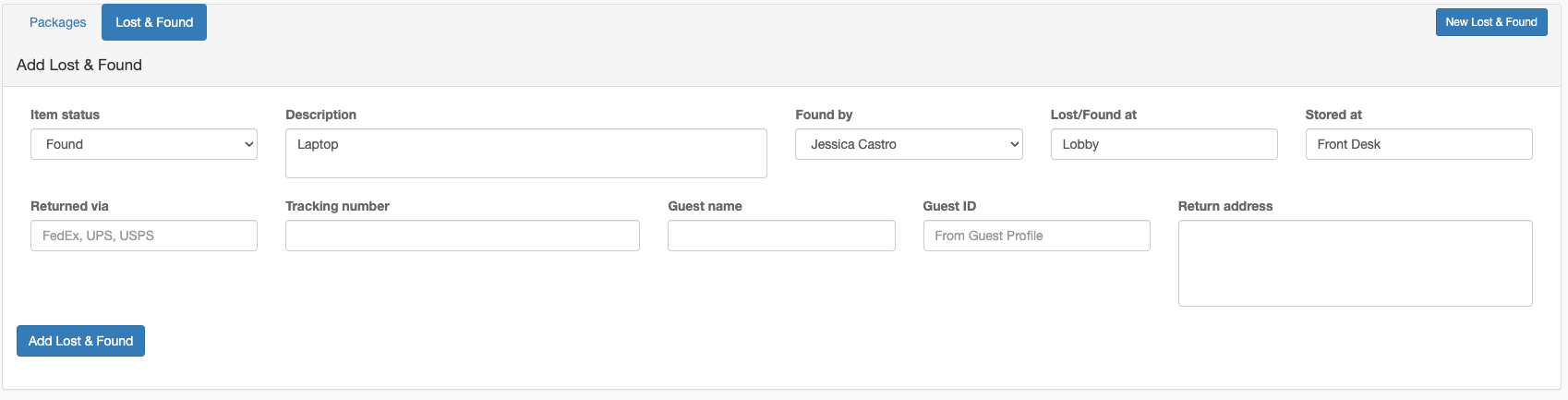
Fill in the item details:
Click Add Lost & Found
Logging a Lost Item Report
When a guest reports something missing:
Click Add > Add Lost & Found
Set Item Status to "Lost"
Enter the description based on guest's report
Add guest information so you can contact them if found
Note the location where they think they lost it
Click Add Lost & Found
Item Statuses
Lost & Found items move through these statuses:
Updating Status
Click on the item in the list to open it
Click the Edit icon
Change the Item Status dropdown
If returning, add shipping details (see below)
Click Update Lost & Found
Returning Items to Guests
When you're ready to return an item:
In-Person Pickup
Open the item record
Click Edit
Update status to "Returned"
Add a note describing the pickup (who picked up, ID verified, etc.)
Save
Shipping to Guest
Open the item record
Click Edit
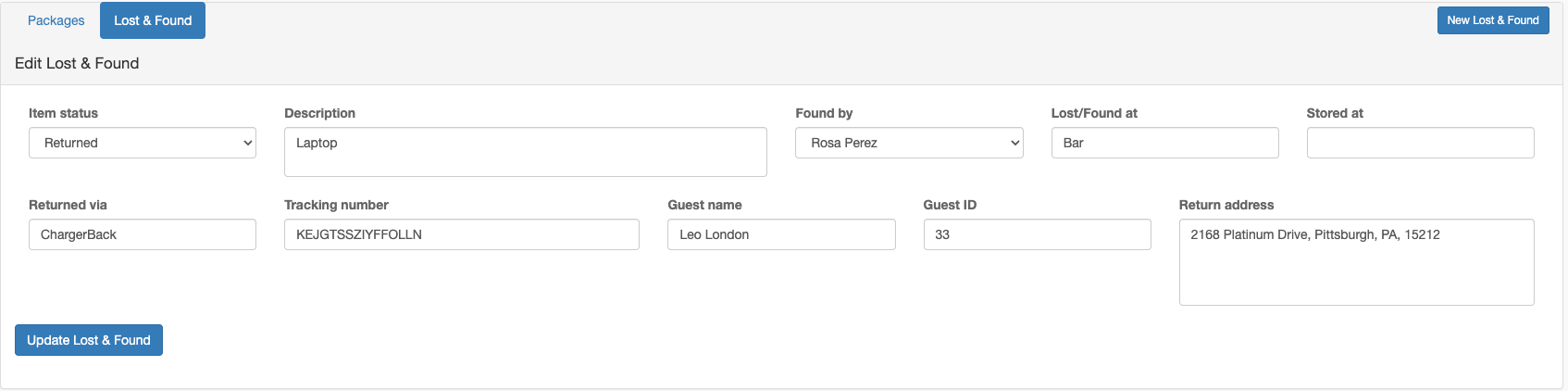
Fill in the shipping details:
Update status to "Returned"
Save
Tip: Add a note with shipping cost if you need to charge the guest or track expenses.
Managing Lost & Found
Searching and Filtering
Search by:
Location
Description
Guest name
Filter by status:
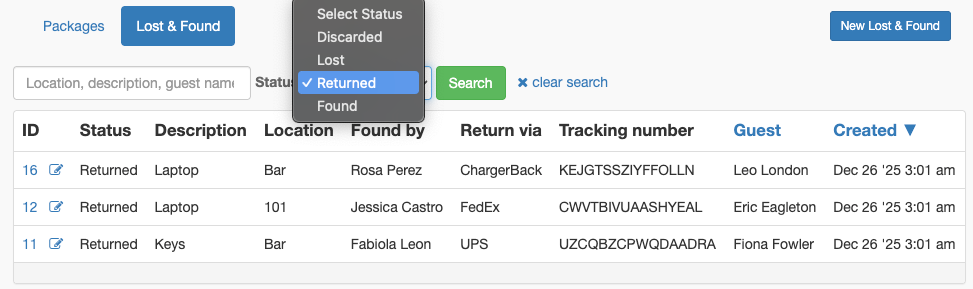
Use the Status dropdown to show only Lost, Found, Returned, or Discarded items
Sort by:
Click column headers to sort by Guest name or Created date
Item Detail Page
Click on any item to see its full record:
Item Information: All logged details including status, locations, guest info
Notes: Add internal notes about the item (e.g., "Guest will pick up tomorrow")
Activity: See the history of updates
Attachments: View or add photos
Tasks: Create follow-up tasks (e.g., "Call guest about found item")
Linking to Guest Profiles
To connect a Lost & Found item to a guest:
Open the guest's profile in HelloShift
Copy the Guest ID number from the URL or profile
Edit the Lost & Found item
Paste the ID in the Guest ID field
Save
This links the item to the guest record for easy reference.
Best Practices
When Logging Items
Take photos: Attach a clear photo of every found item for identification
Be specific: Include identifying details (color, brand, size, condition)
Note the location: Record exactly where it was found
Store securely: Use a designated Lost & Found area with limited access
Retention Policy
Set clear guidelines for how long you keep items:
Valuable items (electronics, jewelry): 90+ days
Clothing: 30-60 days
Toiletries/consumables: 7-14 days or discard immediately
Document your policy and mark items for disposal when the retention period expires.
Communication
Reach out to guests promptly when you find their items
Create a task to follow up if guest doesn't respond
Keep notes on all contact attempts
Confirm shipping address before mailing valuable items
Troubleshooting
Can't Find an Item in the List
Symptom: You know an item was logged but can't see it
Solutions:
Clear any active search or status filters
Check if item was marked as "Returned" or "Discarded"
Search by a different field (description vs. guest name)
Item Not Linked to Guest
Symptom: Guest ID field shows number but no guest name appears
Solution: The Guest ID must exactly match an existing guest profile. Verify the ID is correct by checking the guest's profile page.
Can't Upload Photo
Symptom: Attachment won't save
Solutions:
Check file size (reduce if very large)
Try a different image format (JPG, PNG work best)
Save the item first, then edit to add attachment