Creating Tasks with HelloShift
Create, assign, and track tasks for your hotel team — set due dates, priorities, and departments in HelloShift.
Tasks help you track work that needs to get done. Assign tasks to individuals or departments, set deadlines, and monitor progress to ensure nothing falls through the cracks.
Overview
HelloShift offers several ways to manage tasks:
Spontaneous Tasks: One-time tasks created on the fly
Template Tasks: Reusable task templates for common work
Recurring Tasks (Checklists): Automatically generated tasks on a schedule
Spontaneous Tasks
Create spontaneous tasks for immediate or one-time assignments, like responding to a guest request or handling a maintenance issue.
How to Create a Task
Click in the "Write a note or task" box at the top of any page

Click the "Make this a task" button
Fill in the task details:
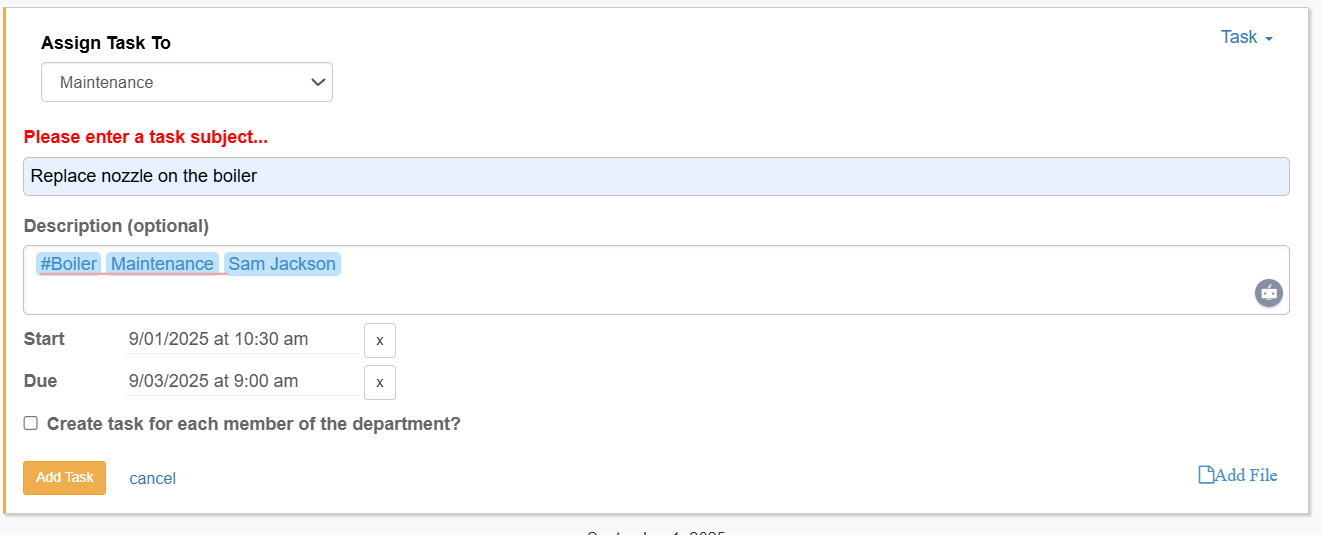
Click Add Task
The task appears in:
Your Watching list (so you can track progress)
The assignee's To Do list
Task Priority
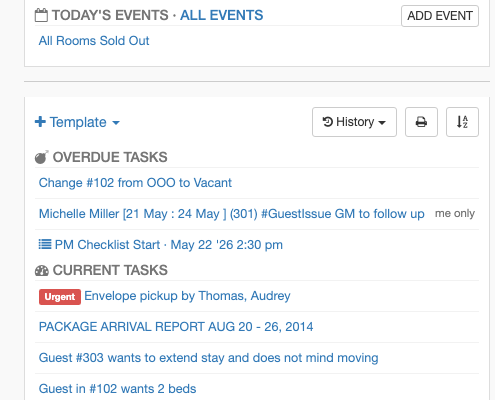
Mark a task as Urgent when it needs to surface to the top of every task list and push the assignee immediately. Use the badge sparingly so it keeps its signal value — if everything is urgent, nothing is.
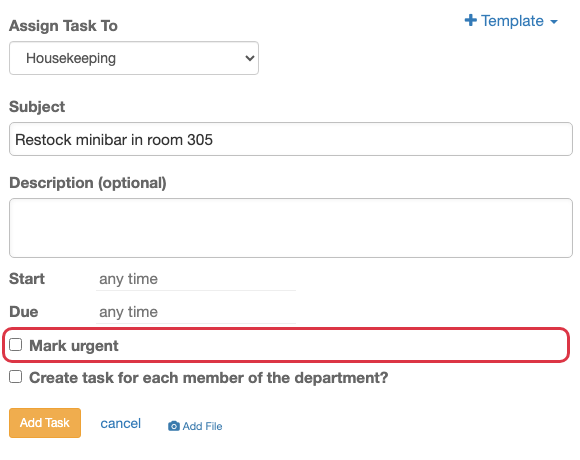
Setting Priority on a New Task
Open the task form by clicking Make this a task in the note box
Fill in the task details as usual (assignee, subject, description, start, due)
Check Mark urgent below the deadline fields, then click Create
Changing Priority on an Existing Task
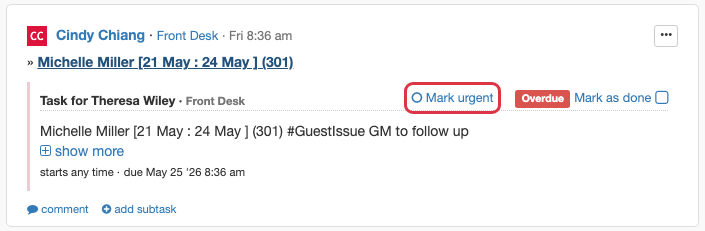
Open the task from the To Do list or Task Dashboard. Next to Mark as done, click:
Mark urgent — escalates a normal task. The assignee receives a push notification (same fanout used for "Task completed").
Urgent (red, with exclamation icon) — already urgent; clicking downgrades it back to normal.
Where Urgent Tasks Show Up
Best Practices
Set urgency at creation time for known rush items so assignees see the priority on first glance
Use urgent for time-bound, blocking work — VIP arrivals, safety/security, escalations from guests
Downgrade once the rush passes so older urgent tasks don't dilute today's actually-urgent ones
Task Notifications & Escalation
HelloShift automatically sends notifications to keep everyone informed about task status.
Notification Timeline
Escalation Behavior
Tasks use notification-based escalation:
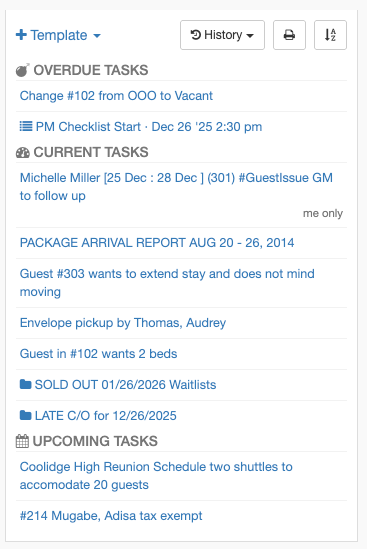
When a task passes its deadline without being completed, it's marked as Overdue
Overdue tasks appear with a red indicator in task lists
Overdue notifications are sent to alert the assignee and creator
Overdue tasks are tracked in management reports for accountability
Note: Tasks do not automatically reassign or change status beyond "overdue." Managers should monitor the task dashboard and intervene when needed.
Task Status Indicators
Subtasks
You can create subtasks to break complex work into smaller pieces.
How Subtasks Work
Subtasks are linked to a parent task
Each subtask can be assigned to different people
Completing all subtasks doesn't automatically complete the parent task
When a parent task is archived, all subtasks are also archived
Creating Subtasks
Open an existing task
Click Add Subtask
Fill in the subtask details
Assign to the appropriate person or department
Use Case: A "Room Deep Clean" parent task might have subtasks for "Clean bathroom," "Replace linens," "Check minibar," and "Vacuum floors."
Recurring Tasks (Checklists)
For work that repeats on a schedule, use Checklists (also called MetaTasks). Checklists automatically generate task instances based on your schedule.
Examples of Recurring Tasks
Daily opening/closing checklists
Weekly pool inspections
Monthly safety equipment checks
Quarterly maintenance reviews
Setting Up Recurring Tasks
See Checklists for complete instructions on:
Creating checklist templates
Setting up recurrence schedules (daily, weekly, monthly, custom)
Assigning to rooms, equipment, or staff
Tracking completion across all instances
Template Tasks
Template Tasks are reusable task patterns you can quickly deploy without recreating the details each time.
How Templates Work
Create a template once with all the standard details
When you need that type of task, select the template
Adjust any specifics (room number, assignee, date)
Create the task
Setting Up Templates
See Template Tasks for complete instructions on:
Creating department-specific templates
Using templates from the task creation screen
Managing and updating your template library
Task Dashboard
View and manage all tasks from the Task Dashboard.
Accessing the Dashboard
Click Tasks in the left sidebar
Choose a tab:
Dashboard: Overview of all departments, staff, and tags with status indicators
All: List view of all tasks with filtering options
Templates: Manage reusable task templates
Dashboard View
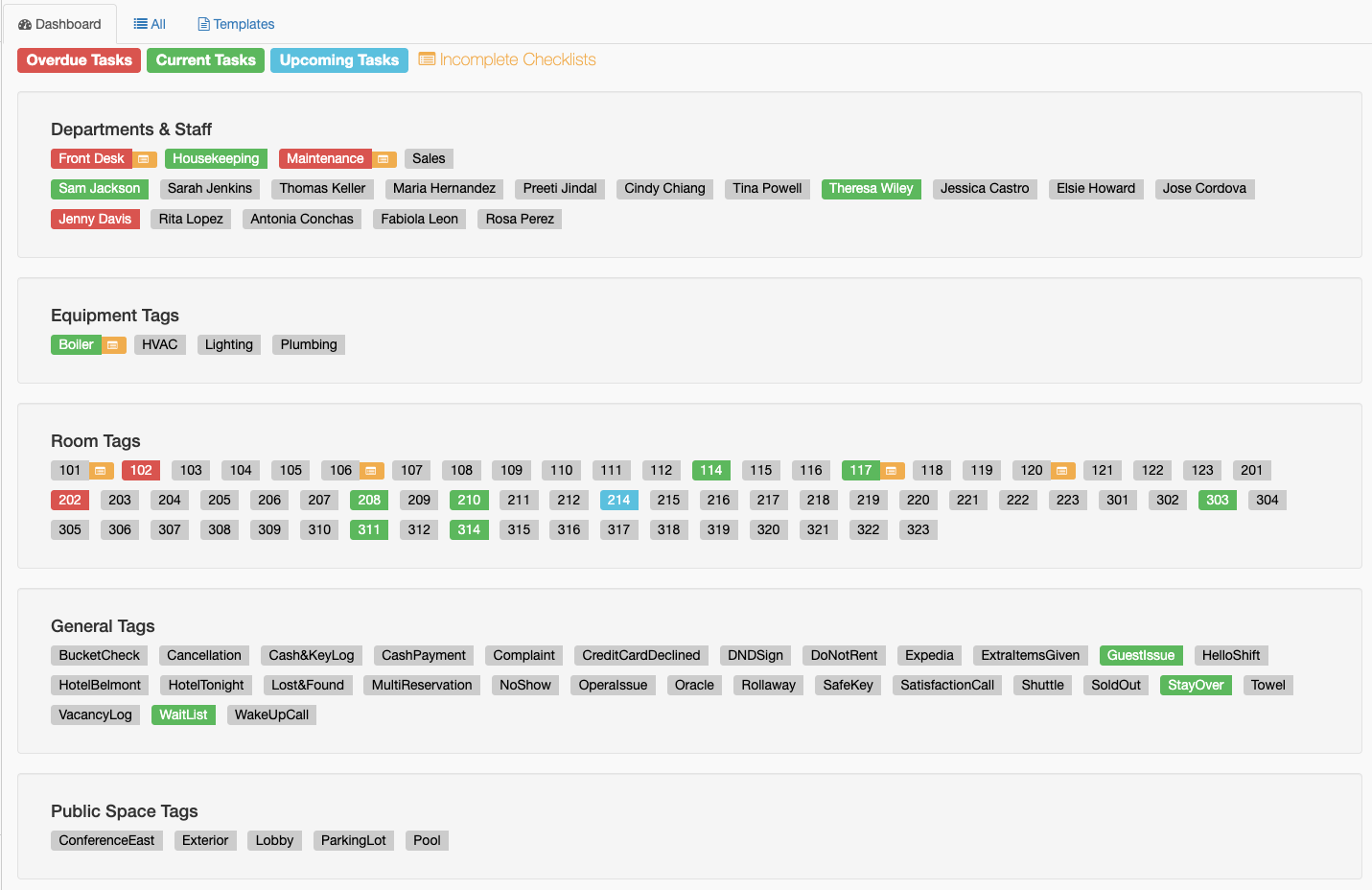
The Dashboard tab provides a visual overview showing:
Departments & Staff
Each department and staff member appears as a clickable label
Color indicates task status:
Red: Has overdue tasks
Green: Has current (active) tasks
Blue: Has upcoming tasks
Gray: No pending tasks
Checklist icon shows incomplete checklists count
Tags by Type
Room tags, Equipment tags, Space tags, and Custom tags
Same color-coding as staff (red/green/blue/gray)
Click any tag to see all associated tasks
All Tasks View
The All tab shows a filterable list of tasks:
Status filter: Incomplete, Complete, All
Date range: Filter by creation or due date
Search: Find tasks by keyword
Export: Download task list as spreadsheet
Templates View
Manage your reusable task templates:
View all templates by department
Create new templates
Edit or delete existing templates
See Template Tasks for details.
Task Completion
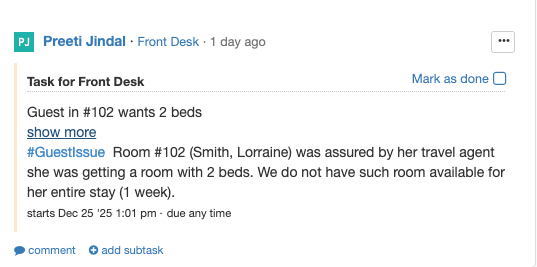
Completing a Task
Open the task from your To Do list or the Task Dashboard
Review the task details and any attachments
Click Complete or Mark Complete
Optionally add a completion note
Completion Tracking
HelloShift tracks detailed metrics for completed tasks:
Completion time: How long from start to completion
Completed by: Who marked the task complete
Completed at: Exact timestamp
On-time vs. Overdue: Whether it was completed before or after the deadline
These metrics appear in task reports for performance analysis.
Best Practices
Writing Good Task Subjects
Setting Effective Deadlines
Set realistic due times based on task complexity
Include buffer time for unexpected delays
For urgent tasks, set a due time within the next few hours
For routine tasks, align due times with shift changes
Using @Mentions
@mention team leads when tasks affect their area
@mention the guest-facing team if a task affects a guest
Use @all sparingly for truly urgent, property-wide issues
Troubleshooting
Task doesn't appear in assignee's list
Verify the correct person or department was selected
Check that the user is an active member of the assigned department
Confirm the task status is "active" (not archived or draft)
Notifications aren't being received
Check user notification settings in their profile
Verify phone numbers are correct for SMS notifications
Ensure push notifications are enabled on mobile devices
Task shows wrong status
Task status is calculated based on start time, due time, and completion
Refresh the page to see the current status
If status seems wrong, verify the start/due times are set correctly
Related Articles
Checklists - Set up recurring checklists
Template Tasks - Create reusable task templates
How To Use Tags (#) & Mentions (@) - Organize and route tasks with tags
Organizing Notes & Tasks - Pin and star items for quick access
Adding a photo to a task that is already posted
Editing a task does not let you attach media. To add a photo after the fact, comment on the task and attach the photo to the comment — on mobile, open the task, tap the comment box, then use the Photo button to take or choose an image. The photo stays with the task and everyone following it is notified.
A comment can be just a photo, with no text. HelloShift captions it Photo attached. On mobile, picking a photo reveals the Save button right away, and phone photos are reduced in size before upload so they save quickly on hotel Wi-Fi.
Photos attached this way work the same on desktop and in the mobile apps.
Was this helpful?
Still need help? Ask the team