Review Dashboard & Guest Feedback
Monitor guest reviews and feedback scores in one dashboard — track trends and respond to reviews in HelloShift.
HelloShift's Review Dashboard helps you collect guest feedback, monitor satisfaction scores, and direct guests to leave reviews on platforms like TripAdvisor and Google. Turn positive guest experiences into online reviews and catch issues before they become negative ones.
Overview
How Guest Feedback Works
Feedback Flow
Mid-Stay Check - Ask guests "How's your stay?" via SMS
Guest Responds - They reply with a score (1-5)
Score Recorded - HelloShift captures the rating
Low Score Alert - Staff notified if below cutoff
Post-Stay Review - Happy guests directed to review platforms
Score-Based Routing
Configuring Guest Scores
Setting Score Range
Go to Admin > Settings > Guest
Find Score Settings
Configure:
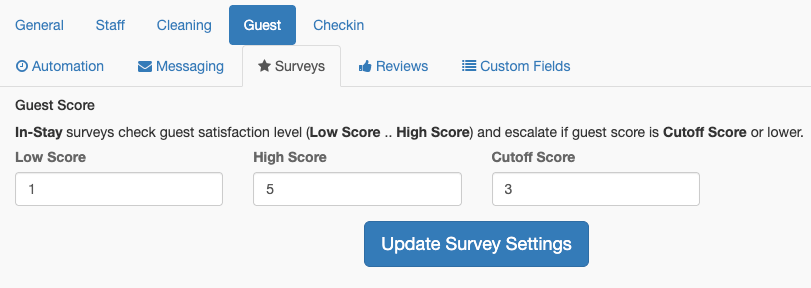
How Score Cutoff Works
Below Cutoff: Triggers alert to staff
At or Above Cutoff: Considered positive feedback
Example: With cutoff of 3:
Scores 1-2: Alert staff for follow-up
Scores 3-5: Consider for review request
Collecting Guest Feedback
Mid-Stay Message
Use the In-Stay automation to request feedback:
Snippet Example:
Welcome {{firstName}}! On a scale of 1-5 stars, how is your stay so far?Capturing Scores
When a guest replies with a number (1-5):
HelloShift automatically captures the score
Score is saved to the guest record
If below cutoff, staff is notified
Guest conversation continues
Low Score Alerts
When a guest gives a low score:
Designated staff receive notifications
Alert includes guest name and score
Staff can follow up to resolve issues
Service recovery prevents negative review
Configuring Score Alerts
Go to Admin > Settings > Guest
Set Guest Alert User:
Everyone: All staff receive alerts
Specific User: Only that user receives alerts
Review Links
Direct satisfied guests to review platforms.
Setting Up Review Links
Go to Admin > Settings > Guest
Find Review Links section
Add your review platform links:
Adding a Review Link
Enter Platform Name (e.g., "TripAdvisor")
Enter Link URL (full URL to your review page)
Click Add
Repeat for additional platforms
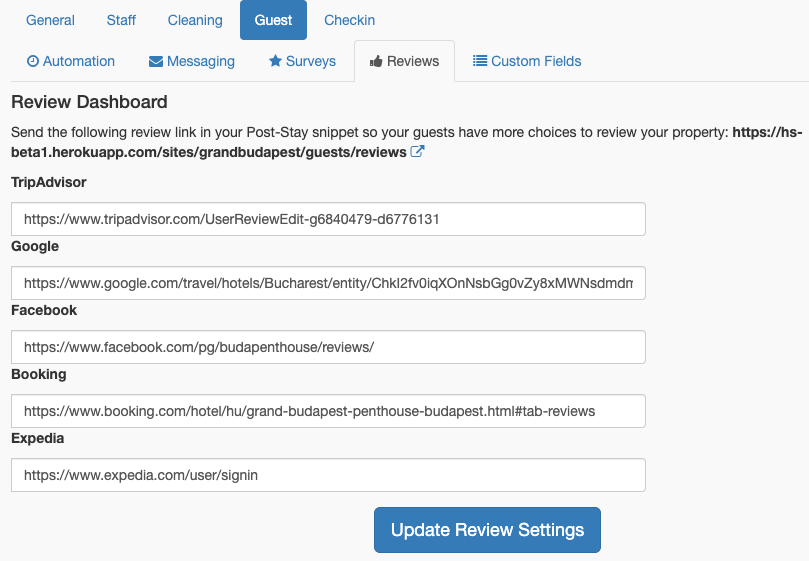
Review Link Page
When guests visit the review page:
They see buttons for each configured platform
Clicking a button opens the review site
Optional tip button if tipping is enabled
Review Page URL: https://app.helloshift.com/sites/{site}/origins/reviews
Use this URL in post-stay messages to direct guests to review.
Post-Stay Review Requests
Automate review requests after checkout.
Setting Up Review Automation
Go to AI & Automation > Scheduled Automations
Create or edit the Post-Stay automation:
Post-Stay Snippet Example
Thanks {{firstName}} for staying with us! If you enjoyed your stay,we'd love for you to share your experience: [Review Link]Safe travels!Conditional Review Requests
Only request reviews from satisfied guests:
Add a Check to your automation
Use Guest Score > Cutoff condition
Only guests with good scores receive requests
Automation with Score Check:
Viewing Guest Scores
Guest Directory
View scores in the guest directory:
Go to Guest Directory
Look for score indicator on guest cards

Guest Profile
View score on individual guest profile:
Click on a guest in the directory
See their score in the details panel
View message history for context
Reports
Analyze satisfaction trends:
Go to Reports
View guest satisfaction metrics
Filter by date range
See score distribution
Guest Score Conditions
Use guest scores in automations and triggers.
Available Conditions
Recommended: Route at Reply Time (Trigger)
The Guest Score Received trigger event fires the moment a guest answers the In-Stay survey, so review capture happens in the same conversation:
Event: Guest Score Received
Condition: Guest Score > Cutoff
Action: Send Snippet (review-ask snippet with the direct review link)Event: Guest Score Received
Condition: Guest Score ≤ Cutoff
Action: Send Snippet (service recovery message — never the public review link)Low scores also notify staff via the built-in alert regardless of triggers. See the Triggers article for the full recipe. If you adopt reply-time routing, deactivate the day-of-departure review request below so guests aren’t asked twice.
Alternative: Skip Review for Low Scores (Scheduled)
A scheduled automation that only sends the review request to happy guests, on departure day:
Audience: Departed Yesterday
Check: Guest Score > Cutoff
Action: Send Post-Stay snippet
Guests with low scores won’t receive review requests. Pair it with a Guest Score ≤ Cutoff scheduled job (e.g. a morning manager follow-up) for the unhappy side.
Best Practices
Timing
Service Recovery
Respond Quickly - Address low scores within an hour
Acknowledge the Issue - Thank them for the feedback
Take Action - Fix the problem if possible
Follow Up - Let them know what was done
Offer Compensation - When appropriate
Review Requests
Time It Right - Send the morning after checkout
Keep It Brief - Short message with clear call-to-action
Make It Easy - Direct link to review platform
Don't Spam - One request per stay
Be Genuine - Authentic thank-you message
Score Thresholds
Recommendation: Start with cutoff of 3, adjust based on results.
Integration with Messaging
Post-Stay Snippet Variables
Use these variables in review request snippets:
Note: The review link should be added as a static URL in your snippet, or use the built-in review page URL.
Built-in Review URL
HelloShift provides a review page URL:
https://app.helloshift.com/sites/{site_id}/origins/reviews?guest_code={{origin_key}}This page displays all your configured review platforms.
Troubleshooting
Scores not being captured
Guest must reply with just a number (1-5)
Check score range settings (low/high)
Verify mid-stay message is being sent
Low score alerts not working
Verify score cutoff is set correctly
Check guest alert user is configured
Confirm notification settings for that user
Review link page is empty
Add review links in Guest settings
Verify links are complete URLs
Check links are active (not empty)
Guests not leaving reviews
Ensure timing is right (not too soon)
Check snippet is being sent
Verify review links work
Consider offering incentive
Related Articles
Was this helpful?
Still need help? Ask the team