Unlimited Automations Guide
Build custom automation workflows with unlimited triggers, conditions, and actions in HelloShift.
The Guest+ plan unlocks unlimited guest automations beyond the 3-automation limit of the Guest Messaging plan. Create custom scheduled automations, event triggers, key management, and room automations.
Overview
What's Included with Unlimited Automations
Message Automations (Unlimited)
Create any number of scheduled message automations:
Key Automations
Automate smart lock access code management:
Room Automations
Schedule housekeeping tasks automatically:
Event Triggers
React instantly to guest lifecycle events:
Accessing Automation Settings
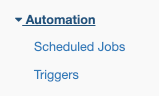
Go to Automation (top navigation)
Choose the automation type:
Creating Custom Scheduled Automations
Step 1: Choose Automation Type
Go to AI & Automation > Scheduled Automations and select the tab:
Step 2: Click New Automation
Click New Message Automation (or New Room Automation on the Room tab) to create a new automation.
Step 3: Configure the Automation
Step 4: Save and Activate
Click Add Guest Message Automation
Toggle Active to enable
Audience Conditions
Target specific guests based on their stay status:
Arrival-Based
Departure-Based
In-Stay
Custom Conditions with Liquid
Add advanced filtering using Liquid template logic.
How to Use
Select Custom Condition from the Check dropdown
Enter Liquid code that returns
trueorfalseOnly guests matching
truereceive the automation
Available Variables
Example Conditions
VIP Guests Only:
{% if guest_stay.guest_type contains 'VIP' %}true{% else %}false{% endif %}Long Stays (7+ nights):
{% assign nights = guest_stay.nights | plus: 0 %}{% if nights >= 7 %}true{% else %}false{% endif %}Direct Bookings Only:
{% if guest_stay.booking_source == 'Direct' %}true{% else %}false{% endif %}Day 3 of Stay:
{% if guest_stay.stay_day_number == 3 %}true{% else %}false{% endif %}Payment Received and Arriving Today:
{% if guest_stay.payment_received and guest_stay.arrival_today %}true{% else %}false{% endif %}Message Automation Examples
Pre-Arrival Sequence
Create multiple touchpoints before arrival:
7 Days Before (for long-lead bookings):
2 Days Before:
Day Before:
Mid-Stay Check-In
Post-Departure Sequence
Day of Checkout:
Day After Checkout:
Key Automation Examples
Standard Key Flow
Issue Keys on Arrival Day:
Revoke Keys on Checkout:
Early Access Keys
For guests with early arrivals:
Room Automation Examples
Daily Housekeeping
Stayover Clean:
Every 3rd Day Clean (for extended stays):
Departure Turnovers
Event Triggers
Triggers fire immediately when guest events occur, unlike scheduled automations that run at set times.
Creating a Trigger
Go to AI & Automation > Triggers
Click New Trigger
Configure:
Common Trigger Examples
Walk-in Key Issue (immediate key for same-day bookings):
Post-Payment Confirmation:
Cancellation Key Revoke:
See Triggers for complete trigger documentation.
Combining Scheduled Automations and Triggers
Use both automation types together for comprehensive coverage.
Example: Complete Check-in Flow
Scheduled Automations:
2 days before: Send pre-check-in request
Day before: Send reminder if incomplete
Arrival morning: Final reminder
Triggers:
On pre-check-in complete: Confirmation message
On payment received: Issue access keys
On PMS check-in: Welcome message
Example: Checkout and Turnover Flow
Triggers:
On checkout: Set room to dirty, notify cleaner
Scheduled Automations:
Morning of checkout: Assign cleaning task
After checkout: Thank you message
Day after: Review request
Per-Stay vs Per-Guest Messaging
Control how messages are sent to guests with multiple reservations.
Per-Guest (Default)
One message per guest, regardless of number of stays
Uses first matching stay for variables
Best for general communications
Per-Stay
Separate message for each matching stay
Variables reflect each individual stay
Best for stay-specific information (room numbers, dates)
Enable Per-Stay:
Create the automation
Toggle Per-Stay option on
Save
Preview and Testing
Before activating automations, preview which guests match.
Using Preview
Create automation in Inactive status
Click Preview
View list of guests that would match
Verify the list is correct
Activate when ready
Testing Tips
Start with automations Inactive
Use Preview to verify targeting
Enable for a single day to test
Monitor results before full activation
Automation Message Hours
Restrict when message automations can send.
Setting Message Hours
Go to Admin > Settings > Messaging
Configure Automation Message Hours:
Start Time (e.g., 8:00 AM)
End Time (e.g., 9:00 PM)
Save settings
Messages scheduled outside these hours will not send.
Best Practices
Message Frequency
Timing Recommendations
Avoid Common Mistakes
Troubleshooting
Automation not firing
Possible Causes:
Automation is inactive
Condition doesn't match any guests
Time hasn't arrived yet
Solutions:
Verify automation status is Active
Use Preview to check matching guests
Confirm send time and timezone
Wrong guests receiving messages
Possible Causes:
Audience condition too broad
Custom condition logic error
Overlapping automations
Solutions:
Review audience settings
Test custom Liquid conditions
Audit all active automations
Keys not issuing
Possible Causes:
Smart lock not configured
Room not mapped to lock
Payment condition not met
Solutions:
Verify smart lock integration
Check room-lock mapping
Review payment status
Related Articles
Guest Automations - Scheduled automation details
Triggers - Event-based automations
Snippets & Templates - Message templates
Room & Cleaning Automations - Housekeeping automation
Contactless Check-in Setup - Check-in configuration