Pre-cleaning (Strip) Phase
Track a pre-cleaning (strip) pass before the full clean: separate worker and timer, Pickup room status, and the cleaner blocked until it is done.
Some properties clean a checkout in two passes: a pre-cleaning (often called a strip or prep) by one team, then the full clean by another. HelloShift tracks each pass as its own job with its own worker and its own timer, keeps the clean from starting until the pre-cleaning is done, and tells your PMS the room is in Pickup in between.
Overview
Two jobs per checkout room: a pre-cleaning job and a cleaning job, each with a worker, a task type and a timer
Sequencing: the cleaner's Start button stays off until the pre-cleaning is complete; the cleaner gets a notification the moment it is
Room condition: Dirty → Pickup (pre-cleaned) → Clean → Inspected
Time per phase: reports and the Excel export show pre-cleaning minutes and cleaning minutes separately, for hourly billing
Nothing changes for properties that do not use it: the extra column, buttons and Pickup status only appear once you add a Pre-cleaning Action
Room condition flow
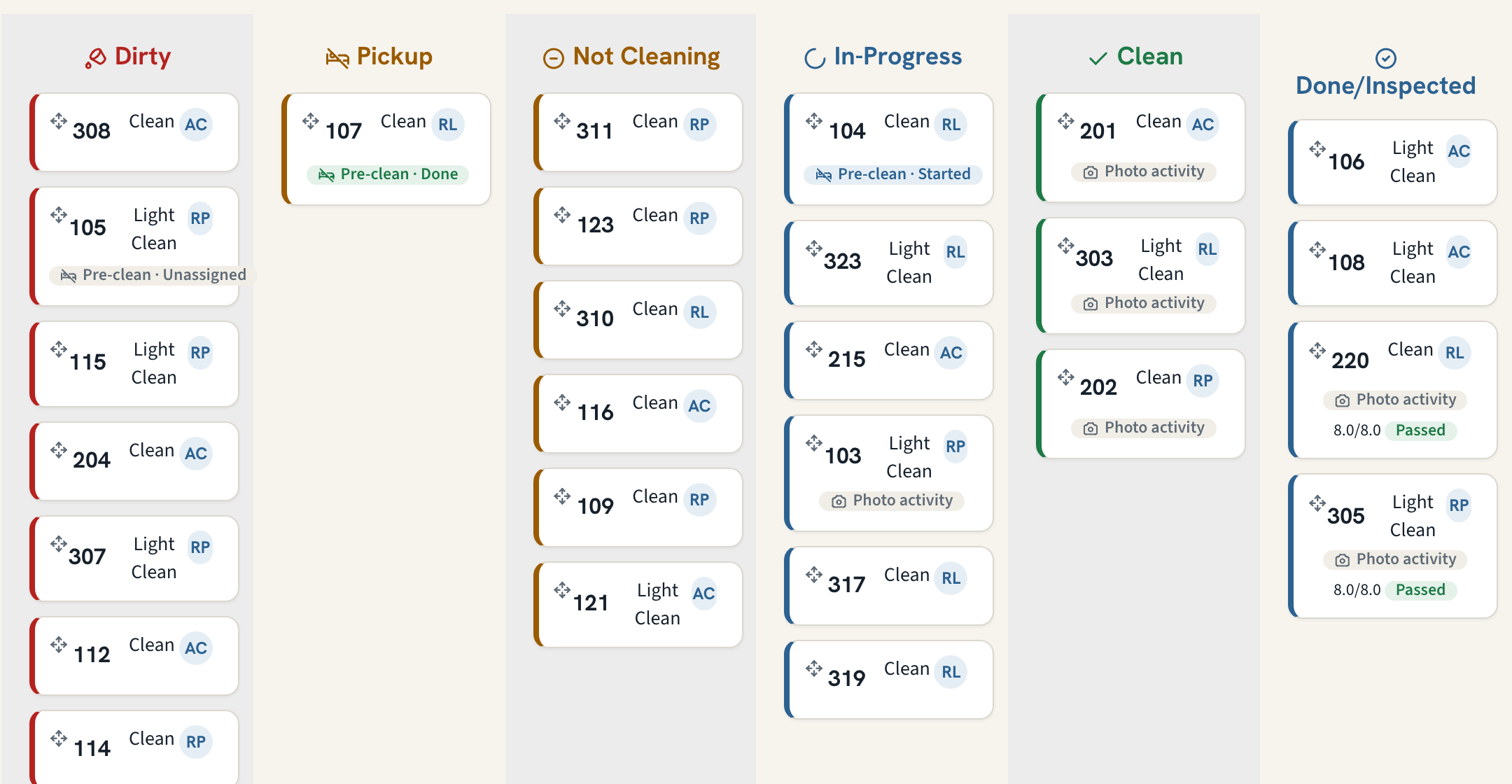
Pickup is Opera's own word for a room that needs less than a full clean. In HelloShift it counts as "still needs cleaning": the room stays in the Dirty lanes of the board and shows the Pickup badge.
Turning it on
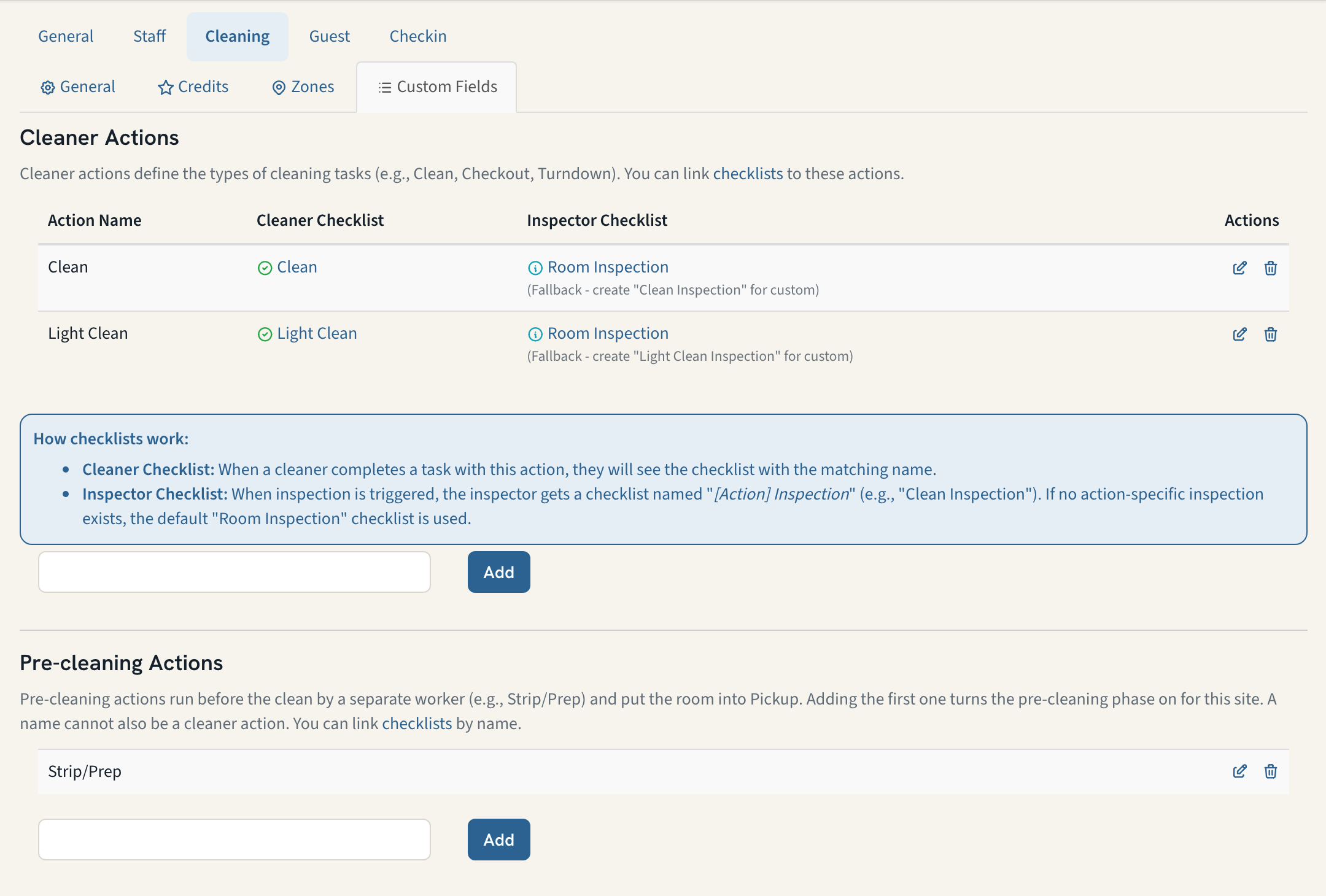
Go to Settings → Housekeeping → Custom Fields
Under Pre-cleaning Actions, add a name such as Strip/Prep. Adding the first one turns the feature on for your property; removing the last one turns it off
A name cannot also be a Cleaner Action (clean type): each label belongs to one phase so reports never merge the two
Optional: create a checklist with exactly the same name. The worker sees its items in the Complete popup, like a clean type does (see All About Housekeeping)
Pre-cleanings never require a photo and never create an inspection.
Planning the pre-cleaning
On the Assignments page
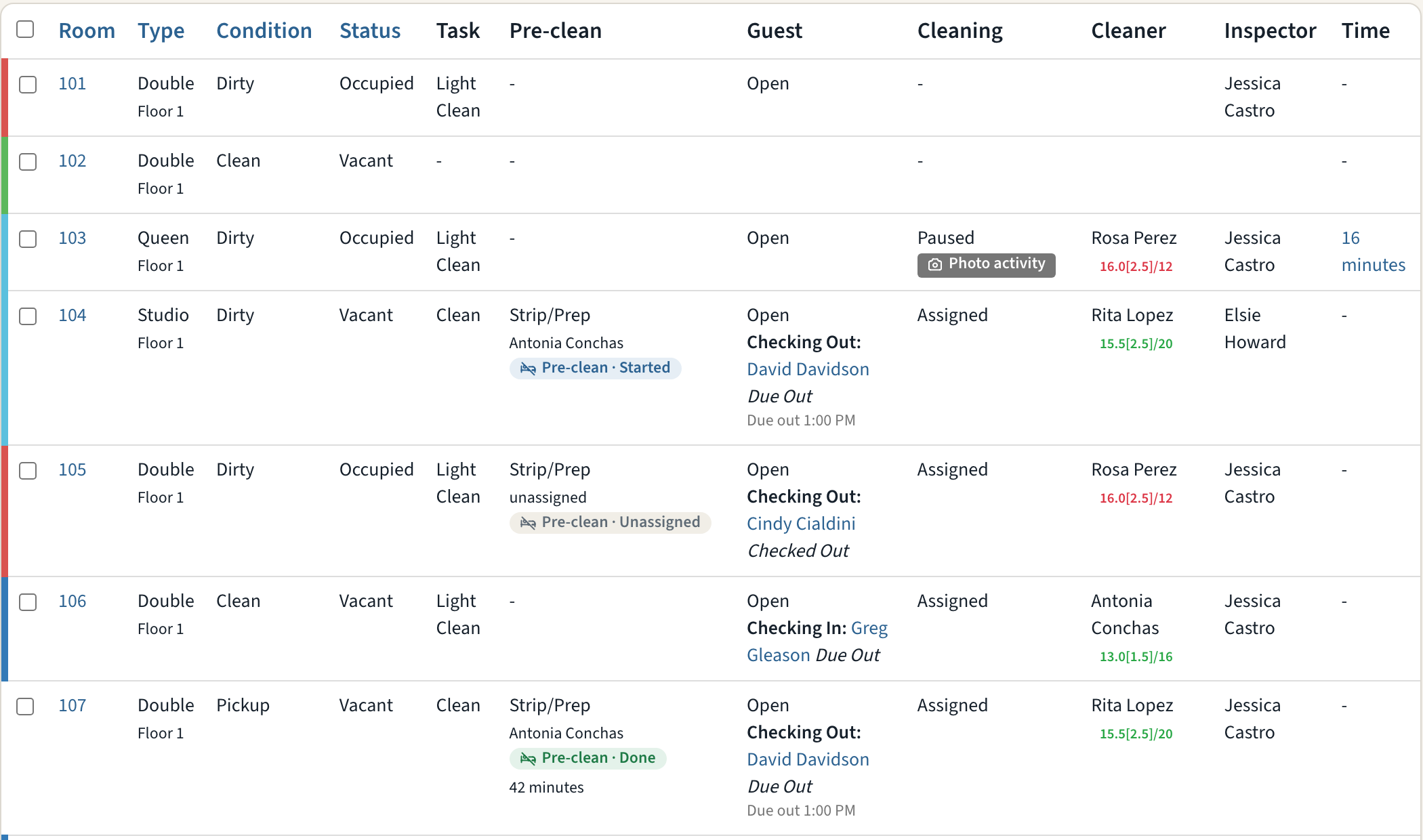
A Pre-clean column (the short label used on pills and columns) shows each room's pre-cleaning task, worker, status and minutes
Select rooms and use Assign Pre-cleaner, Unassign Pre-cleaner or Set Pre-cleaning Task; Multiple Actions can set the pre-cleaner and the cleaner together
Clear assignments resets both jobs, but never a job that already has recorded time

On the room page
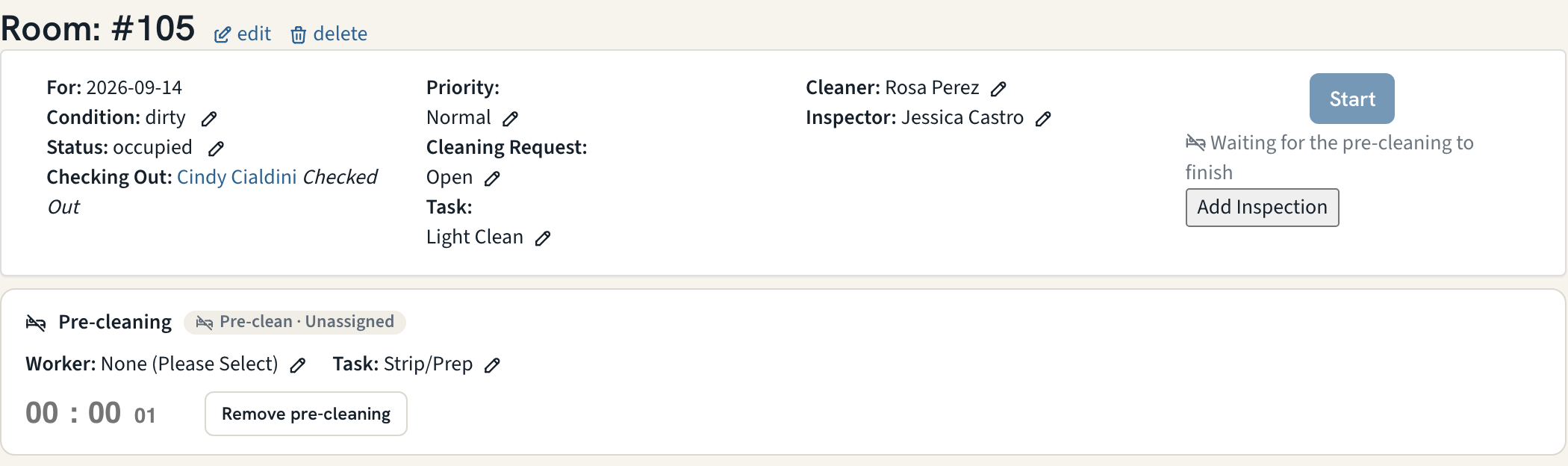
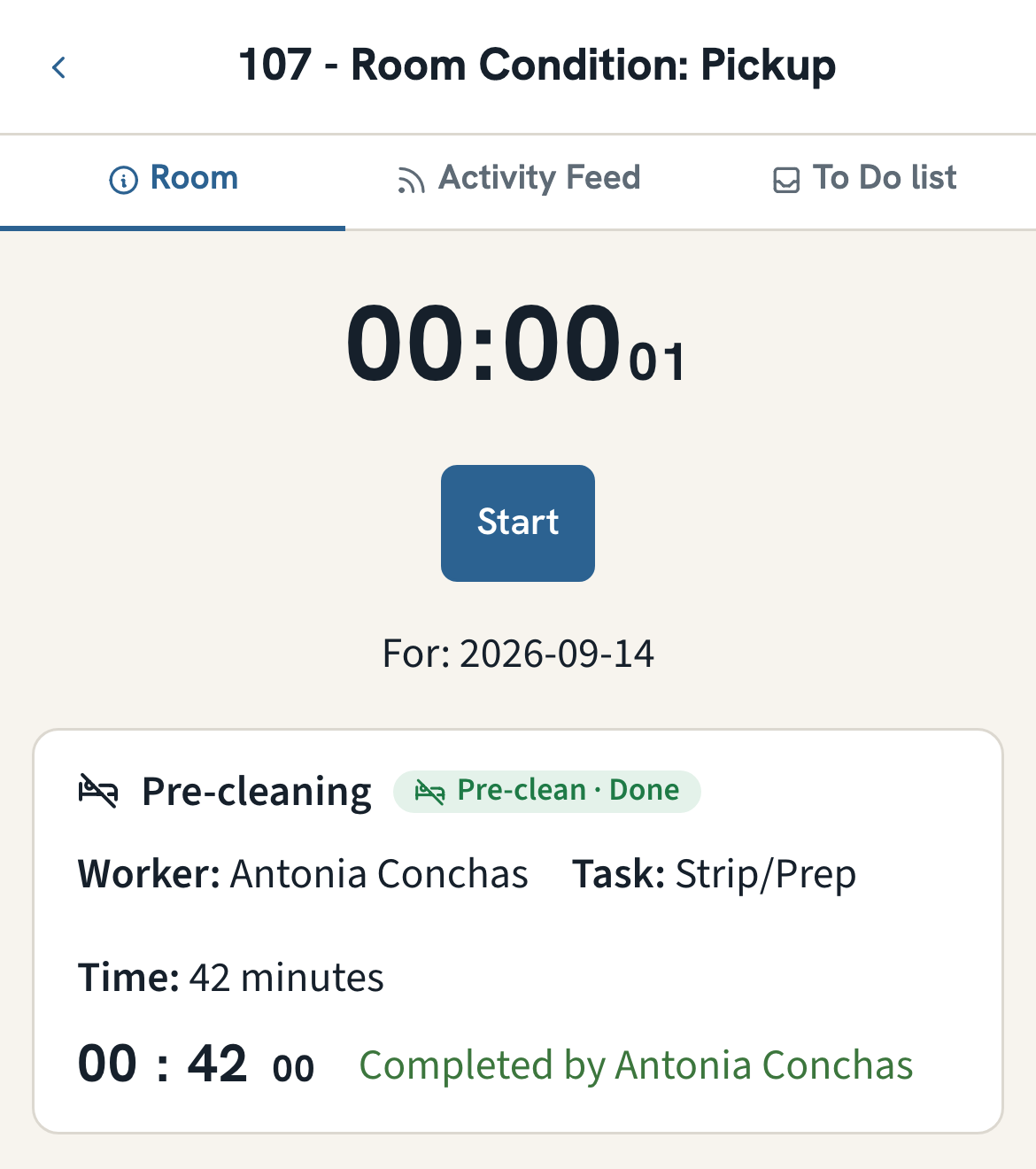
The Pre-cleaning block shows the worker, task and timer, with pencil icons to change them
No pre-cleaning planned yet? Pick a task and a worker and click Add Pre-cleaning
Deleting the pre-cleaning job (unassigning it and setting no task) lets the cleaner start right away, which is the manager override
Automating it
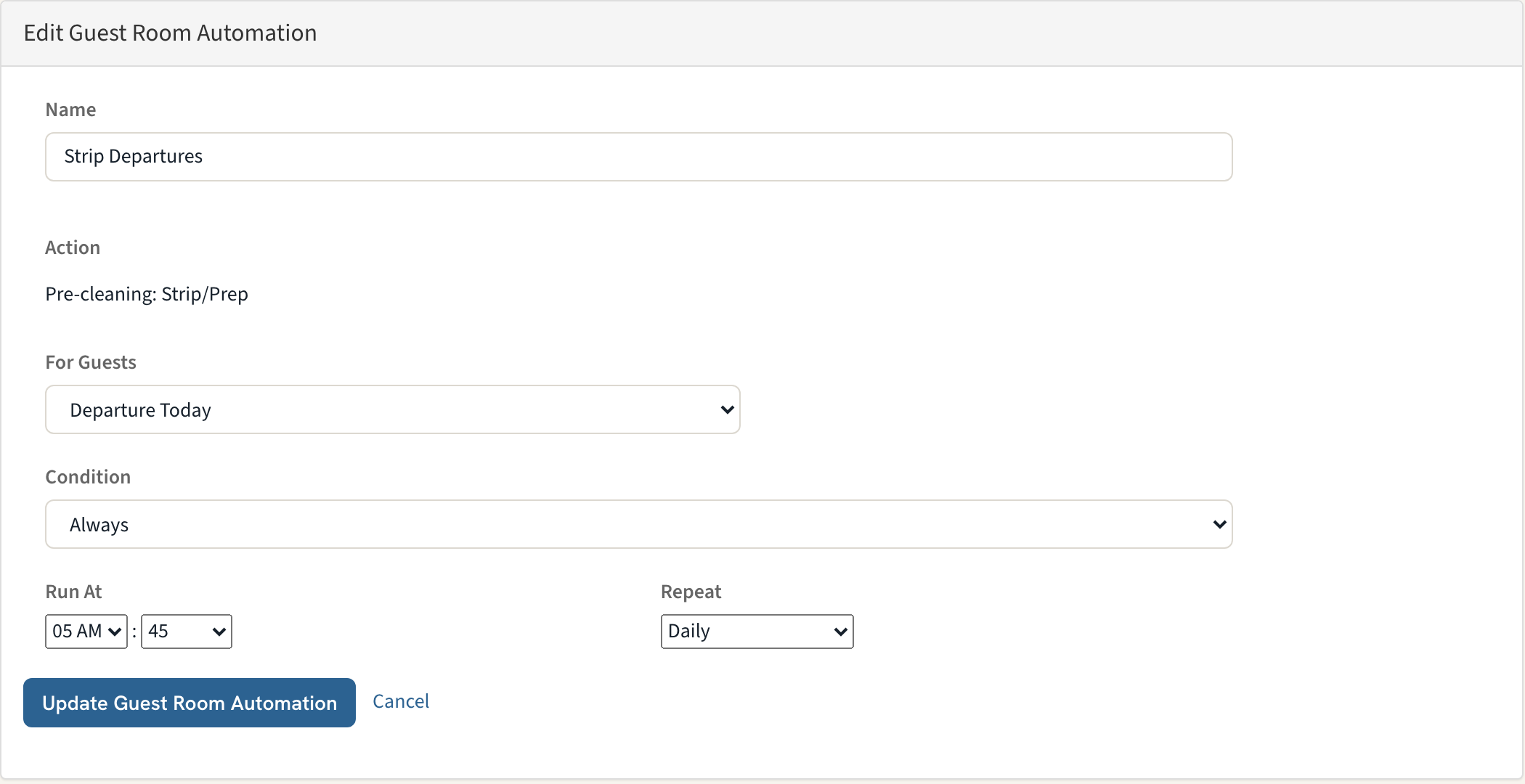
A room automation can create the pre-cleaning job for every departure each morning, scheduled a little before your departure-clean automation so the sequence is in place before anyone starts work. HelloShift support sets this up for you today; it appears in Automations → Rooms as Pre-cleaning: <task> and can be turned on or off like any other job (see Room & Cleaning Automations).
For the pre-cleaning worker
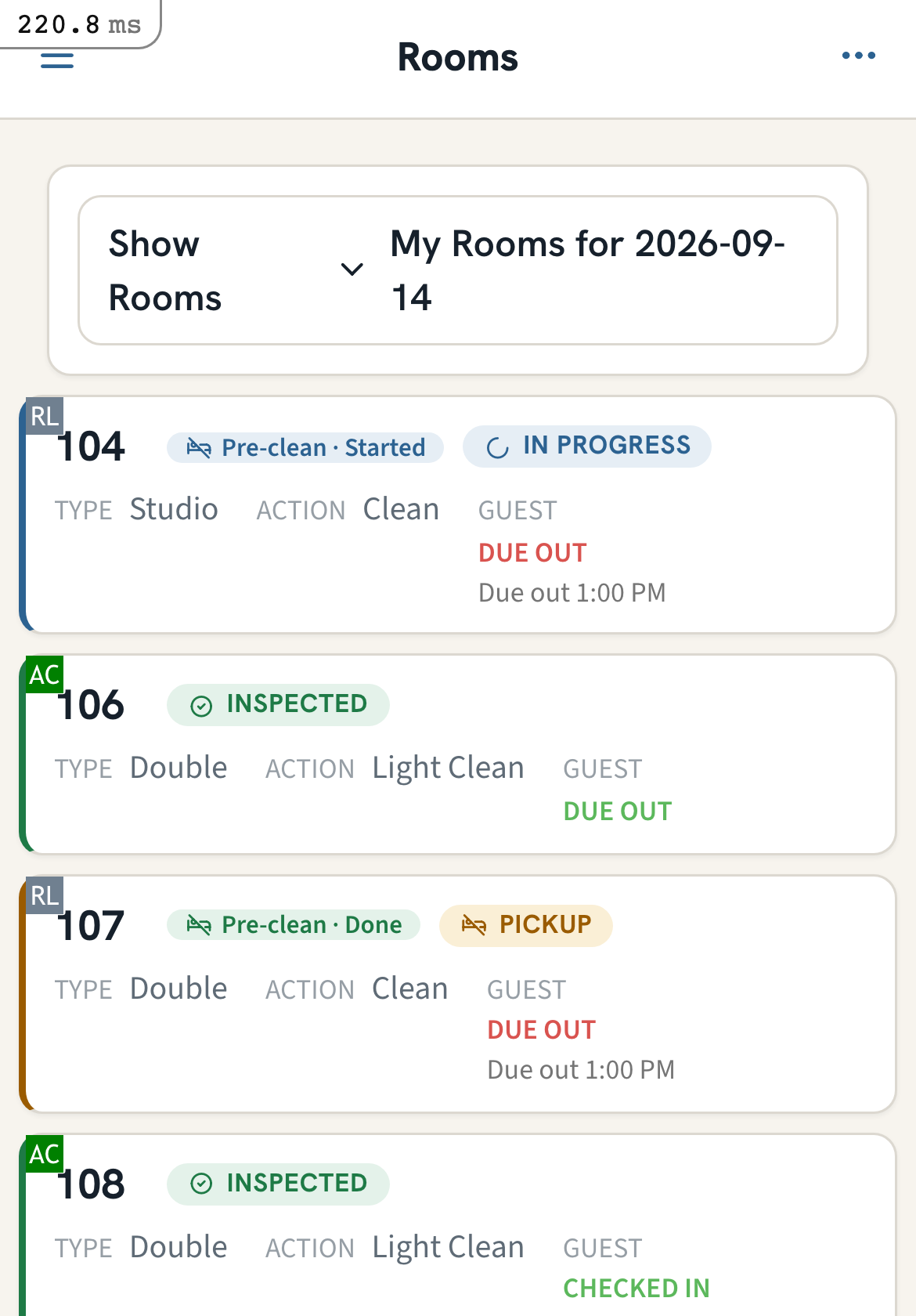
Open Housekeeping on your phone. Rooms where you are the pre-cleaner appear under My Rooms with a Pre-clean badge
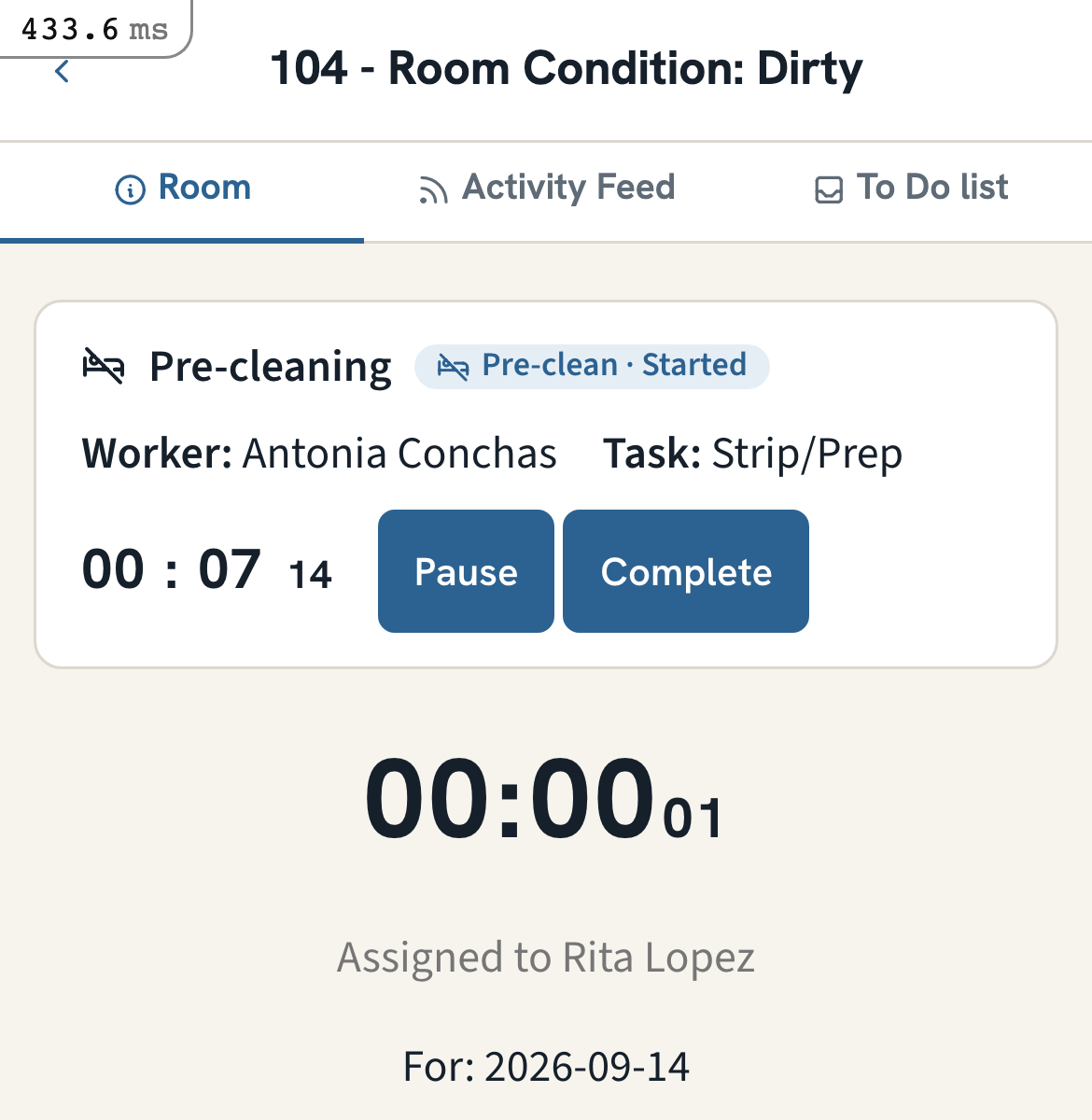
Tap the room. The pre-cleaning block is at the top with its own timer
Tap Start, Pause and Complete as you would for a clean (see Housekeeping Time Tracking)
On Complete the room goes to Pickup and the assigned cleaner is notified
Stop there. The cleaning job is shown read-only (Assigned to <cleaner>): the pre-cleaning worker cannot start or complete someone else's clean, even with permission to manage room assignments. Completing the clean is what tells the PMS the room is Clean, so tapping through it would skip Pickup. If the same person does both passes, assign them the cleaning job too
For the cleaner
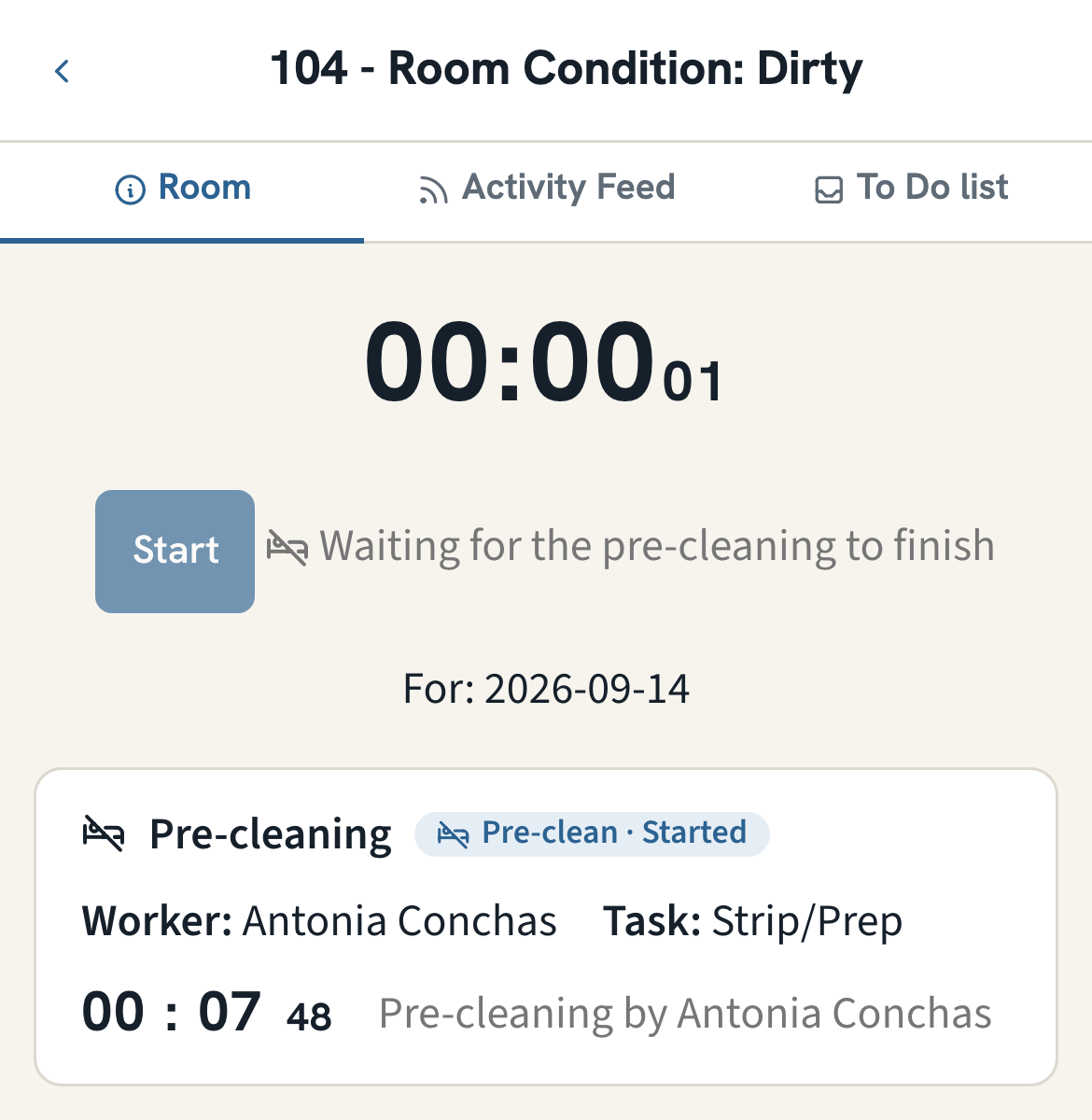
While the pre-cleaning is open, the room shows Waiting for the pre-cleaning to finish and Start is disabled
You get a push notification when the room is ready; Start then works as usual
Pause, Restart and Complete are unchanged
Reports
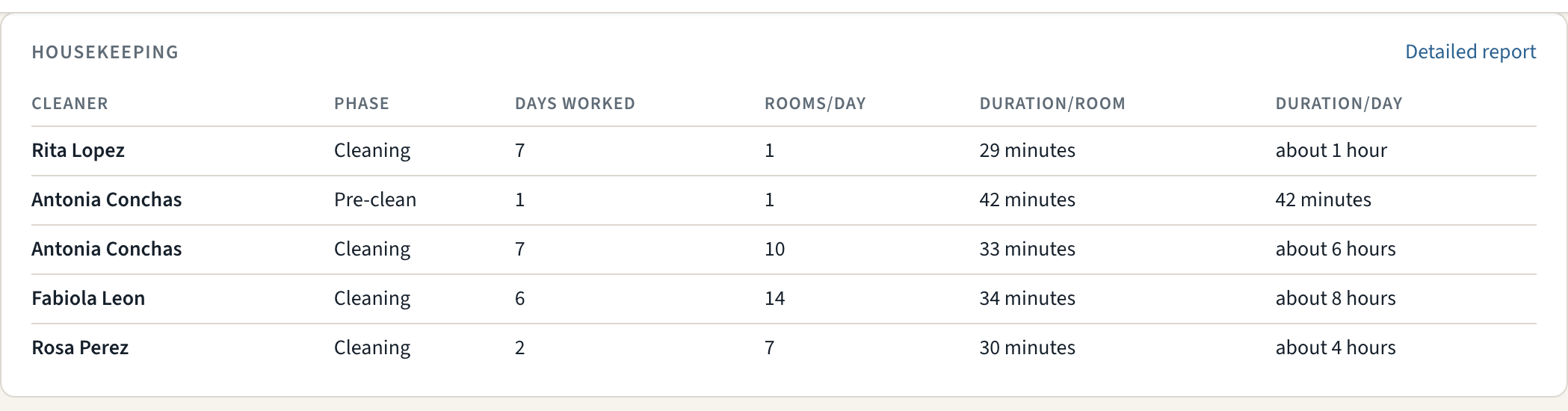
Reports → Housekeeping shows one row per cleaner per phase, so pre-cleaning minutes and cleaning minutes are separate
The detailed report charts a pre-cleaning task as its own series, named <task> · Pre-clean
The Excel export gains a Phase column
Troubleshooting
The cleaner cannot start the room
A pre-cleaning job exists for that room today and is not complete. Finish it, reassign it, or remove it from the room page
"is already a cleaner action or pre-cleaning action" when adding a type
The same name exists in the other list. Rename one of them; a label belongs to exactly one phase
A late pre-cleaning did not change the room
A pre-cleaning completed after the room was already Clean or Inspected, or on a later day, keeps its minutes but does not move the room back to Pickup
Pickup does not show in my PMS
Only Opera Cloud (OHIP) and StayNTouch carry a Pickup status. Other PMSs are updated when the clean completes
The pre-cleaning worker cannot start the clean
By design: whoever did the pre-cleaning sees the room's cleaning job as read-only unless it is assigned to them. If they are doing the clean as well, reassign the cleaning job to them from the room page or the Assignments page
The room went to Clean in the PMS right after the pre-cleaning
The pre-cleaning only ever sends Pickup; Clean means someone completed the cleaning job. Check the cleaning timer on the room page: a clean completed a few seconds after the pre-cleaning was finished by mistake. Tap Start again to resume it; the PMS is set to Clean again when it is truly done
Related Articles
Room Assignment System - Assign rooms to cleaners and pre-cleaners
Housekeeping Time Tracking - The timer both phases use
Room & Cleaning Automations - Scheduled room jobs
All About Housekeeping - Complete housekeeping overview
Was this helpful?
Still need help? Ask the team