Triggers
Set up automated actions triggered by guest events — send messages, update rooms, or create tasks on check-in or checkout.
Triggers are event-driven automations that respond instantly to guest lifecycle events. Unlike scheduled automations that run at specific times, triggers fire when something happens—a booking is created, a guest checks in, or a document is uploaded.
Overview
Requirements
Before setting up, ensure your HelloShift subscription includes:
Guest+ plan (for all triggers)
Staff+ plan (for room/cleaning triggers)
Accessing Triggers
Go to AI & Automation > Triggers
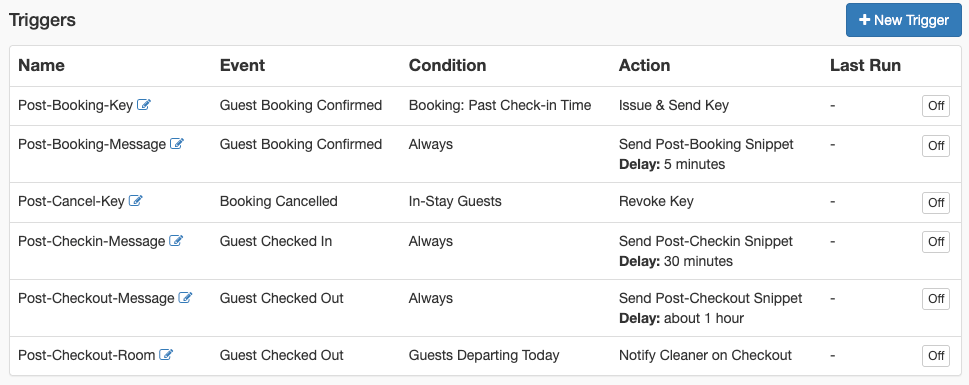
View all triggers with their status
Click New Trigger to create a custom trigger
Understanding Triggers
How Triggers Work
Event Occurs: Guest checks in, booking created, etc.
Condition Evaluated: Does the guest match the filter?
Delay Applied: Wait specified seconds (if any)
Action Executed: Send message, issue key, update room, create checklist or task
Trigger Components
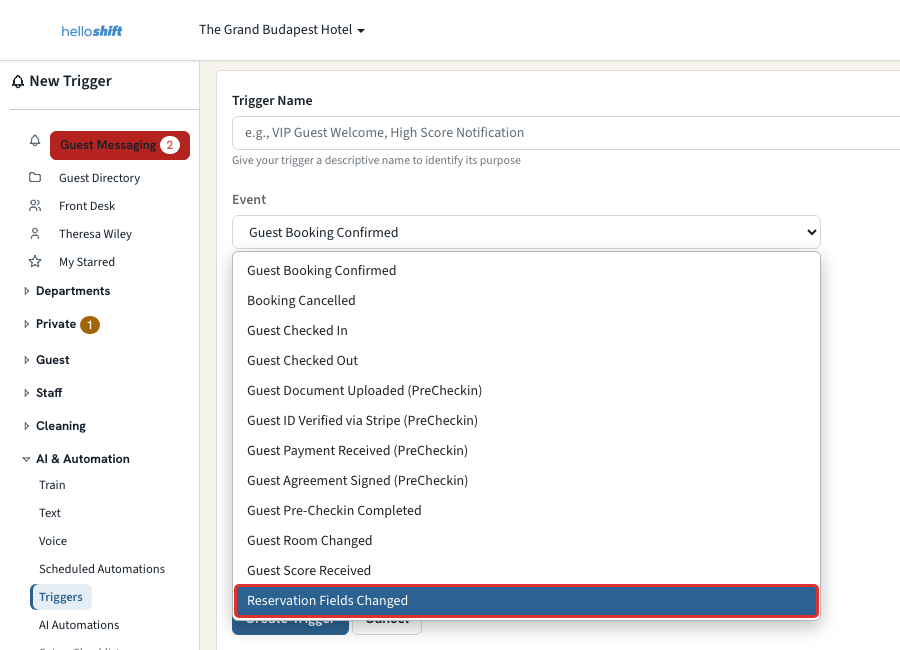
Available Events
Triggers can respond to these guest lifecycle events:
Booking Events
Check-in/Check-out Events
Pre-Check-in Events
Guest Feedback Events
The score is parsed from the guest’s reply to the In-Stay message and fires at reply time — pair it with the score conditions below to send your review link the moment a happy guest answers, or start service recovery the moment an unhappy one does. Replies with no number in them do not fire the event.
Reservation Field Events
Most PMS systems let you put custom fields on a reservation — a deposit flag, a pet note, a VIP marker, an arrival time. HelloShift can watch those fields and act the moment one changes.
This event is different from the others in one important way: it fires on a change, not on a state. It fires once when a field actually moves, and stays quiet on every sync after that until the field moves again. A routine hourly sync that brings back identical data fires nothing.
The event is skipped for reservations that are cancelled, marked no-show, or already departed.
Digital Key Events
Use it to send an arrival message the moment the key exists instead of on a clock, for example Digital Key Issued → Send Snippet with your arrival snippet.
Available Conditions
Add conditions to control when triggers execute:
Guest Status Conditions
The score scale and cutoff are configured per property in Settings > Guest Surveys (defaults: 1-5 scale, cutoff 3 — so 4-5 counts as happy).
Pre-Check-in Conditions
Reservation Field Conditions
When the event is Reservation Fields Changed, the condition picker offers Reservation Field. Choosing it opens a small builder: pick where to look, name the field, choose a test, and (for some tests) type a value.
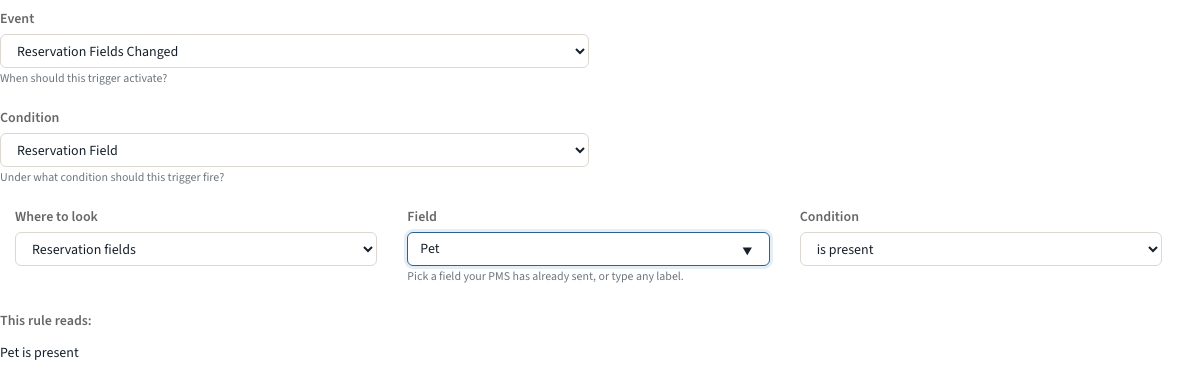
As you build the rule, a plain-English summary appears beneath it — Pet Fee is present — and that same sentence is what you will see later in the Condition column on the Triggers list.
Any action can follow a reservation-field condition. Create Task and Create Checklist are described under Checklist & Task Creation Actions; Send Snippet works the same way it does for lifecycle events.
The four tests
Checkbox and number fields match by their text: use equals with true, false, or the number itself. A checkbox the PMS sends as unchecked still counts as a filled-in field — it is set to false, not empty.
Note on "is cleared": it means emptied, not never filled in. It fires when a field that had a value loses it. A reservation where that field was never set at all does not fire — nothing changed, and a field the PMS sends with an empty value counts as not set. To chase a field that is still blank as arrival approaches, use a scheduled automation instead.
Typing your own labels: the field and value boxes suggest what your property has sent recently, but you can always type something else. A field your PMS has not synced yet, or a seasonal one that only appears in summer, can be typed in by hand — the rule simply waits for that field to appear. Any characters are allowed, so labels like Guest's Late C/O (%) work as written, and stray spaces around a label don't matter — HelloShift matches the trimmed name.
One exception: door and access-code fields cannot be watched. They belong to the digital-key flow, and HelloShift deliberately keeps them out of the reservation-fields list.
Where this condition is available: only on the Reservation Fields Changed event. On any other event it would read the field's current value rather than the change that caused the trigger to run, which makes "is cleared" meaningless — so the option only appears when the event supports it. Editing a rule's event away from Reservation Fields Changed clears its condition for the same reason; the form shows this as you do it, and what you see is what is saved.
Custom Conditions
Write custom logic using Liquid templates:
Note: Custom conditions require the custom_automation feature flag.
Available Actions
Key Management Actions
Guest Communication Actions
Also send the email version. Send Snippet actions have this checkbox: the same-name email snippet goes out alongside the text when one exists, otherwise the text itself is sent as the email. Not needed when Always send an email copy is on for the site.
Housekeeping Task Actions
Room Status Actions
Checklist & Task Creation Actions
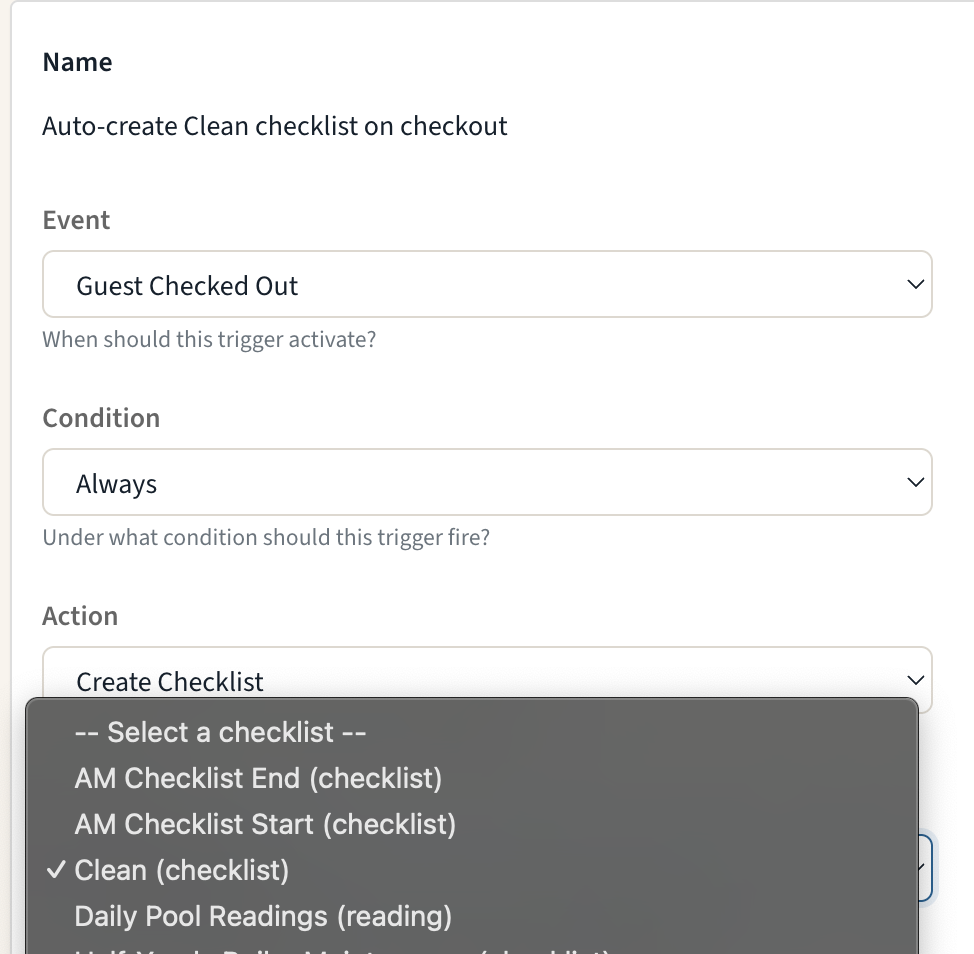
Triggers can create staff work — not just send messages. Pick a checklist or task template, and HelloShift generates the work for the guest's room the moment the event fires.
Setting it up:
Go to AI & Automation > Triggers and click New Trigger
Choose the Event (e.g., Guest Checked Out, Guest Checked In, Guest Booking Confirmed)
Under Action, select Create Checklist or Create Task
Pick the checklist or task template in the dropdown that appears
Optionally add a condition or delay, then save
How generated checklists and tasks behave:
Room-tagged and guest-linked: Items are tagged with the stay's room and linked to the guest, so they appear on the room page and the guest profile.
One per room: Multi-room reservations get one checklist or task per room.
Room resolved when the trigger fires: If no room is assigned yet (e.g., a booking confirmed before room assignment), nothing is created.
No duplicates: If your PMS re-sends the same event — or a scheduled Room Automation already generated the same checklist or task for that room today — no second copy is created. Deduplication is per room, so reservations with several guests still get exactly one copy per room.
Checklist skip threshold: If the room's recent copies of the same checklist are all still incomplete, a new one is skipped — the same rule scheduled checklist generation uses.
Safe template handling: If the selected template is later deleted or archived, the trigger deactivates itself and warns once instead of failing silently.
Note: The Create Checklist action is available on the Staff plan.
The same two actions are also available as scheduled Room Automations (AI & Automation > Scheduled Automations > Room > New Room Automation). Use a Trigger when the work should follow a PMS event; use a Room Automation when it should be generated at a set time from reservation dates — for example, a checklist for every guest departing today, whether or not the PMS has checked them out.
Creating a Trigger
Step 1: Click New Trigger
Go to AI & Automation > Triggers
Click New Trigger
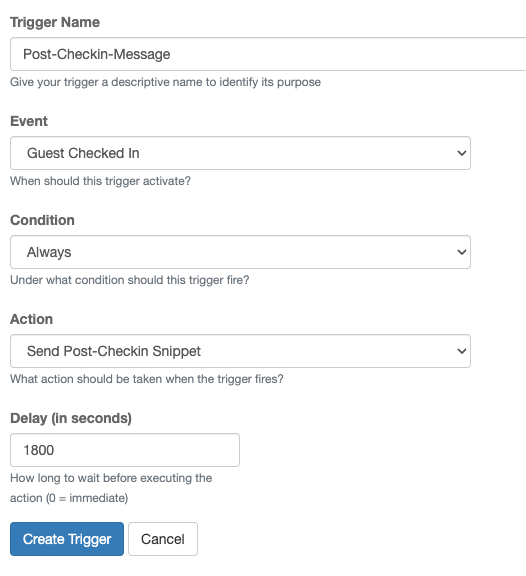
Step 2: Configure the Trigger
Step 3: Save and Activate
Click Create Trigger
Toggle the trigger On to activate
System Triggers
HelloShift creates these default triggers for common workflows:
Post-Booking-Message
Purpose: Send booking confirmation shortly after reservation is created.
Post-Checkin-Message
Purpose: Welcome guests after they check in.
Post-Checkout-Message
Purpose: Thank guests and request reviews after checkout.
Post-Booking-Key
Purpose: Immediately issue keys for walk-in guests booked after check-in time.
Post-Cancel-Key
Purpose: Revoke access for cancelled bookings if guest was in-house.
Post-Checkout-Room
Purpose: Alert housekeeping when guests check out.
Common Trigger Examples
Score-Based Review Routing
Send the review link the moment a guest replies 4-5 to the In-Stay survey, and open service recovery for low scores — two triggers on the same event:
Low scores also alert staff via the built-in low-score notification, independent of triggers. If you use these, deactivate any day-of-departure scheduled review request so guests aren’t asked twice.
Snippets sent by these triggers can include the number itself via {{ guest_stay.score }} (e.g. "Sorry to hear your stay is a {{ guest_stay.score }}/5").
Walk-in Key Issue
Issue keys immediately for same-day bookings:
Welcome After Check-in
Send welcome message 30 minutes after check-in:
Mark Room Dirty on Checkout
Update room status when guest checks out:
Revoke Key on Cancel
Remove access when booking is cancelled:
Assign Cleaner on Checkout
Assign default cleaner when guest leaves:
Issue Key After Payment
Issue key once pre-check-in payment is received:
Confirmation After Pre-Checkin
Confirm when all pre-check-in steps complete:
Checklist on Checkout
Generate a cleaning checklist for each departing room:
Pet Setup from a Reservation Field
Create a housekeeping task the moment a reservation is marked as bringing a pet:
Skip Housekeeping on Request
Many PMS systems bury service codes inside the special-requests line. Watch for the code rather than the whole sentence:
Tip: give each rule its own task template. Only one task is created per room, per template, per day — so if two rules share a template, the second rule looks like it did nothing.
Custom Conditions with Liquid
For advanced filtering, use custom Liquid conditions.
How Custom Conditions Work
Write a Liquid template
Template must return
trueorfalseTrigger fires only if template returns
true
Available Variables
Access guest and stay information through the guest_stay object:
Names defined in your Snippet Library and the message variables (roomNumber, roomGroup, guestLanguage, keyCode and the rest) can be used in a condition too, exactly as in a snippet.
Example: VIP Guests Only
{% if guest.guest_type contains 'VIP' %}true{% else %}false{% endif %}Example: Direct Bookings Only
{% if stay.booking_source == 'Direct' %}true{% else %}false{% endif %}Example: Long Stays (7+ nights)
{% assign nights = guest_stay.nights | plus: 0 %}{% if nights >= 7 %}true{% else %}false{% endif %}Example: Exclude OTA Guests
{% unless stay.booking_source contains 'Expedia' or stay.booking_source contains 'Booking.com' %}true{% else %}false{% endunless %}Managing Triggers
Enabling/Disabling
Find the trigger in the list
Click the toggle to switch On or Off
Change takes effect immediately
Editing a Trigger
Click Edit on the trigger
Modify settings as needed
Click Update Trigger
Note: For system triggers, Event and Action cannot be changed.
Deleting a Trigger
Click Delete on the trigger
Confirm deletion
Note: System triggers cannot be deleted, only deactivated.
Viewing Trigger History
The Triggers list carries two columns that tell you whether a rule is doing anything:
Last Run — when the trigger's condition last passed
Matched (30d) — how many times it passed in the last 30 days. This counts the condition matching, not the outcome; an action can still be skipped afterwards, for example when a reservation has no room assigned yet
A rule whose watched field has gone quiet shows a Field not seen recently badge next to its condition. That usually means the PMS renamed the field, or the label was mistyped when the rule was created. The rule is not broken — it simply has nothing to match.
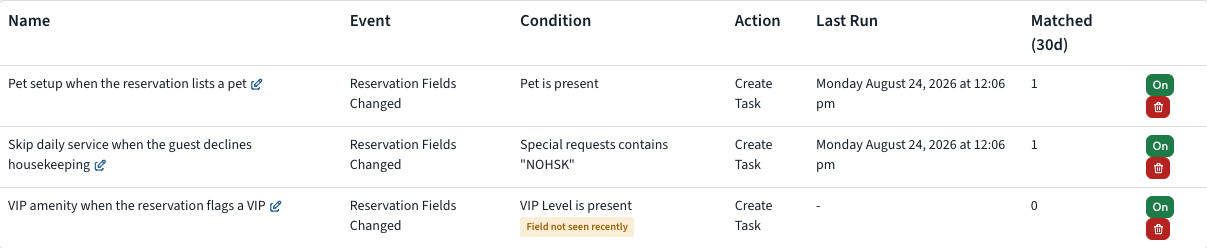
For a single reservation, open Reservation Details and look at the Automations panel. It shows both halves of the story: which fields changed on that reservation, and which rules evaluated as a result.
Tasks and checklists created by a trigger say so on the task itself, naming the field, its value, and the rule responsible — for example Created automatically — reservation field 'Pet' was set to '1 dog' (trigger: Pet setup). Guest-facing messages never carry this line.

Delay Settings
How Delays Work
Delay is in seconds
Trigger waits before executing action
Delay starts when event occurs
Common Delay Values
Why Use Delays
Natural Feel: Instant messages feel automated
Processing Time: Allow PMS data to sync
Staff Response: Give staff time to intervene
Batch Prevention: Avoid rapid-fire messages
Best Practices
Trigger Naming
Use consistent naming conventions:
Post-Booking-Message- After booking is createdPost-Checkin-Welcome- After guest checks inPost-Checkout-Review- After guest leavesCancel-Key-Revoke- When booking cancelled
Delay Recommendations
Testing Triggers
Keep trigger Inactive initially
Create a test booking
Manually activate and verify behavior
Enable for production use
Avoiding Conflicts
Don't create duplicate triggers for same event
Check existing system triggers before creating new ones
Use conditions to prevent overlapping execution
Triggers vs Scheduled Automations
Use Triggers for:
Immediate responses to guest actions
Key management on booking/checkout
Room status updates on check-in/out
Use Scheduled Automations for:
Pre-arrival messages (day before)
Mid-stay check-ins (morning of day 2)
Post-stay review requests (day after)
Date-based checklists and tasks — e.g., create a checklist every morning for each guest departing today, independent of PMS checkout events
Checklist and task creation exists on both sides: the same Create Checklist and Create Task actions are available as event-driven Triggers and as scheduled Room Automations. If both cover the same room and template on the same day, only one copy is created.
Troubleshooting
Trigger not firing
Possible Causes:
Trigger is inactive (Off)
Condition doesn't match guest
Event not occurring (PMS sync issue)
Solutions:
Verify trigger is active
Check condition matches expected guests
Verify PMS is syncing properly
Wrong message sent
Possible Causes:
Wrong action selected
Snippet content incorrect
Wrong trigger activated
Solutions:
Verify action matches intent
Check snippet content
Review active triggers for conflicts
Delay not working
Possible Causes:
Delay set to 0
Background job queue delayed
Trigger deactivated during delay
Solutions:
Verify delay value in seconds
Check job queue health
Ensure trigger stays active
Key not issued
Possible Causes:
Smart lock not configured
Room not mapped to lock
Condition blocked execution
Solutions:
Verify smart lock integration
Check room has lock assigned
Review condition requirements
Multiple messages sent
Possible Causes:
Multiple triggers for same event
Trigger and scheduled automation overlap
Duplicate booking events
Solutions:
Review all active triggers
Check scheduled automations for conflicts
Investigate PMS for duplicate events
Reservation field trigger not firing
Possible Causes:
The field label does not match what the PMS sends — check for a Field not seen recently badge on the Triggers list
The field has not changed since the rule was created. The event fires on a change, so an existing value that stays put fires nothing
The condition is is cleared but the field was never filled in to begin with
The reservation is cancelled, a no-show, or has already departed
Solutions:
Open Reservation Details and check the Automations panel — it will tell you whether the field change was seen at all
Retype the field label to match the PMS spelling (stray spaces at the edges are forgiven, but the words must match)
To act on a field that is still blank as arrival approaches, use a scheduled automation instead of a trigger
Only one task created when several rules should have fired
Possible Cause: the rules share a task template. HelloShift creates one task per room, per template, per day, no matter how many rules ask for it — this is what stops a room collecting duplicates.
Solution: give each rule its own template. The trigger form warns you when the template you pick is already used by another active rule.
Task not created before arrival
Possible Cause: task and checklist actions need a room. Many PMS systems do not assign one until close to check-in, so a rule that fires days ahead has nowhere to put the task.
Solution: use Send Snippet for pre-arrival rules, or let the rule fire again once the room is assigned. The Matched (30d) count will still increase in the meantime, which is the signal that the condition matched but the action had nowhere to land.
Related Articles
Guest Automations - Scheduled message automations
Snippets & Templates - Create message templates
Contactless Check-in Setup - Pre-check-in configuration
Smart Lock Integration - Key automation setup
Was this helpful?
Still need help? Ask the team