WhatsApp Setup
Set up WhatsApp Business for guest messaging in HelloShift.
Connect WhatsApp Business to communicate with guests through the messaging app they already use. All messages flow through your unified inbox in HelloShift.
Overview
Requirements
HelloShift Guest plan or higher
A Facebook account (personal or business)
A phone number for WhatsApp (can be new or existing)
WhatsApp Business Setup
Connect WhatsApp using Meta's Embedded Signup - a simple OAuth flow that takes less than 5 minutes.

What You'll Need
A Facebook account (personal or business)
A phone number for WhatsApp (can be new or existing)
Your business name and address
Step 1: Start the Connection
Go to Admin > Integrations
Click the Meta tab
Click Connect WhatsApp
Step 2: Complete Meta Signup
A popup window will guide you through the Meta Embedded Signup:
Log in to Facebook - Use your personal or business Facebook account
Select or Create WhatsApp Business Account - Choose an existing account or create a new one
Enter Business Details - Provide your business name and address
Verify Phone Number - Enter and verify your WhatsApp phone number via SMS or voice call
Grant Permissions - Allow HelloShift to send and receive messages
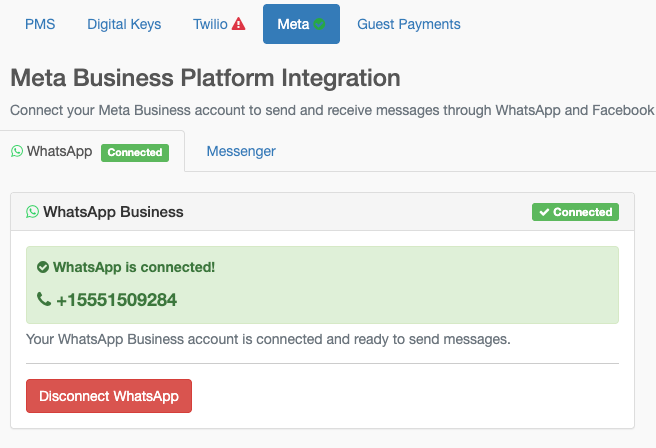
Step 3: Confirm Connection
Once complete:
Your connected phone number displays on the Meta integration page
WhatsApp appears as a channel option in guest messaging
You're ready to send and receive WhatsApp messages
Disconnecting WhatsApp
To disconnect:
Go to Admin > Integrations > Meta > WhatsApp
Click Disconnect WhatsApp
Confirm the disconnection
Channel Priority Settings
After connecting WhatsApp, configure when to use each channel.
Setting Channel Priority
Go to Admin > Settings > Guest > Messaging
Find Order of Channels
Select your preferred order:
WhatsApp Messaging Rules
WhatsApp has specific rules about when and how you can message guests.
24-Hour Messaging Window
Template Messages
Template messages are pre-approved by Meta for proactive outreach.
When to use templates:
First message to a guest
Re-engaging after 24 hours of silence
Automated pre-arrival messages
Template categories:
Transactional: Booking confirmations, check-in reminders
Appointment: Arrival reminders
Post-purchase: Thank you, feedback requests
Creating WhatsApp Snippets
Go to Guest > Snippets
Click New Snippet
Select type WhatsApp
Enter your message content
Use variables for personalization:
{{firstName}}- Guest's first name{{confirmationNumber}}- Reservation number{{arrivalDate}}- Check-in date{{roomNumber}}- Room number
Set status to Active
Guest Experience
How Guests Message You
WhatsApp:
Guest saves your WhatsApp number
Sends a message via WhatsApp app
Message appears in HelloShift inbox
Staff replies from HelloShift
Guest receives reply in WhatsApp
Unified Conversation View
All channels appear in one thread:
SMS messages
WhatsApp messages
Email
Staff can reply from any channel; HelloShift routes via the guest's preferred channel.
Sending Messages
Manual Messages
Open guest conversation
Type your message
Click Send (uses channel priority)
Or select specific channel:
Click channel icon to send via specific platform
Automated Messages
Create automations that use WhatsApp:
Go to AI & Automation > Scheduled Automations
Create or edit an automation
Select WhatsApp as the channel
Choose a WhatsApp-type snippet
Save and activate
Note: Automated WhatsApp messages should use template-style content for reliability.
Opt-In and Compliance
WhatsApp Opt-In
Guest consent is recorded when they first message you
Stored with timestamp
Required for GDPR compliance
Guests can opt out by texting "STOP"
Opt-Out Handling
When a guest texts "STOP" (or similar):
All messaging is paused for that guest
"Do Not Send" flag is set
Staff can manually re-enable if guest requests
Recognized opt-out words:
STOP, STOPALL, UNSUBSCRIBE, CANCEL, END, QUIT
Best Practices
Message Timing
Message Content
Keep it brief: WhatsApp messages should be concise
Personalize: Use guest name and relevant details
Include action: Clear next step (click link, reply, etc.)
Professional tone: Friendly but professional
Channel Selection
Troubleshooting
WhatsApp connection failed
Possible Causes:
Facebook login interrupted
Phone number already registered with another WhatsApp Business Account
Browser blocked the popup
Solutions:
Try again with popups enabled
Use a different phone number
Clear browser cache and retry
WhatsApp messages not delivering
Possible Causes:
Guest's number not on WhatsApp
Outside 24-hour window without template
Phone number not verified
Solutions:
Verify guest has WhatsApp
Use template messages for proactive outreach
Check phone number verification in Meta Business Manager
Guest shows as opted out
Possible Causes:
Guest sent STOP previously
Manual opt-out by staff
Solutions:
Check guest's "Do Not Send" status
Clear flag if guest wants to re-subscribe
Guest can re-opt-in by messaging you
Related Articles
All About Guest Messaging - Complete messaging guide
Snippets & Templates - Message templates
Guest Automations - Automated messaging
Twilio Setup - SMS configuration
Still need help? Ask the team