Integrating HelloShift + PointCentral
Connect PointCentral smart locks to HelloShift for automated guest access codes via SMS, WhatsApp, or email.
Integration between PointCentral and HelloShift automates user code creation for guest room access. Once a reservation appears in HelloShift, a PointCentral user code can be created automatically or manually, and shared with the guest via SMS, WhatsApp, Email, or Voice.
Step 1: Create a PointCentral Login
Before connecting HelloShift, create a dedicated administrator login in PointCentral:
Log into the PointCentral User Site.
Click Users > Manage Logins > Add a Login.
Enter your email address in the Email Address field.
Enter HelloShift-YourCompanyName in the Login Name field.
Ensure Administrator is selected, then click Save.
An email will be sent with a link to set up a password. Click the link and create a password for the login. Do not set up two-factor authentication on this login.
Step 2: Select PointCentral in HelloShift
Log into HelloShift and navigate to ADMIN > Settings. Set your digital key solution to PointCentral.
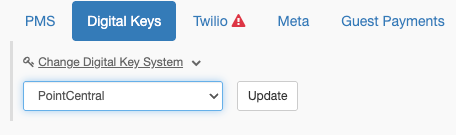
Once you’ve selected PointCentral, a new Integrations option becomes available under ADMIN.
Step 3: Connect to PointCentral
Go to ADMIN > Integrations and enter the username and password created for the integration. Click Connect to PointCentral.

Once the connection is confirmed, HelloShift will discover available PointCentral units and display how many were found.
Step 4: Map Rooms to Units
After connecting, HelloShift automatically maps rooms to PointCentral units when their names match (case-insensitive, ignoring spaces). For example, a HelloShift room named Unit101 will automatically match a PointCentral unit named Unit 101.
A status banner shows how many rooms are mapped and how many still need mapping. Any rooms that were not auto-matched can be mapped manually by selecting a room and choosing the corresponding PointCentral unit.

Important: If new rooms or units are added to either system after initial configuration, click Refresh Units on the Digital Keys page. HelloShift will discover the new units and automatically map any that match by name. You can then manually map any remaining unmatched rooms.
Issue, Extend, and Revoke Codes
Once rooms are mapped, you can manage guest user codes directly from the HelloShift reservation.
Key Automation
Go to Automations and configure Triggers and Scheduled Automations to automate user code generation, reservation cancellations, and guest messaging.

You can change the time actions are taken and include an optional message sent to guests after a code is issued.
Manual Codes
On the guest reservation, you will see options to:
Issue Code — Generate a new user code for the guest
Extend Code — Update the code’s valid dates if the reservation changes
Revoke Code — Remove the guest’s user code


The user code is visible to property managers on the HelloShift reservation. Login restrictions can be configured to control who can view user codes.
Disconnect PointCentral
At any time, you can disconnect the integration by going to ADMIN > Integrations and clicking Disconnect.
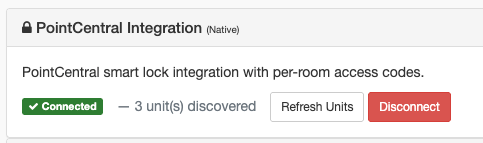
Note: When you disconnect, all room-to-unit mappings and credentials are removed. If you reconnect later, you will need to re-enter credentials. Rooms with matching names will be auto-mapped again, but any manual mappings will need to be redone.
Frequently Asked Questions
What information is sent to PointCentral?
First name, last name, reservation dates, and reservation times.
Are codes created automatically or manually?
Both. Codes can be manually requested by clicking Issue Code on the reservation, or automatically generated by configuring Scheduled Automations or Triggers.
How far in advance is the user code created?
This depends on your Automation settings within HelloShift.
Are cancelled reservations removed from PointCentral?
Yes, if you set up an Automation Trigger in HelloShift for this action.
Are reservation date or check-in time changes sent automatically?
Not automatically. Set up an Automation Trigger for these changes to be synced.
What if the reservation’s unit changes?
Click Revoke Code, edit the reservation’s unit, then click Issue Code to generate a code for the new unit.
Which check-in/check-out times are used?
The times HelloShift receives from the PMS or that the property manager enters on the reservation.
How are owner reservations handled?
Owner reservations are created as guest users in PointCentral. If PointCentral sends welcome letters, owners will receive email communications; these can be ignored or shared with other guests in the party if owners already have a user code.
Can lock-off reservations create multiple codes?
Yes. Reservations assigned to multiple units will generate a unique code for each unit.
How are owner blocks handled?
HelloShift does not create a user code for owner blocks. If using PointCentral’s Occupancy Based Thermostat Rules, you should manually create a guest user profile in PointCentral to maintain occupied setpoints, or remove the location from the thermostat rule.
Will reservations created manually in PointCentral appear in HelloShift?
No. Manually created PointCentral reservations will not be associated with HelloShift reservations and may lead to duplicate user codes.
How does auto-mapping work?
When you connect or refresh units, HelloShift compares your room names with PointCentral unit names. Any rooms that don’t match can be mapped manually.