AI Insights & Reports
Use AI-powered insights and reports in HelloShift to spot trends, track performance, and improve hotel operations.
Get AI-powered daily, weekly, and shift reports that summarize your hotel's operations — from guest experience to housekeeping, revenue, and more. AI Insights analyzes your property data and delivers actionable narratives so managers can start each day informed.
Overview
AI Insights is an intelligent reporting system built into HelloShift that automatically generates operational summaries by analyzing your property's real-time data. Instead of manually reviewing dozens of tasks, guest messages, and housekeeping records, AI Insights distills everything into clear, readable narratives.
Who it's for: General Managers, Operations Managers, Department Heads, and anyone who needs a quick pulse on property operations.
What it covers: Up to 11 configurable sections spanning operations, guest experience, housekeeping, revenue, team communication, and more.
Accessing AI Insights
Click Admin > Reports in the left navigation
On the Reports page, click the AI Insights tab
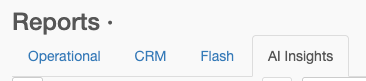
The AI Insights page opens on yesterday — the most recent completed day, and the day the automatic reports cover. Use the date arrows to browse other days.
You can move forward to today, but today is not over yet. Any report you generate for today covers only the hours so far, and is clearly marked Partial day so it isn't mistaken for a full day. Today's complete report is written the following morning.
Report Types
Daily Reports
Daily reports provide a comprehensive summary of an entire day's operations (midnight to midnight in your property's timezone). When auto-generation is enabled, they are generated automatically each morning (around 6 AM in your property's timezone) for the previous day. Reports can also be generated manually at any time.
A daily report typically includes:
Executive Summary — 3–4 sentences highlighting the big picture
Section-by-section analysis (based on your configuration)
Action Items — 3–5 things for management attention
Weekly Reports
Weekly reports roll up the daily narratives from the previous week into a trends-focused summary. When auto-generation is enabled, they are generated automatically on Monday morning for the previous week. Reports can also be generated manually at any time.
Weekly reports focus on:
Week-in-review performance overview
Operational and communication trends
Guest satisfaction patterns
Key wins and areas for improvement
Shift Reports
Shift reports are optional, per-shift handoff summaries generated at the end of each configured shift. They provide a concise briefing for the incoming team. When auto-generation is enabled, shift reports are generated automatically after each shift ends.
Shift reports include:
Executive summary (2–3 sentences)
Activity during the shift window
Action items for the next shift
To use shift reports, you must have shifts configured in Admin > Settings > Scheduling.
What's Included in a Report
Reports can cover up to 11 configurable sections. Each section is only included when there is relevant data for the period.
Sections with no data for the reporting period are automatically skipped — your reports stay clean and relevant.
Viewing Reports
Date Navigation
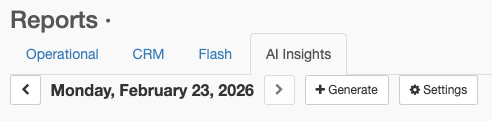
Use the left/right arrow buttons at the top of the AI Insights tab to navigate between days. The current date is displayed between the arrows. You cannot navigate to future dates.
Daily Report
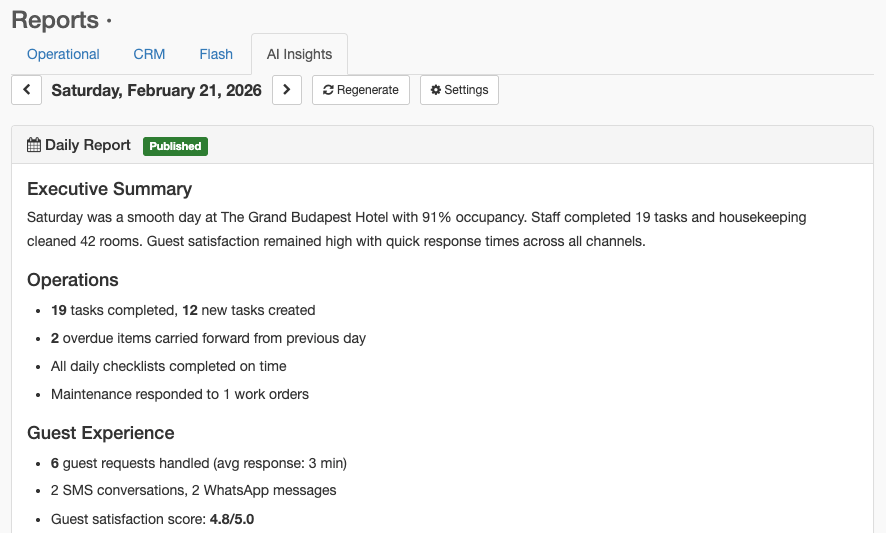
The daily report appears in a card showing:
A status badge (Published, Draft, Generating..., or Failed)
The AI-generated narrative in formatted text
A "View source notes & tasks" link that opens the original data for that date range
Publication details (who published and when, if applicable)
Shift Reports
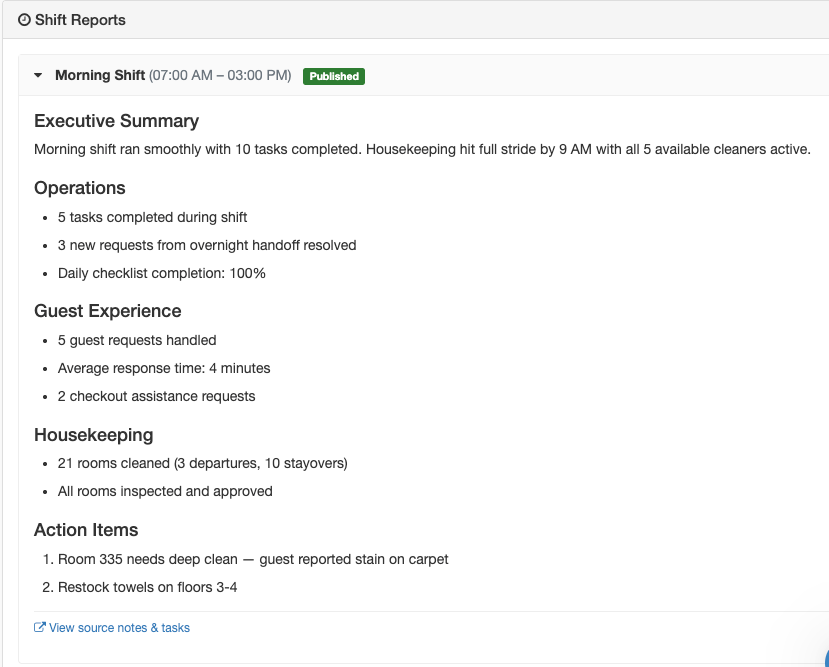
If shift reports are available for the selected date, they appear below the daily report in a collapsible card. Click on any shift header to expand or collapse its narrative.
Each shift card shows:
Shift name and time range (e.g., "Morning 7:00 AM – 3:00 PM")
Status badge
Expandable narrative content
"View source notes & tasks" link
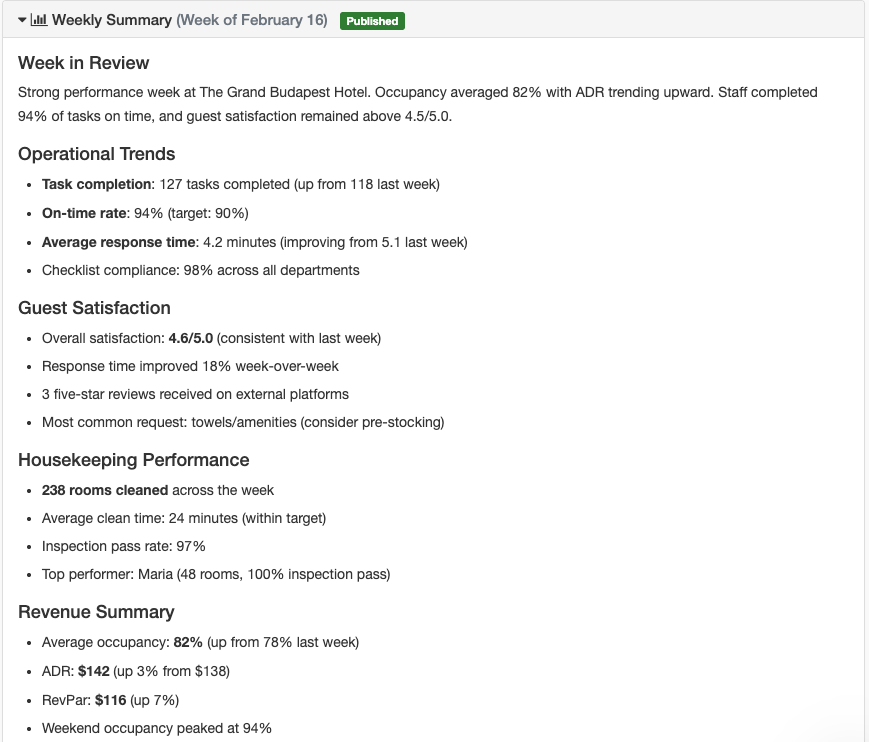
Weekly Summary
When a weekly report is available, it appears as a collapsible panel below the shift reports. Click the panel header to expand the weekly summary.
Configuring Reports (Admin)
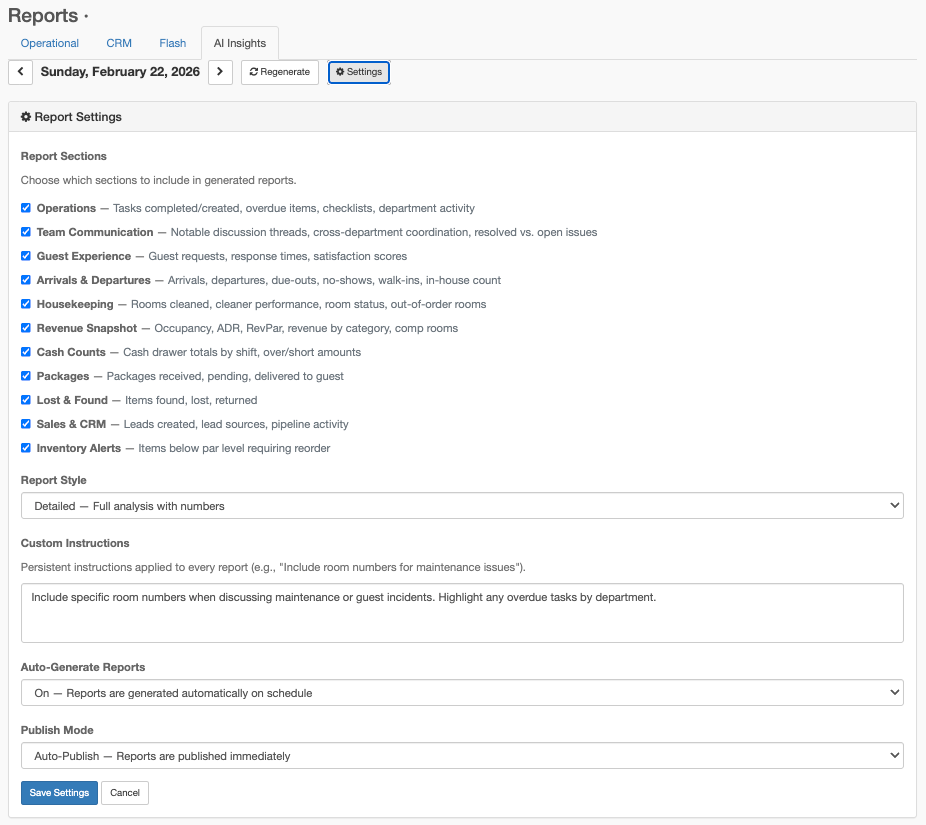
Admins can customize what appears in reports by clicking the Settings (gear icon) button in the date navigation bar.
Report Sections
Check or uncheck sections to control which areas are included in generated reports. Only checked sections will appear in future reports.
Report Style
Choose how reports are written:
Custom Instructions
Add persistent, site-level instructions that are applied to every generated report. These are useful for property-specific preferences.
Examples:
"Include specific room numbers for maintenance issues"
"Highlight overdue tasks by department"
"Always mention VIP guests by name"
Auto-Generate Reports
Controls whether reports are generated automatically on schedule. This is off by default — reports will only be created when an admin clicks Generate manually.
When turned On, HelloShift will automatically generate:
Daily reports each morning at 6 AM (property timezone)
Weekly reports each Monday morning
Shift reports after each configured shift ends
We recommend configuring your report sections, style, and custom instructions first, then turning on auto-generation when you're satisfied with the results.
Publish Mode
Controls what happens after a report is generated:
Auto-Publish (default) — Reports are published immediately and visible to all team members
Draft — Reports start as drafts and require admin review before publishing
Click Save Settings to apply your changes. New settings take effect on the next generated report.
Generating & Regenerating Reports (Admin)
Admins can generate or regenerate reports by clicking the Generate / Regenerate button in the date navigation bar.
When no report exists for a date, the button shows + Generate
When a report already exists, it shows ↻ Regenerate
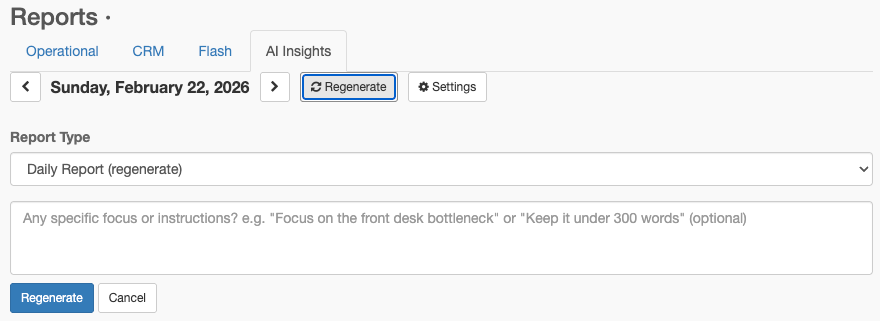
The form lets you choose which report type to generate:
Daily Report — always available
Shift Reports — available when shifts are configured
Weekly Report — always available
When regenerating an existing report, you can optionally provide one-time custom instructions that apply only to this generation. This is useful for focusing on a specific area.
Examples:
"Focus on the front desk bottleneck we had today"
"Keep it under 300 words"
"Emphasize housekeeping turnaround times"
Click Generate or Regenerate to confirm. If regenerating, the existing report will be replaced with the newly generated version.
Draft vs. Auto-Publish Mode
The Publish Mode setting (in Settings) controls what happens after a report is generated:
Auto-Publish Mode (Default)
Reports are published immediately after generation. All team members with access can view them as soon as they're ready.
Draft Mode
When draft mode is enabled, generated reports start as Draft status. An admin must review and publish them before other team members can see them.
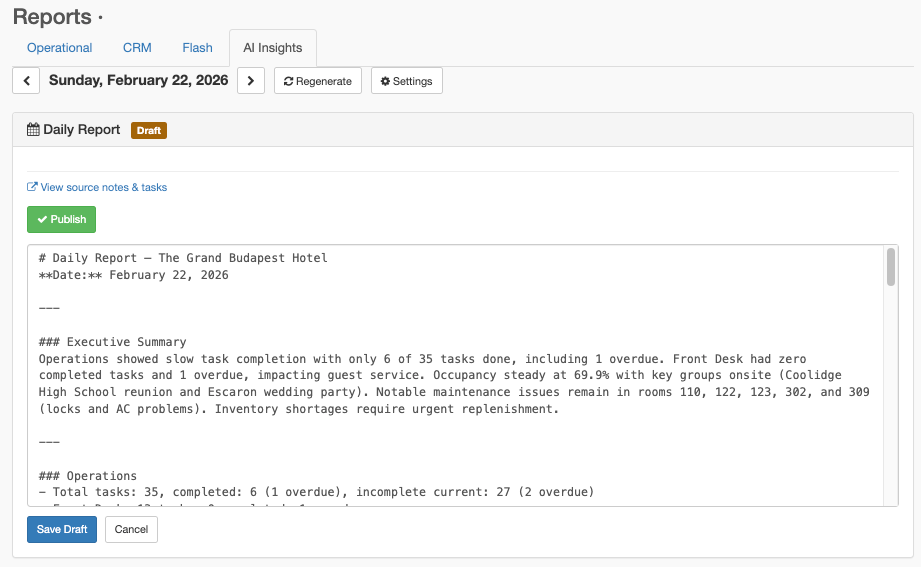
Draft workflow:
A report is generated with Draft status (yellow badge)
An admin reviews the narrative content
Optionally click Edit to modify the narrative text
Click Publish to make the report visible to the team
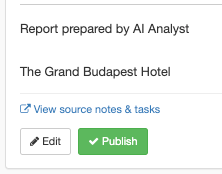
Editing a draft:
Click the Edit button on a draft report
A text area opens with the current narrative
Make your changes
Click Save Draft to save without publishing, or close and click Publish when ready
Email Reports
AI reports reach your inbox through HelloShift's existing report emails, so team members stay informed even when they're not logged in.
There is no separate "AI daily report" email to subscribe to. The AI daily summary is included inside the Daily site report email, and the AI weekly summary inside the Weekly site report email. Shift reports are the one exception — they have their own email.
Email Types
Daily site report — Sent each morning. Covers the previous day's operational numbers, and includes an excerpt of that day's AI daily report with a link to read it in full.
Weekly site report — Sent weekly, with an excerpt of the AI weekly summary and a link to the full report.
Shift reports — A dedicated AI email sent after each configured shift's report is published, containing the full shift narrative.
Two things have to be true for the AI sections to appear:
Auto-Generate Reports must be On (Admin > Reports > AI Insights > Settings). If reports are only generated manually, there is usually no report finished at send time, so the email arrives without an AI section.
The recipient must be an admin on the property. Site report emails are only sent to admins — a non-admin who ticks the box will not receive them.
Subscribing to Email Reports
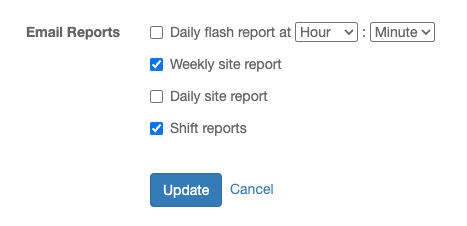
Each user chooses their own report emails:
Click your name in the top-right corner, then My Profile
Scroll down to Email Reports
Tick the reports you want to receive:
Daily site report — includes the AI daily summary
Weekly site report — includes the AI weekly summary
Shift reports — the per-shift AI email
Save your settings
Admins can set this for other users too: Admin > Users > select the user > Edit > Email Reports.
What's in the Email
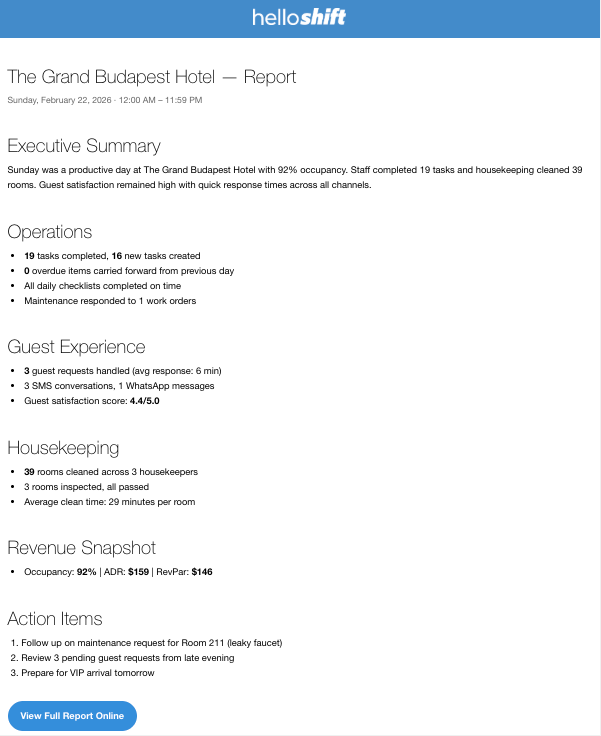
The shift report email carries the property name, the shift and date, and the full AI-generated narrative.
The daily and weekly site report emails lead with your operational numbers and close with an excerpt of the AI narrative. Both include a link that opens the full report in HelloShift.
AI Task Check-ins
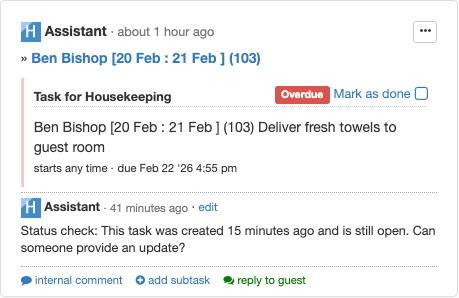
AI Task Check-ins are an intelligent monitoring system that automatically follows up on open tasks. When enabled, the AI periodically posts status-check comments on tasks that have been open for a while, prompting team members to provide updates.
How It Works
The system scans open tasks across your property
Based on the task category, it determines the appropriate check-in frequency
At the right interval, it posts a comment like: "Status check: This task was created 3 hours ago and is still open. Can someone provide an update?"
The comment is attributed to the AI assistant and assigned to the task's owner
Check-in Frequencies
Different task categories have different urgency levels:
Once the maximum number of check-ins is reached, the AI stops following up on that task.
Enabling Task Check-ins
Task check-ins are enabled at the site level by an administrator. Contact your HelloShift administrator or support to configure the check-in frequencies for your property.
Best Practices
Configure before enabling auto-generation — Set up your preferred report sections, style, and custom instructions first. Generate a few reports manually to check the output, then turn on auto-generation.
Review reports daily — Make AI Insights part of your morning routine. The daily report gives you a complete picture before you start your day.
Customize your sections — Disable sections that aren't relevant to your property (e.g., disable "Inventory Alerts" if you don't use inventory tracking).
Use custom instructions — Tailor reports to your property's priorities. If you always want to see maintenance issues by room number, add that as a persistent instruction.
Try different report styles — "Brief" works well for quick morning scans; "Structured" is great for team meetings; "Detailed" provides deep-dive analysis.
Subscribe to emails — Shift report emails are especially useful for managers who aren't on-property during every shift.
Use "View source notes & tasks" — When a report mentions something that needs attention, click through to see the original notes and tasks.
Leverage draft mode — If your property prefers curated communication, enable draft mode so an admin can review and refine the narrative before the team sees it.
Troubleshooting
"No daily report available for this date"
If auto-generation is off (the default), reports must be created manually. If auto-generation is on and a report is missing:
It may not have been generated yet (reports generate around 6 AM in your property's timezone)
Admins can click Generate to create one manually at any time
Report shows "Failed" status
If a report fails to generate, admins can click Retry to attempt regeneration. If the problem persists, contact support@helloshift.com.
Report seems incomplete or missing sections
Check that the relevant sections are enabled in Settings
Sections with no data are automatically skipped — if no guest messages were received that day, the Guest Experience section won't appear
Revenue data requires daily statistics to be entered; if missing, the report shows estimated occupancy from room data
Not receiving email reports
Check My Profile > Email Reports and confirm the report you expect is ticked — Daily site report, Weekly site report, or Shift reports
Site report emails are sent to admins only — check the recipient's role
If the email arrives but has no AI section, Auto-Generate Reports is probably Off (Admin > Reports > AI Insights > Settings), so no report existed when the email was sent
Email reports are only sent for published reports (not drafts)
Shift report emails require shift scheduling to be configured
Check your spam/junk folder
AI Task Check-in comments not appearing
Verify that task check-ins are enabled for your property
Check-ins only apply to open, uncompleted tasks created within the last 30 days
Each task has a maximum number of check-ins; once reached, no more comments are posted
Related Articles
How To View Your Reports — Overview of all report tabs including Operational, CRM, and Flash reports
Creating Tasks with HelloShift — Learn about task creation and management
Staff Shift Scheduling — Set up shifts for shift report generation
All About Housekeeping — Housekeeping management that feeds into AI reports
Need help? Contact support@helloshift.com
Was this helpful?
Still need help? Ask the team