Integrating HelloShift + Tokeet (AdvanceCM)
Connect Tokeet (AdvanceCM) to HelloShift to automatically import bookings, guests, and rentals — one-click OAuth setup.
Tokeet — also branded as AdvanceCM and Sympl — is a channel manager and property management platform for vacation rentals. Connecting it to HelloShift automatically imports your rentals, bookings, and guest contact details, so guest messaging, automations, and housekeeping always work from live reservation data. The connection is self-service and takes about two minutes.
What Syncs
Room cleaning status and charge posting are not part of this integration — your Tokeet account remains the system of record for rates, availability, and payments.
Before You Start
You need an administrator login for your Tokeet (AdvanceCM) account.
You need admin access to your HelloShift site.
Step 1: Select Tokeet in HelloShift
In HelloShift, go to ADMIN > Integrations.
Click Change PMS and select Tokeet from the dropdown, then click Update.
Click Connect to Tokeet.
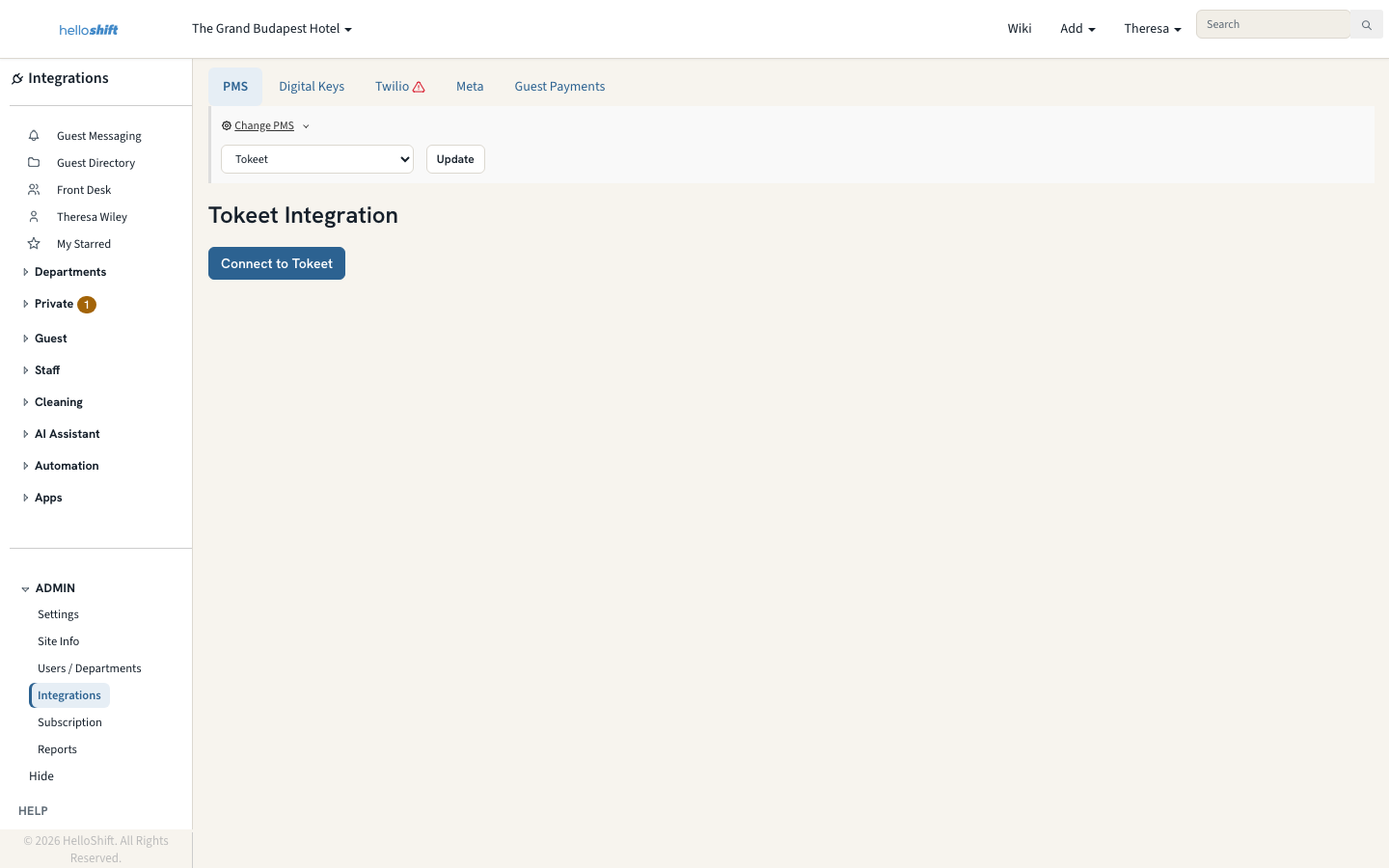
Step 2: Authorize HelloShift in Tokeet
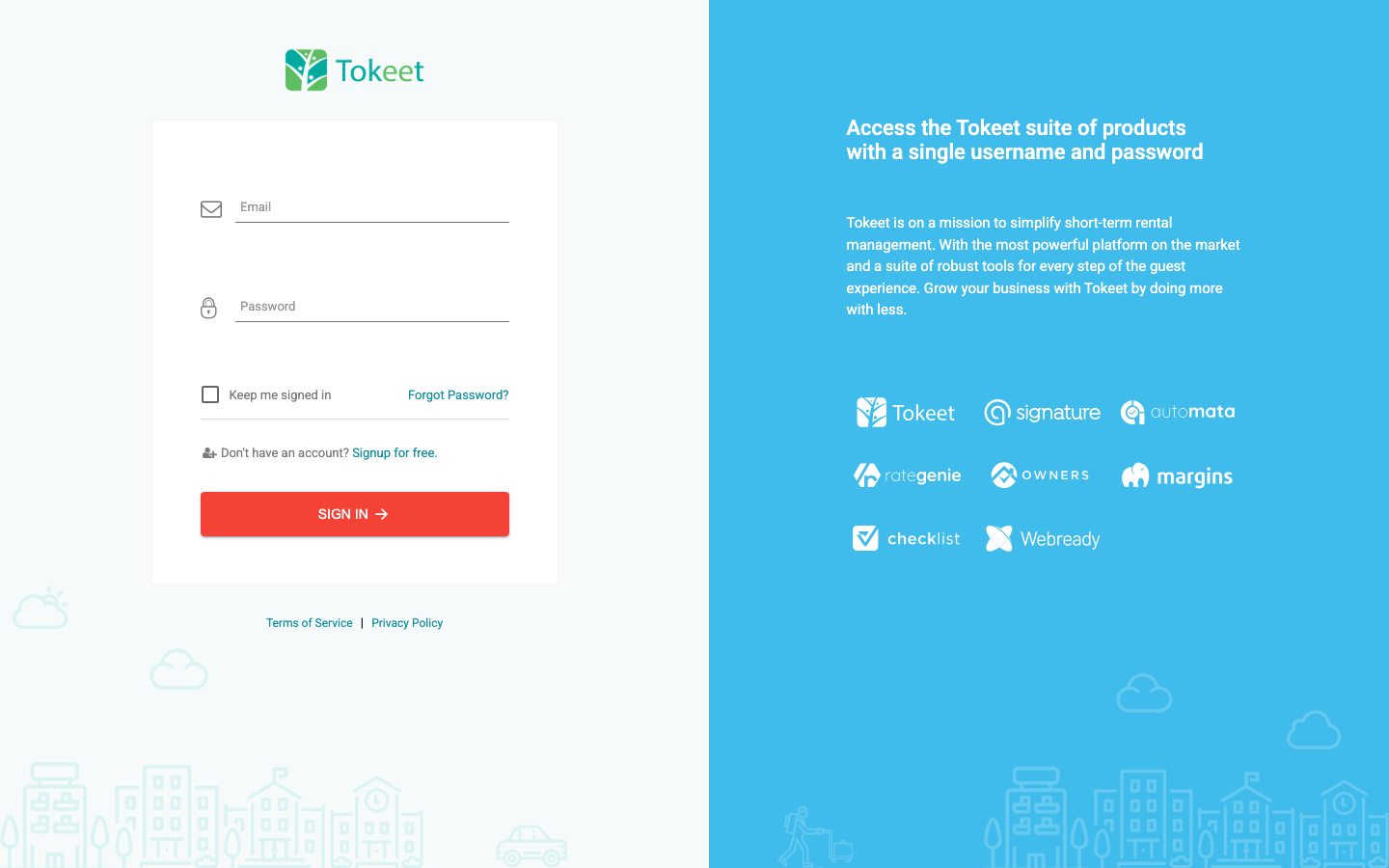
You are taken to Tokeet's sign-in page:
Log in with your Tokeet (AdvanceCM) administrator credentials. Tokeet may email you a verification code — enter it to continue.
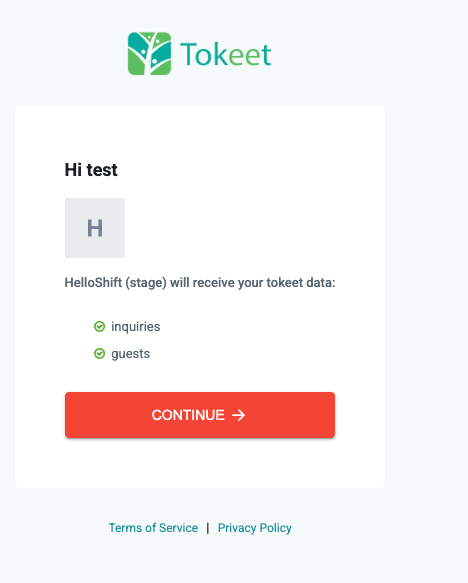
Review the requested permissions and approve the connection.
Step 3: Automatic Import
After you authorize, HelloShift shows an Importing Tokeet Data progress page while it:
Imports your rentals and creates matching rooms in HelloShift
Imports upcoming bookings along with guest contact details
When the import finishes, you are returned to the Integrations page, which shows ✓ Connected to Tokeet with your account name.
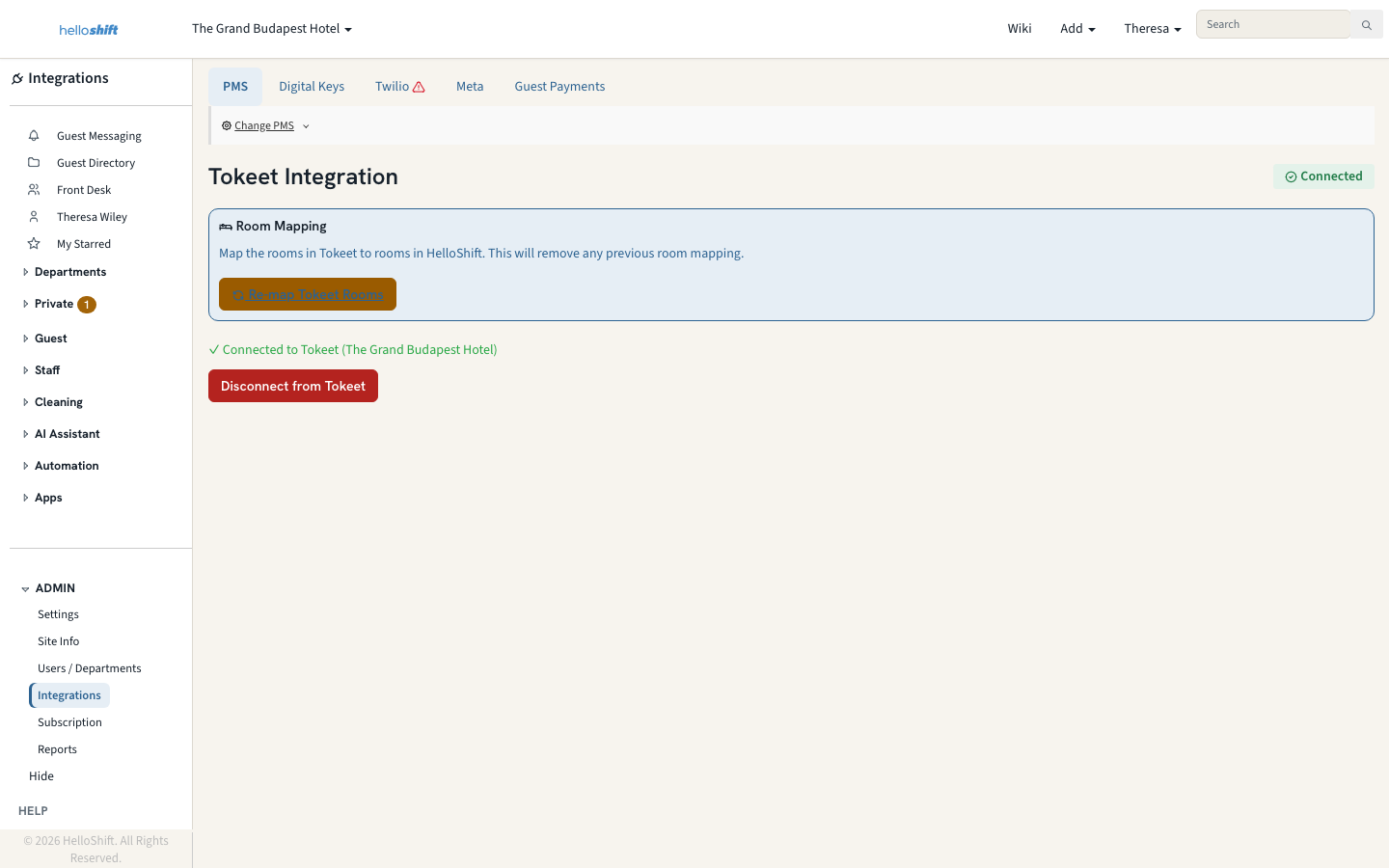
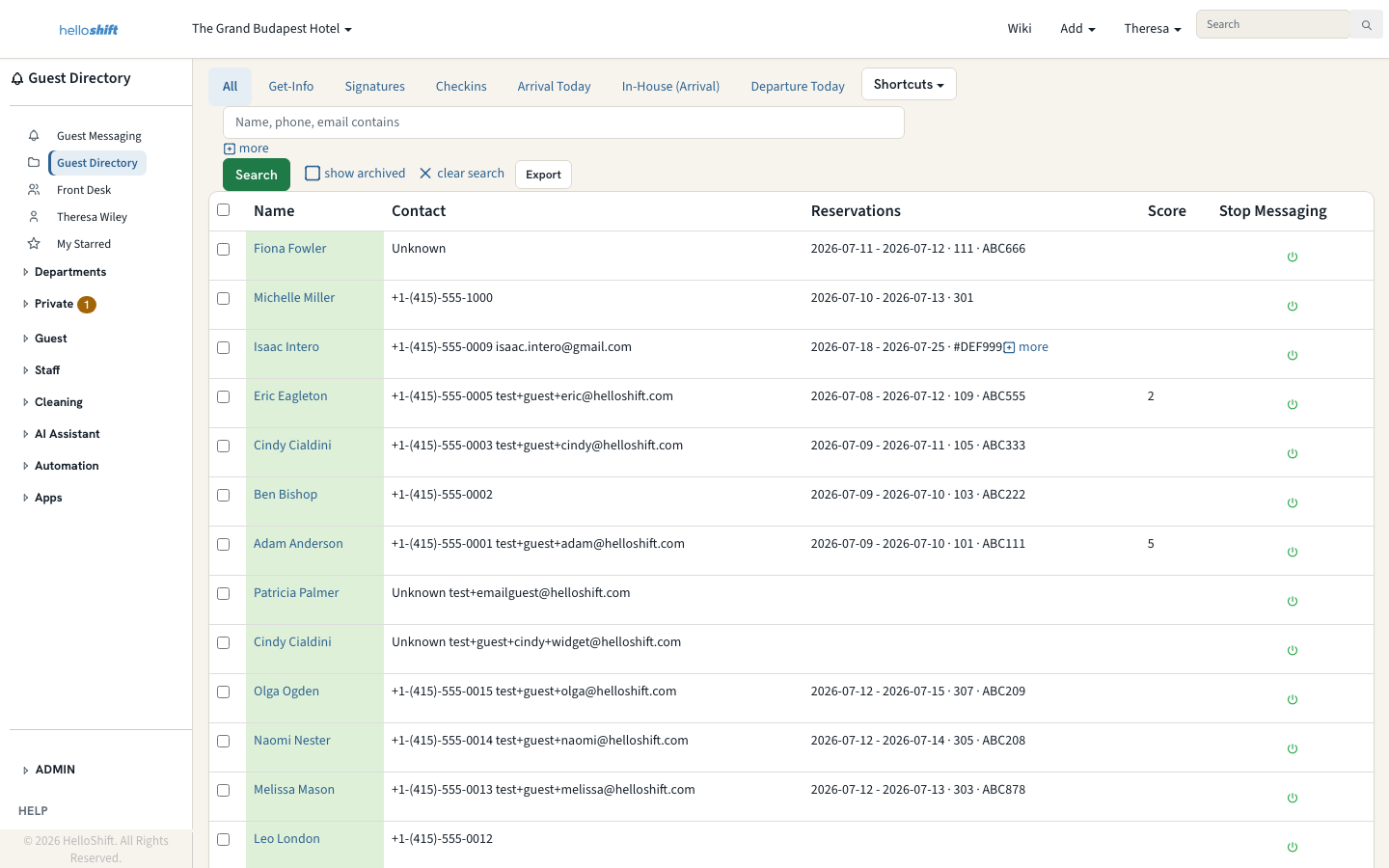
To verify, open Guests — your upcoming arrivals appear with their stay dates, room, and confirmation number.
How Syncing Works After Setup
Real-time updates: Tokeet notifies HelloShift the moment a booking is created, changed, or cancelled, and the guest record updates within moments — regardless of how far out the arrival date is.
Scheduled sync: HelloShift also sweeps the upcoming week of arrivals on a regular schedule as a backstop, so nothing is missed.
Rental changes: adding or renaming rentals in Tokeet updates your HelloShift rooms automatically. You can also re-run room mapping anytime from ADMIN > Integrations using Re-map Tokeet Rooms.
Disconnecting
Go to ADMIN > Integrations and click Disconnect from Tokeet. Guests and rooms already in HelloShift are kept, but new bookings stop importing. Removing the HelloShift app from inside your Tokeet account has the same effect. You can reconnect at any time.
Troubleshooting
"Tokeet connection failed" after authorizing
This appears if the authorization was declined or timed out. Try Connect to Tokeet again and approve the connection promptly — the authorization code Tokeet issues is only valid for a few minutes.
Bookings not appearing
Only booked reservations import — check that the reservation is confirmed in Tokeet, not still an inquiry.
Make a small change to the booking in Tokeet (such as editing a note) to push it to HelloShift again.
If bookings still don't appear, disconnect and reconnect the integration, or contact support@helloshift.com.
Booking imported without a room
The booking's rental may have been added to Tokeet after the initial room import. Click Re-map Tokeet Rooms on ADMIN > Integrations, then make a small change to the booking in Tokeet so it re-syncs.
Related Articles
PMS Integrations Overview - All supported PMS systems and capabilities
Guest Automations - Automated messaging for imported bookings
Was this helpful?
Still need help? Ask the team