Integrating HelloShift + Preno
Connect Preno to HelloShift to automatically import bookings, guests, and rooms — self-service setup with your Preno API token.
Preno is a cloud property management system for boutique hotels, motels, and B&Bs, popular in Australia, New Zealand, and the United Kingdom. Connecting it to HelloShift automatically imports your rooms, bookings, and guest contact details, so guest messaging, automations, and housekeeping always work from live reservation data. The connection is self-service and takes about two minutes once Preno has enabled API access for your account.
What Syncs
Room cleaning status and charge posting are not part of this integration — your Preno account remains the system of record for rates, availability, and payments.
Before You Start
Your Preno account must be on Preno’s Growth plan — that is the plan tier where Preno offers API access.
Preno must enable API access for your account: ask via Preno’s in-app support chat. This is usually done within a couple of hours.
You need admin access to your HelloShift site.
Step 1: Get Your Credentials from Preno
In Preno, go to Settings > Integrations > Preno API.
Create an API token (grant it all permissions) and copy it.
Copy your Tenant ID — it is shown as part of your API URL, e.g.
https://api.prenohq.com/v1/your-tenant-id.Optionally copy the Webhook signing secret from the same page — recommended, as it lets HelloShift verify that booking updates really come from Preno.
Step 2: Connect in HelloShift
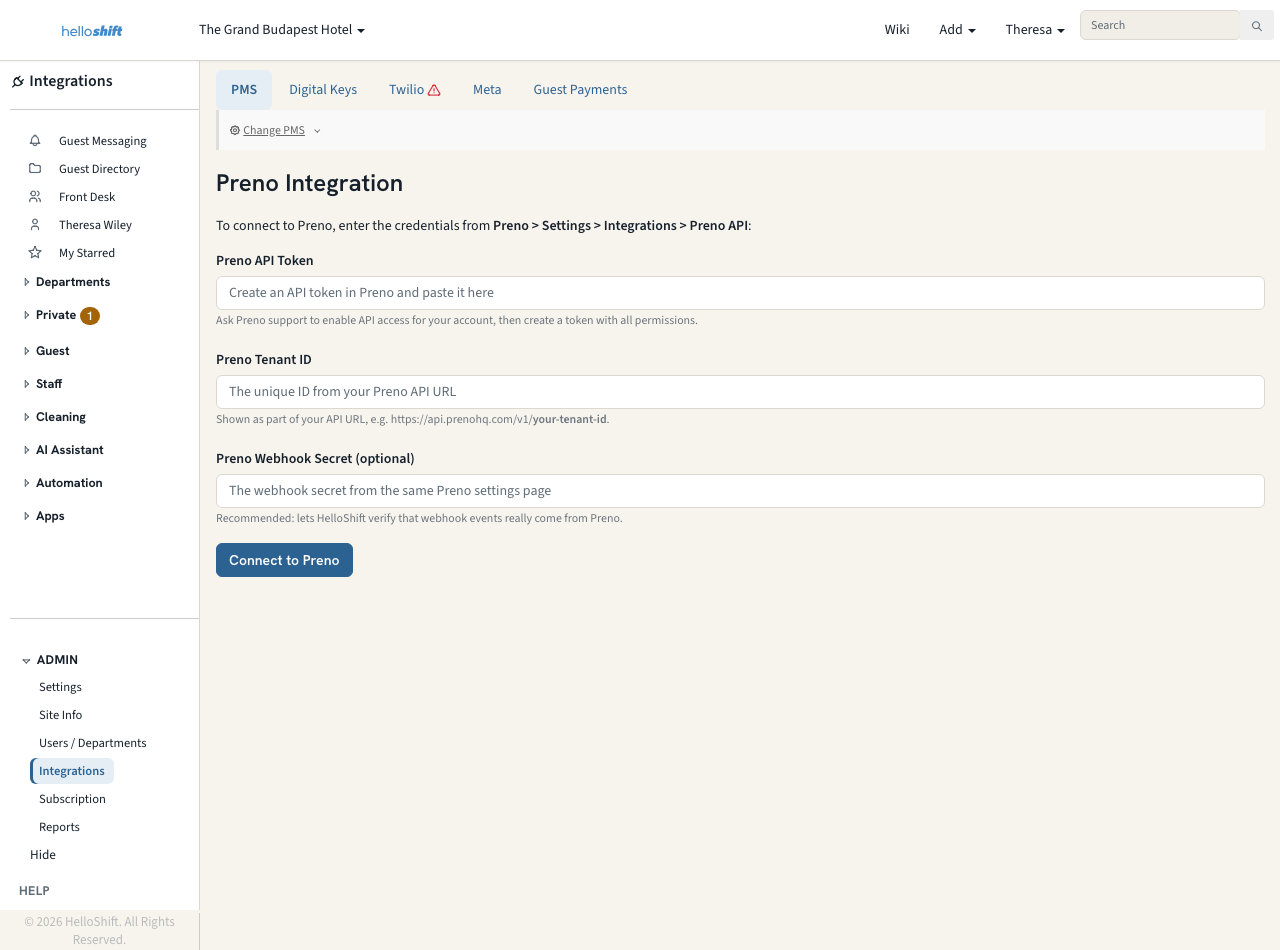
In HelloShift, go to ADMIN > Integrations.
Click Change PMS and select Preno from the dropdown, then click Update.
Paste your Preno API Token and Preno Tenant ID (and the Webhook Secret, if you copied it).
Click Connect to Preno. HelloShift validates the credentials against Preno right away.
Step 3: Automatic Import
After connecting, HelloShift automatically:
Imports your rooms and creates matching rooms in HelloShift
Imports the upcoming week of arrivals along with guest contact details
Registers for real-time updates from Preno
The Integrations page shows ✓ Connected to Preno with your hotel name.

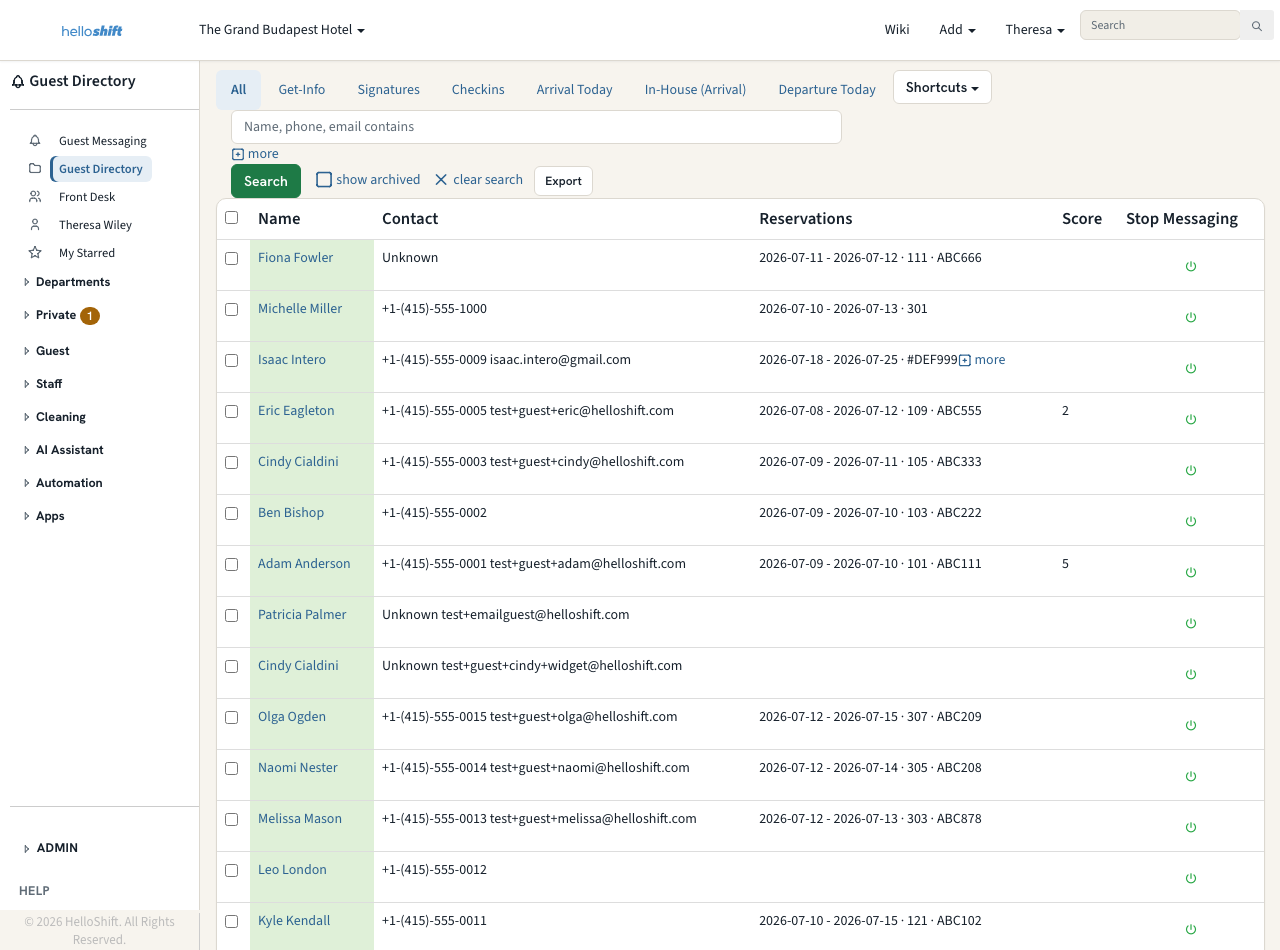
To verify, open Guests — your upcoming arrivals appear with their stay dates, room, and confirmation number.
How Syncing Works After Setup
Real-time updates: Preno notifies HelloShift the moment a booking is created, changed, or cancelled, and the guest record updates within moments — regardless of how far out the arrival date is.
Scheduled sync: HelloShift also sweeps the upcoming week of arrivals and any recently changed bookings on a regular schedule as a backstop, so nothing is missed.
Cancellations: cancelling a booking in Preno marks the guest’s stay Cancelled in HelloShift, which stops any upcoming automated messaging for that stay.
Multi-room bookings: each room of the booking appears as its own guest entry with its own per-room confirmation reference, so messaging and housekeeping are per-room.
Disconnecting
Go to ADMIN > Integrations and click Disconnect from Preno. HelloShift removes its connection to your Preno account, including the real-time update subscription. Guests and rooms already in HelloShift are kept, but new bookings stop importing. You can reconnect at any time.
Troubleshooting
“Could not connect to Preno” when connecting
Double-check the API token and Tenant ID — both come from Preno > Settings > Integrations > Preno API, and the Tenant ID must match your API URL exactly.
Confirm Preno has enabled API access for your account (Growth plan; requested via Preno’s support chat). Tokens do not work until Preno flips this on.
Bookings not appearing
The initial import covers the upcoming week of arrivals; bookings further out sync as Preno sends updates for them.
Make a small change to the booking in Preno (such as editing a note) to push it to HelloShift again.
If bookings still don’t appear, disconnect and reconnect the integration, or contact support@helloshift.com.
Guest shows the booker’s name instead of the occupant
HelloShift uses the occupant listed on the room when Preno has one, and falls back to the booking contact otherwise. Add the guest’s details to the room in Preno and the record updates on the next sync.
Related Articles
PMS Integrations Overview - All supported PMS systems and capabilities
Guest Automations - Automated messaging for imported bookings
Was this helpful?
Still need help? Ask the team