Check-in Tracking
Track guest check-in progress in real time — see who has started, completed, or skipped mobile check-in.
Monitor guest check-in progress through the Guest Directory. Track who has completed pre-check-in, review signatures, and view submitted documents—all from a single dashboard.
Overview
Accessing Check-in Tracking
Go to Guest Directory (top-level navigation)
Use the filter tabs to view check-in status:

Check-in Status Tabs
Get-Info Tab
Shows guests who haven't completed all required check-in steps.
Use Case: Identify guests who need reminders to complete pre-check-in before arrival.
Actions:
Send broadcast reminder to selected guests
View individual guest details
Check which steps are incomplete
Tip: Send the Get-Info email snippet to collect phone numbers from guests who only have email addresses.
Signatures Tab
Shows guests who have signed your registration card.
Column Details:
Viewing Signatures:
Click the signature date in the last column
View the signed registration card
See guest information and signature
Checkins Tab
Shows guests who have fully completed pre-check-in.
Column Details:
Viewing Check-in Data:
Click the checkin date in the last column
View all submitted information:
Arrival details (date, time, guest count)
Identity verification status
Uploaded documents
Signed agreements
Payment status
Special requests
Shortcuts Dropdown
Access additional filters via the Shortcuts dropdown:
Viewing Guest Check-in Details
From the Guest Card
When viewing a guest's profile, check-in data appears in the guest panel:
Check-in Data Summary:
Click the link icon to view full check-in details.
Check-in Details Page
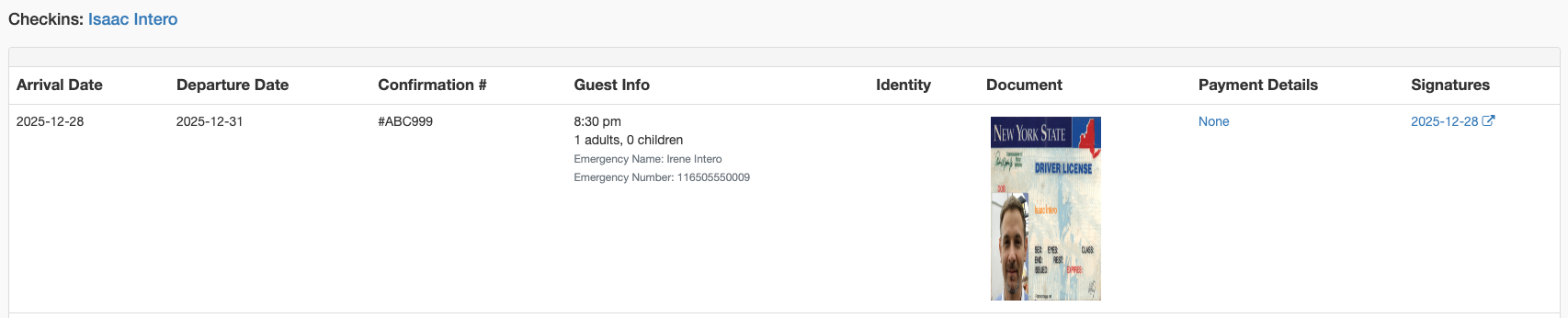
The full check-in details page shows:
Guest Information
Name, phone, email
Number of adults and children
Identity Verification
Status: verified, processing, requires_input, canceled
Error details if verification failed
Documents
Document type selected
Upload status (uploaded vs. presenting on arrival)
Link to view uploaded document
Registration Card
Signed agreement text
Guest signature (drawn or typed)
Date and time signed
Payment
Payment method added
Authorization status
Deposit amount
Special Requests
Answers to custom questions
Arrival time preferences
Sending Reminders
Individual Reminder
Click the guest name to open their inbox
Send a message with the check-in link
Bulk Reminder
Go to Guest Directory and click the Get-Info tab
Select guests who need reminders
Choose a snippet or create a message
Click Preview & Send
Recommended Snippet Variables:
{{checkinUrl}}- Direct link to check-in{{firstName}}- Guest's first name{{arrival_date}}- Arrival date
Automation for Check-in Tracking
Pre-Arrival Check-in Request
Create an automation to request check-in before arrival:
Reminder for Incomplete Check-in
Send a reminder on arrival day:
Confirmation After Completion
Use a trigger to confirm successful pre-check-in:
Status Indicators
Identity Verification Status
Document Status
Payment Status
Best Practices
Daily Workflow
Morning: Check Arrival Today (Not Checked In) for guests needing follow-up
Midday: Review Get-Info for tomorrow's arrivals
Evening: Send reminders to incomplete check-ins
Communication Timing
Prioritization
High Priority: Arrivals today with incomplete check-in
Medium Priority: Tomorrow's arrivals without check-in started
Low Priority: Arrivals 2+ days out
Troubleshooting
Guest not appearing in Get-Info tab
Possible Causes:
Guest already completed all required steps
Reservation not synced from PMS
Wrong date filter applied
Solutions:
Search for guest by name in "All" tab
Check PMS integration status
Verify reservation dates
Can't view uploaded documents
Possible Causes:
Document still processing
Upload failed
Permission issue
Solutions:
Wait a few moments and refresh
Ask guest to re-upload
Contact support if issue persists
Signature not showing
Possible Causes:
Guest typed name instead of drawing
Agreement step was skipped
Signature not saved properly
Solutions:
Both typed and drawn signatures are valid
Check if step was marked skippable
Ask guest to re-sign if needed
Related Articles
Contactless Check-in Setup - Configure check-in settings
Message Automations - Automate check-in reminders
Triggers - Set up event-based actions
All About Guest Messaging - Guest communication overview