Shopping Feature
Offer guests the ability to browse and purchase items, services, or add-ons through HelloShift's shopping feature.
The shopping feature allows guests to purchase products and services during their stay. Site admins can manage products, and guests can browse, purchase, and track their orders. Orders can be routed to the right team for fulfillment, and orders placed from a shared device (like a lobby tablet) capture the buyer's name and notes.
For Admins
Managing Products
Navigate to Shop → Items to manage your product catalog.
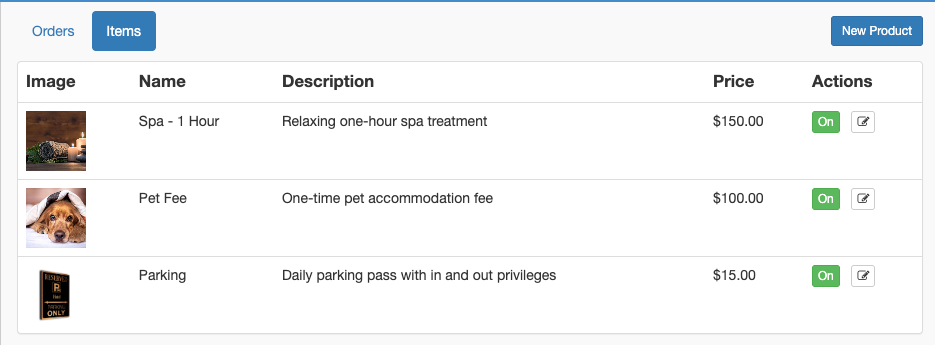
Creating Products:
Click New Product
Fill in product details:
Name
Description
Price
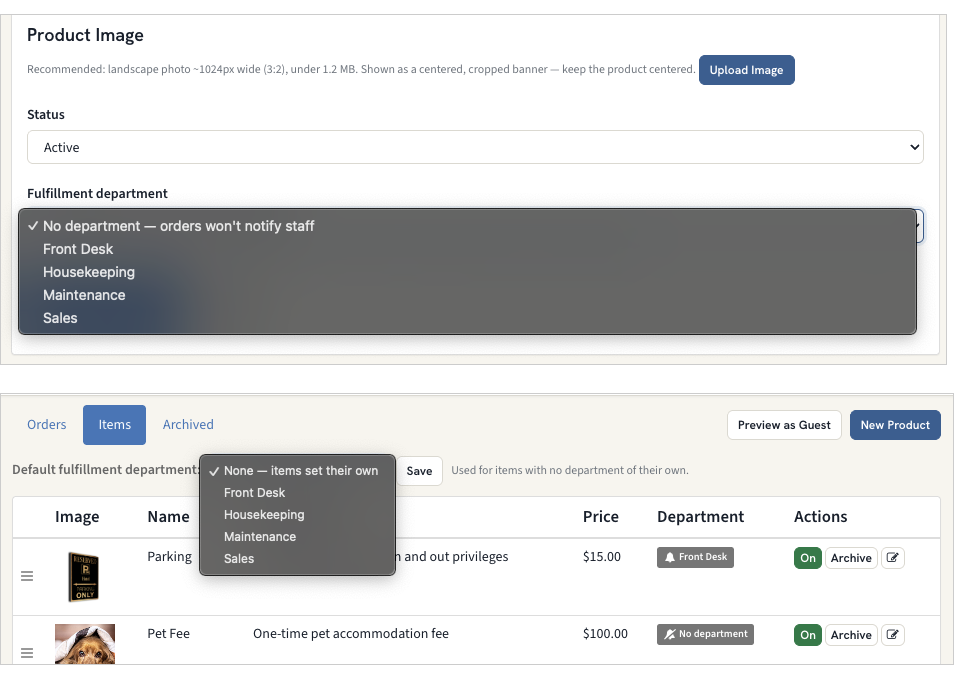
Fulfillment department (optional) — the team responsible for fulfilling this product (see Order Fulfillment & Notifications below)
Upload image (optional)
Click Save
Product Status:
Toggle On/Off to control product visibility to guests
Inactive products are hidden from the shop but remain in your catalog
Arranging Your Storefront
Drag to reorder: On the Shop Items page, use the drag handle on any row to put items in the order you want — the guest storefront follows the same order.
Shop banner: Give the shop its own banner image under Settings > Brand > Shop Banner (recommended 1024px wide). If left empty, the shop falls back to your site background image.
Order Fulfillment & Notifications
Route each order to the team responsible for fulfilling it, so the right staff are notified automatically — similar to room-cleaning notifications.
Assign a fulfillment department:
On the product form (Shop → Items → New/Edit Product), set the Fulfillment department to the team that handles that product.
At the top of Shop → Items, set a Default fulfillment department used for any product that doesn't have its own.
What happens when an order is placed:
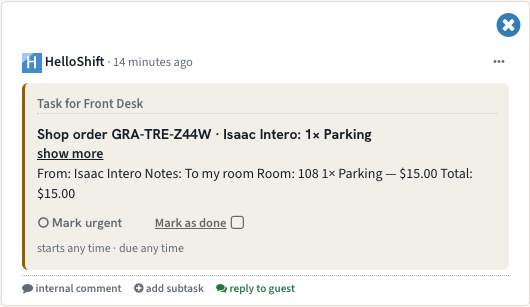
HelloShift creates a task for the responsible department so that team is notified. An order spanning multiple departments creates one task per department, each listing only that department's items.
The task shows the purchaser's name, any order notes (e.g. the guest's location), and the ordered items.
Staff receive these alerts based on their department notification preferences.
Good to know:
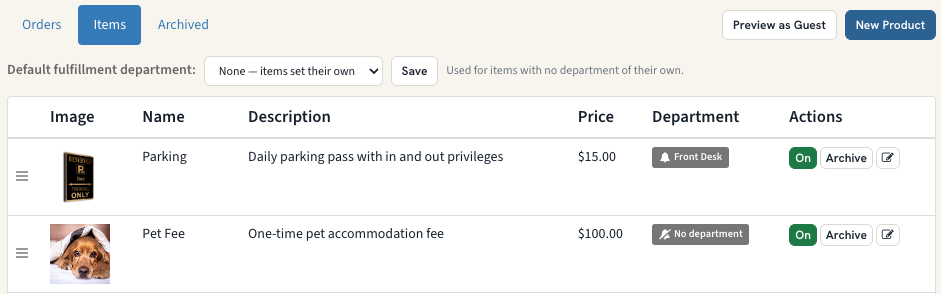
A product with no department (and no site default) creates no task — orders for it won't notify anyone. The items list flags these with a "No department" badge.
Routing to a department that has no subscribed staff creates the task but notifies no one — make sure the chosen department has staff who receive its notifications.
Viewing Orders
Navigate to Shop → Orders to view all orders for your site.
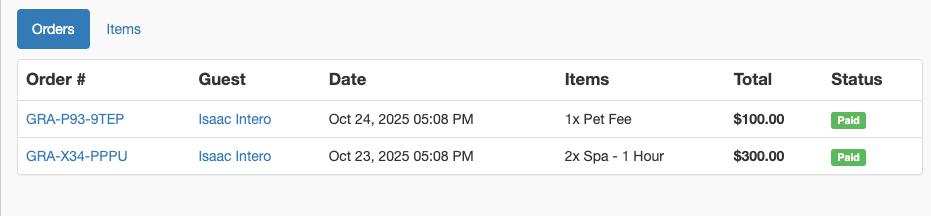
Order Information:
Order #: Unique order identifier (format:
SITE-XXX-XXXX)Guest: Guest name (linked to profile)
Purchaser: Name entered at checkout — used for orders placed on a shared device/kiosk; falls back to the guest's name
Date: Order date and time
Items: Products and quantities ordered
Total: Order total amount
Status: Paid, Pending, or Failed
Notes: Any order notes the buyer entered at checkout
Order Details: Click any order number to view:
Complete order information
Line items breakdown
Guest contact details
Room and stay information
Payment details (Stripe session data)
Guest Profile Integration
Orders automatically appear in the guest's stay section.
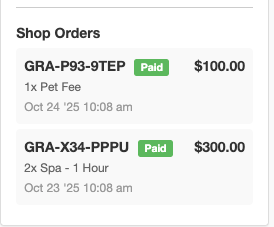
View guest orders directly from:
Guest profile → Stay section → Shop Orders section
Shows order number, status, and total
For Guests
Shopping Experience
Guests access the shop via the Shop link in their guidebook.
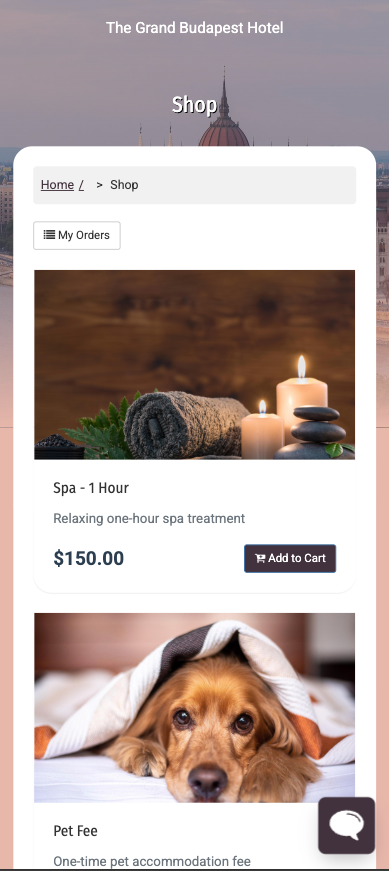
Browsing Products:
View all available products with images, descriptions, and prices
Products are displayed in a mobile-responsive grid
Adding to Cart:
Click Add to Cart on any product
Cart icon appears with item count
Continue shopping or proceed to checkout
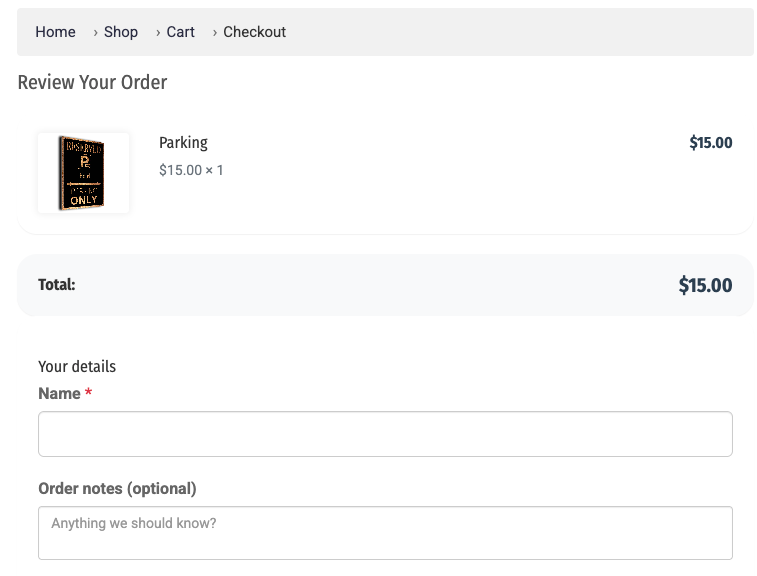
Checkout:
Click Checkout button
Review order summary
Enter your Name (required when ordering from a shared device, such as a lobby tablet) and any Order notes (for example, your location or a special request)
Click Pay with Card
Complete payment
View confirmation page
Viewing Orders:
Click My Orders to view order history
See all past orders with status and details
Click any order to view full details
Payment Processing
Payment Gateway: Your configured provider (Stripe, Shift4, or Authorize.net)
Supported Methods: Credit/debit cards
Payment Flow: Secure payment form from your configured provider
Order Status: Automatically updated when payment completes
Snippet Variables
Use {{shopUrl}} in messaging to send guests a direct link to the shop.
Related Articles
Was this helpful?
Still need help? Ask the team