Guest Services: reservations, itineraries and the services log
Log shuttles, dinners and activities on a reservation, send guests a live itinerary link, download the day's manifest, and let tasks follow each service.
Guest Services lets your concierge or front desk log every service arranged for a reservation—airport shuttles, restaurant reservations, spa appointments, golf tee times, activities—in one place. Each service becomes a line on the guest's live itinerary page, a task for the team that fulfils it, and a row in a spreadsheet you can download for the day's operations.
Overview
Which plans include it
Guest Services is included in the Guest+ plan, with nothing to switch on. The first time you open it, HelloShift adds a ready-made Transportation service and an itinerary message, and admins can adjust the catalog from then on.
On other plans, Guest › Services and the Services card on each reservation show a preview of what Guest Services does, with an Upgrade to Guest+ button. Questions? Email support@helloshift.com.
Adding a service to a reservation
Open the guest's reservation (from the guest's page, click Open reservation).
In the Services card, pick a service type and click Add.
Fill in the fields. The date and time is required; it is the time of the service itself (for transportation, the flight time, not the pickup time).
Use Special instructions for anything the guest should see on their itinerary, and Internal notes for staff-only remarks.
Click Add. The service appears in the list as Requested.
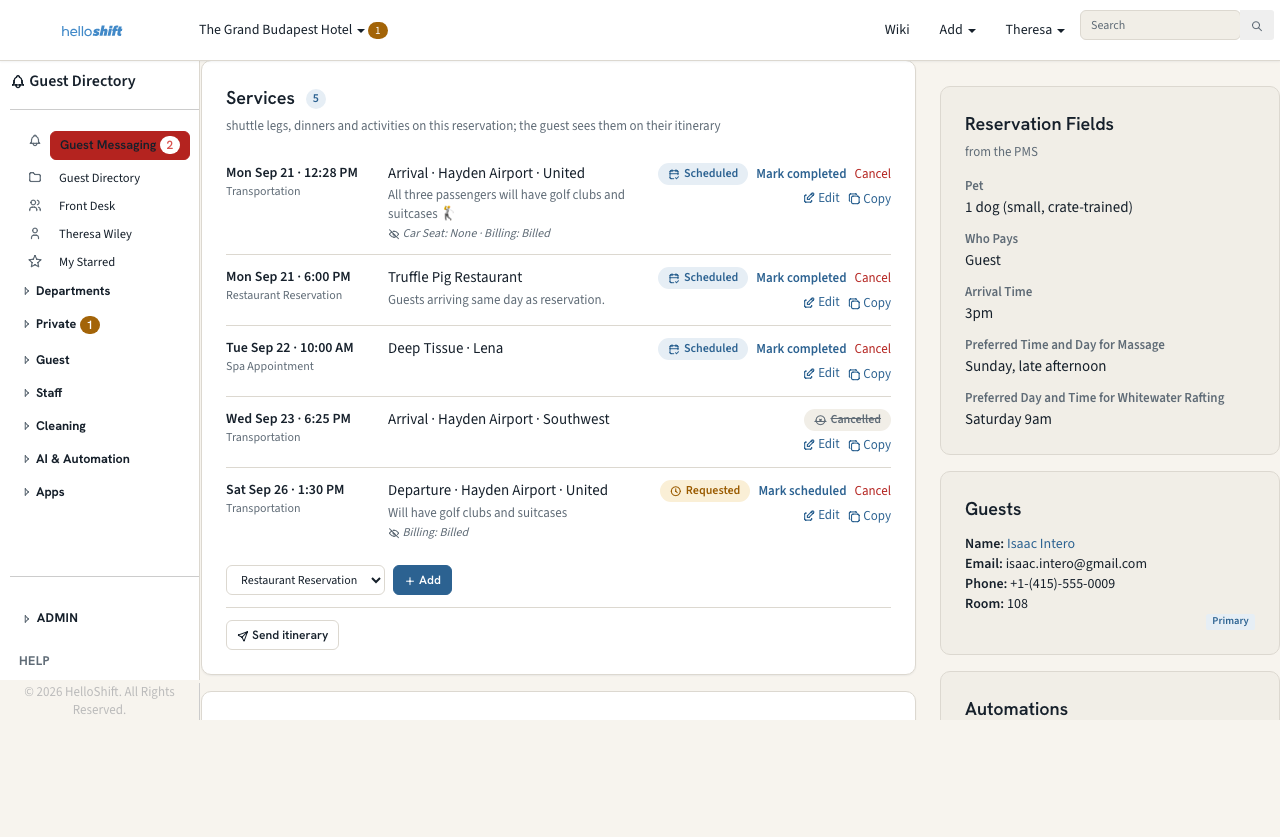
Tip: Copy opens a new form pre-filled from an existing service—handy for a guest who has the same dinner reservation every week.
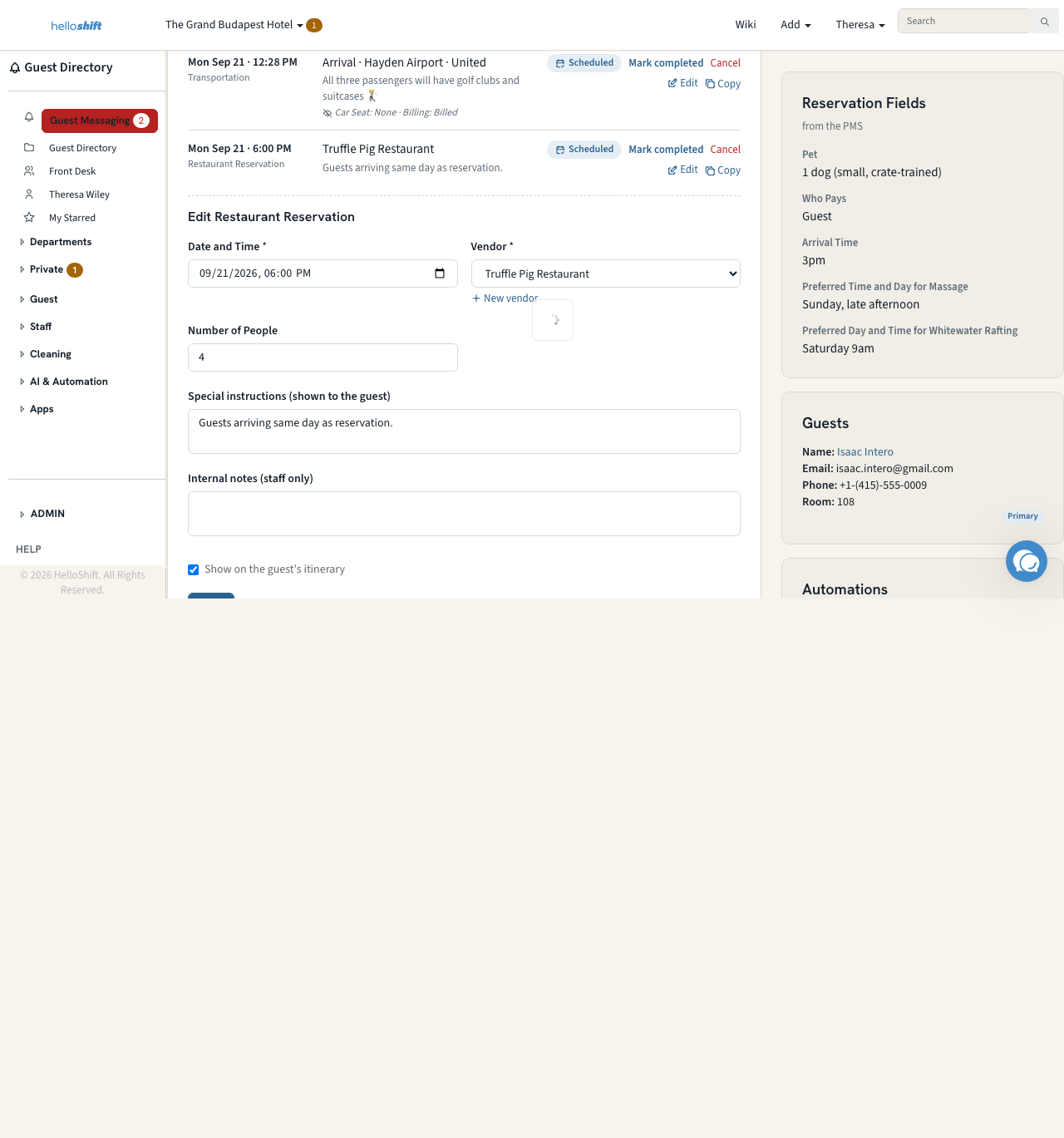
Service status
Change history
Click History on any service to see every change: who made it, when, and each field before and after. An Updated service also shows the changes since it was last confirmed right on the row, on the reservation and in the Services log. Editing internal notes or the itinerary switch is recorded in the history but does not mark a service Updated.
Vendors
Service types such as Restaurant Reservation have a Vendor field. Pick an existing vendor or click New vendor to add one with its address and phone without leaving the form. The vendor's address and phone print on the guest's itinerary and open Maps and the dialler on a phone.
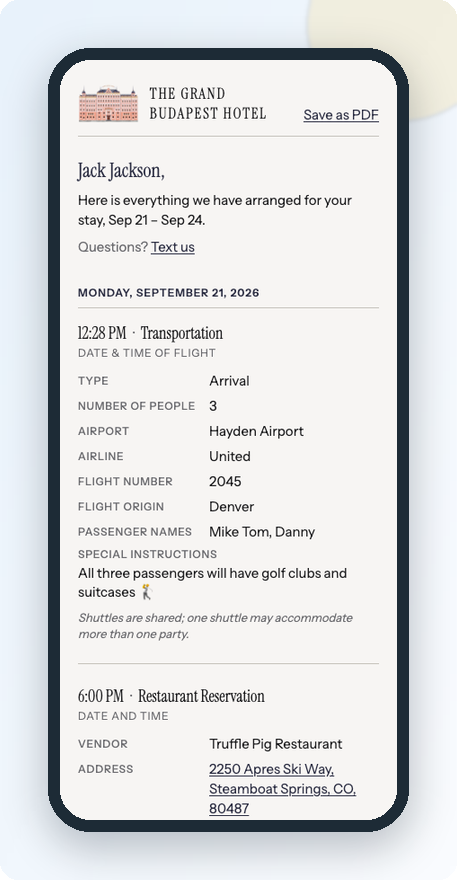
The guest itinerary
Every guest has a personal itinerary page. It shows all services for their stay grouped by day, with today highlighted, pending services marked, and the property's address and phone in the footer. The page is live: when you add or confirm a service, the guest sees the change the next time they open the link.
Sending the itinerary
On the reservation page, click Send itinerary under the Services card.
HelloShift shows which channel it will use (text or email) based on the guest's contact details. Edit the message if you like—the link is inserted automatically.
Click Send. The message appears in the guest's conversation like any other message.
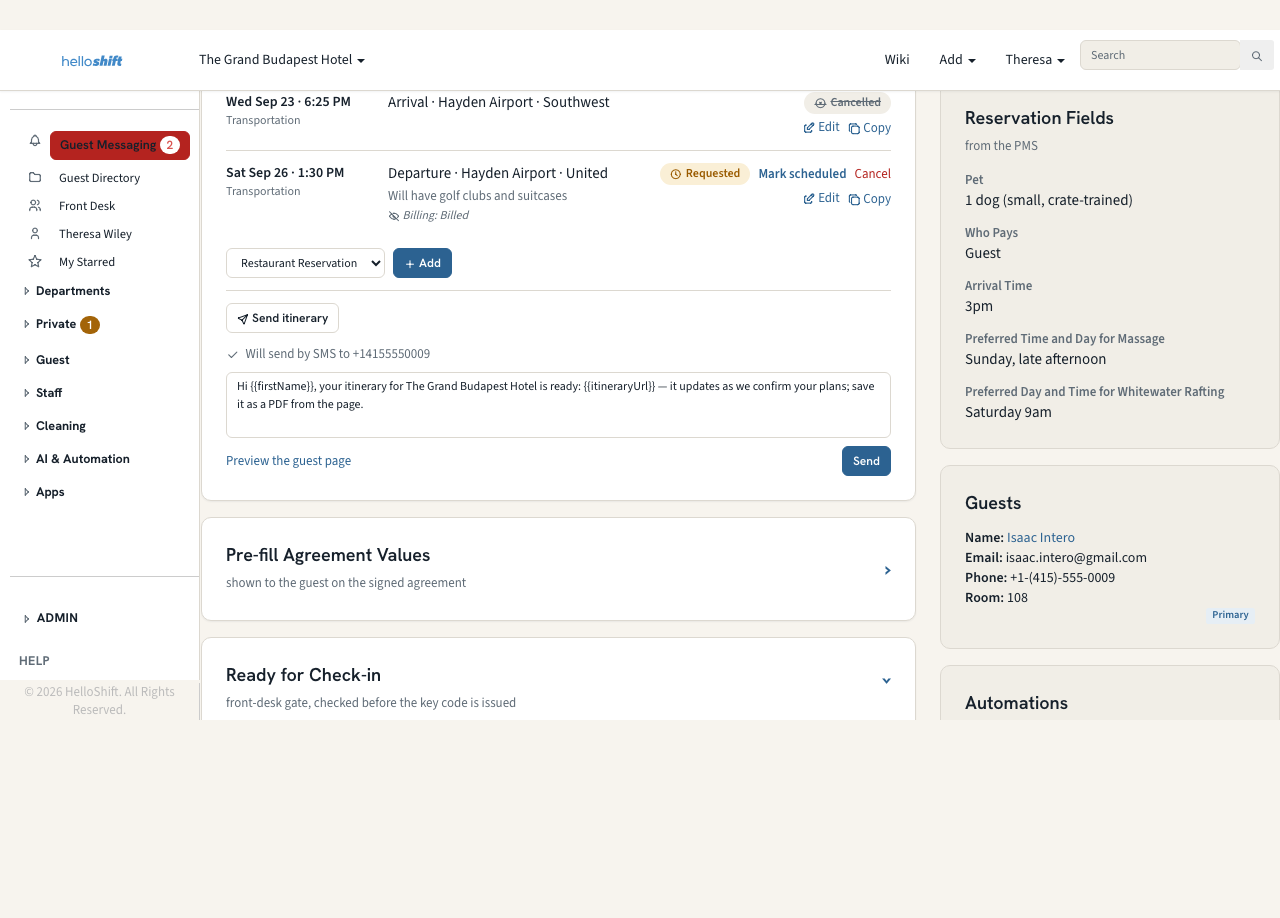
Use Preview the guest page to open the itinerary yourself. To send it in an automated message, insert the guest itinerary link variable ({{itineraryUrl}}) in any snippet.
Printing or saving as PDF
Guests (and staff) click Print / Save as PDF at the bottom of the itinerary page, or Save as PDF at the top. The browser's print dialog handles both; the printed copy carries an “as of” date and time.
Customising the letter
Under Checkin › Guidebook (Guidebook Appearance) you can set the Itinerary Intro sentence and the Itinerary Sign-off. The hotel logo and colours come from your Brand settings. Special instructions and each service type's disclaimer print under the relevant service.
The Services log and spreadsheet download
Open Guest › Services in the left navigation. The log lists every service across all reservations, sorted by time, for the selected date range (today plus 7 days by default). Filter by service type and status—pick Updated to see every confirmed service that has changed. Once a service type is selected, a filter appears for each of its dropdowns (for transportation: Airport, Type, Airline, Car Seat and Billing). Change status inline, and click a row to jump to that service on its reservation.
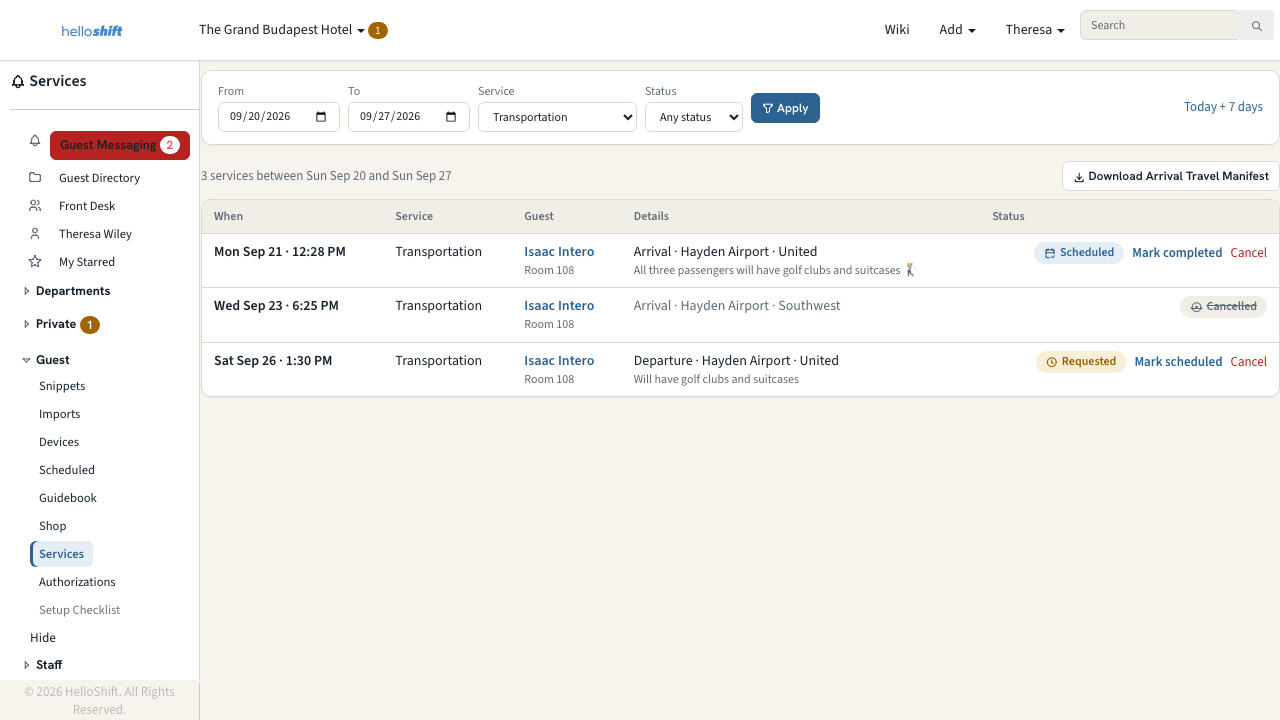
The Download button follows your filters. Cancelled services are left out unless you filter for Cancelled.
No service type selected: Download All services gives one sheet across every service—date, time, service, guest, room, vendor, a Details column with the rest of each service's fields, notes and status.
Transportation: your property's column layout—one row per passenger, split into Arrivals and Departures sheets, with a stable ID per service and per passenger so re-downloads can be matched to earlier ones. The last column is Status, so Updated services stand out.
Any other service: one row per service, with a column for each of its fields.
Staff tasks
Service types can create a task for the team automatically. The task is due at the pickup or preparation deadline (for example, two hours before a departure flight), carries every detail of the service, and moves with the service: rescheduled when the time changes, closed when the service is cancelled.
On your phone
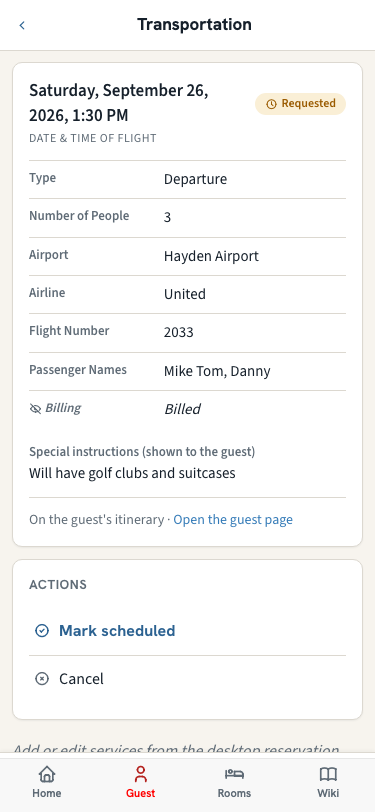
The guest's profile in the HelloShift app lists their services. Tap one to see every detail, what changed and its full history, and to mark it scheduled or completed, or cancel it. Adding and editing services is done on the desktop reservation page.
Managing services and vendors (admins)
Admins open Admin › Settings › Guest services. Changes apply to services added from then on—services already booked keep the details they were booked with.
Adding a service
Click Duplicate next to the service closest to what you need (for example, Transportation).
Name the copy (for example, “Transportation - External”) and click Create copy.
Adjust the copy on the page that opens.
Editing a service
Name, Visibility (Active or Hidden—hidden services can't be added to new reservations), Note to the guest (printed under the service on the itinerary), whether new services show on the guest's itinerary, and whether each one creates a staff task.
Fields: rename any field. While nothing has been booked with the service you can remove fields you don't need; the date and time, and fields the spreadsheet or task timing depend on, always stay.
Dropdown options: add, remove, rename and drag to reorder, with an optional spreadsheet code (for example, HDN for Hayden Airport). Options marked with a lock—such as Arrival and Departure on transportation—can't be renamed or removed because the spreadsheet and task timing depend on them.
To add a new field or change a field's type, contact support@helloshift.com.
Vendors
Add a vendor with its name, address and phone, or Edit one—the change shows on every itinerary that names it. Retire a vendor you no longer use: it stays on services already booked but leaves the picker. Reactivate brings it back.
FAQ
Can I add my own service types or change the fields?
Admins can duplicate a service (for example, to make a second transportation service), rename or hide it, rename its fields and edit dropdown options under Admin › Settings › Guest services. To add a new field, change a field's type or adjust task lead times, ask HelloShift support.
What does the guest see for a Requested service?
The service with a Pending confirmation mark and “We're confirming this for you — no action needed.” Mark it Scheduled once the vendor confirms.
What does the guest see for an Updated service?
The new details, shown as confirmed—no pending mark. Updated is a signal for your team only.
Does the itinerary link expire?
No. It is personal to the guest and always shows their current and upcoming stays.
Can a guest with two upcoming stays see both?
Yes—the itinerary groups services under each stay.
Was this helpful?
Still need help? Ask the team