Template Tasks
Save time with reusable task templates for recurring hotel operations like maintenance, inspections, and room prep.
Template Tasks help you standardize common, recurring tasks that staff create frequently. Instead of manually entering the same task details each time, templates pre-fill the subject, description, assignee, deadline, and tags with just one click.
Example Use Cases:
"More Towels for Room" - Front desk creates tasks for Housekeeping with automatic 10-minute deadline
"Guest Complaint" - Pre-tagged with #GuestIssue and notifies GM
"LED Upgrade" - Maintenance task with detailed instructions in description
Key Features
One-Click Task Creation: Create fully-configured tasks instantly from any wall or tag page
Trigger Integration: Triggers can create a task from a template automatically when a guest event occurs (see Triggers)
Smart Visibility: Templates appear only where relevant (specific departments or tag types)
Pre-filled Details: Subject, description, assignee, and deadlines are all configured
Automatic Tagging: Tasks created from room pages automatically include the room tag
Timing Control: Set start delays and deadlines relative to creation time
Bulk Creation: Generate tasks for multiple rooms/tags at once
Getting Started
Accessing Template Tasks
Navigate to Staff > All Tasks > Templates tab.
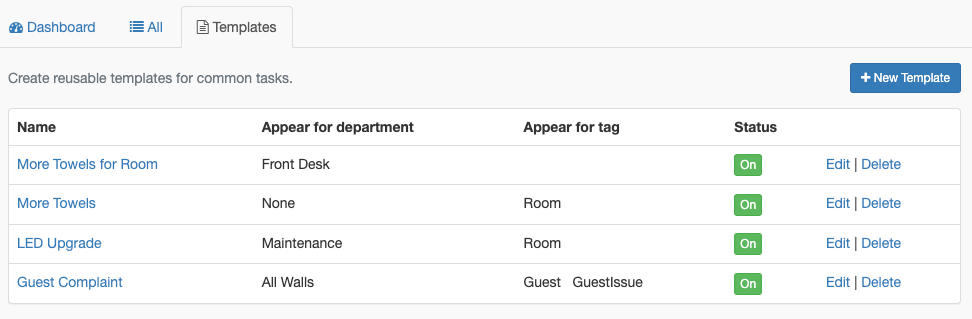
The templates list shows:
Name: Template identifier shown in the dropdown
Appear for department: Which department walls show this template
Appear for tag: Which tag pages show this template
Status: On/Off toggle
Actions: Edit or Delete
Creating a Template Task
Click + New Template
Fill in the basic fields:
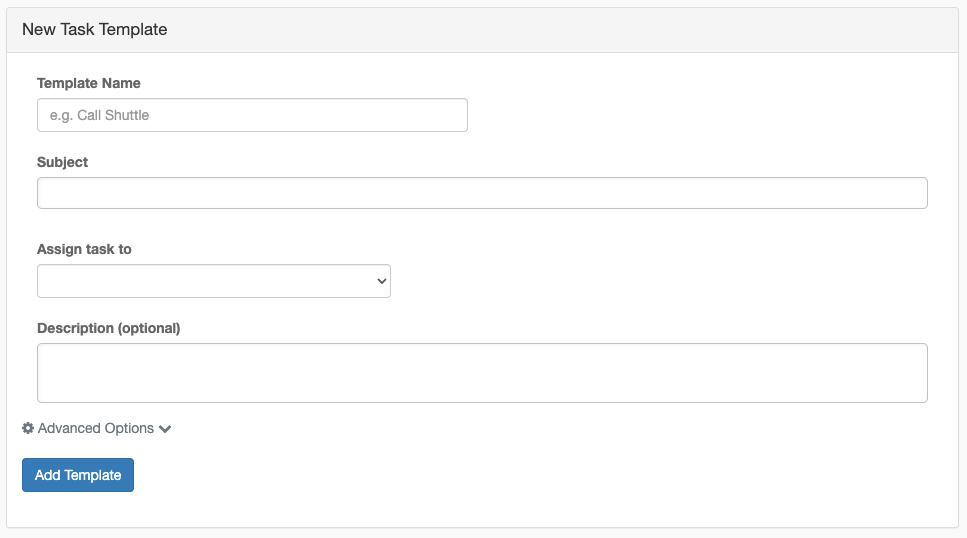
Basic Fields
Advanced Options
Click Advanced Options to expand additional settings:
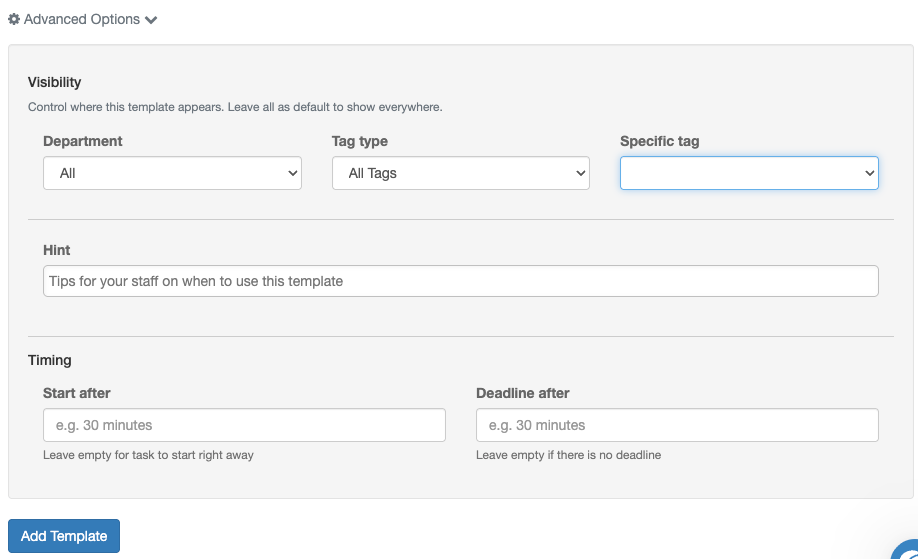
Visibility Settings: Control where this template appears in the "+ Template" dropdown:
Hint: Tips for staff on when to use this template. Appears as helper text in the template dropdown.
Timing:
Click Add Template
Using Template Tasks
From a Department Wall
Navigate to any task wall (e.g., Front Desk, Housekeeping)
Click + Template dropdown in the toolbar
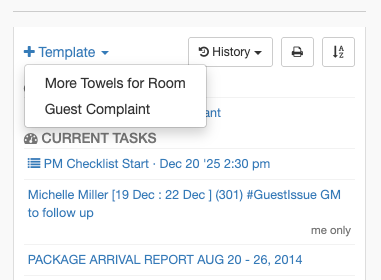
Select a template from the list
A new task is created with all pre-filled details
Modify any fields if needed before saving
From a Tag Page (Room, Equipment, etc.)
Navigate to a tag page (e.g., Room 101)
Click + Template dropdown
Select a template
The task is automatically tagged with that room/tag
Task appears on the assigned department's wall
Creating Tasks for Multiple Tags
You can generate tasks from a template for multiple rooms/tags at once:
Go to the template's page or use bulk actions
Select multiple rooms or tags
One task is created for each selected tag
All tasks use the template's settings
Visibility Examples
Understanding visibility settings helps you organize templates effectively:
"None" vs "All":
Department = All: Template appears on every department wall
Department = None: Template never appears on department walls (only tag pages if configured)
Tag Type = All Tags: Template appears on all tag pages
Tag Type = None: Template never appears on tag pages (only walls if configured)
Common Use Cases
Best Practices
Naming Templates
Use clear, action-oriented names: "Call Shuttle", "Request Towels", "Report Issue"
Include context when helpful: "More Towels for Room" vs "More Towels" (tag-based)
Keep names concise - they appear in dropdown menus
Configuring Visibility
Set Department = None for templates that only make sense on tag pages
Set Tag Type = None for templates that only appear on department walls
Use Specific tag sparingly - usually Tag Type is sufficient
Using #Tags and @Mentions
Include hashtags and mentions in the description for automatic categorization:
Please address guest concern immediately.#GuestIssue #Complaint@GM @OwnerTiming Guidelines
Immediate tasks: Leave "Start after" empty
Scheduled tasks: Use "Start after" (e.g., "2 hours" for follow-up calls)
Urgent deadlines: Short duration (e.g., "10 minutes" for towel requests)
Flexible deadlines: Longer duration (e.g., "1 day" for maintenance)
No deadline: Leave "Deadline after" empty for informational tasks
Troubleshooting
"Template doesn't appear in dropdown"
Cause: Visibility settings don't match current context
Solution:
Check the template's Department setting
Check the Tag Type setting
Ensure Status is "On"
Verify you're on a matching wall or tag page
"Template appears on wrong walls"
Cause: Department visibility set to "All" instead of specific department
Solution:
Edit the template
Expand Advanced Options
Set Department to the specific department or "None"
"Tasks aren't getting the room tag"
Cause: Using template from wall instead of room page
Solution:
Navigate to the room page first, then use the template
Or use bulk creation to select specific rooms
"Deadline not appearing on created tasks"
Cause: "Deadline after" field empty or using invalid format
Solution:
Edit the template
Enter deadline in natural language: "30 minutes", "2 hours", "1 day"
Save and test
Difference from Checklists
When to use Template Tasks:
Quick, single-action items (towels, shuttle, callbacks)
Staff-initiated ad-hoc requests
Simple escalations
When to use Checklists:
Multi-step procedures (room inspection, shift handoff)
Recurring scheduled tasks (daily cleaning, maintenance)
Items requiring verification/sign-off
Related Articles
Still need help? Ask the team