User Settings & Notifications
Customize your personal HelloShift settings including notification preferences, display options, and account details.
Control how you receive alerts for tasks, notes, guest messages, and system events. Configure notifications for yourself or (as an admin) for other staff members.
Overview
HelloShift sends notifications through multiple channels:
Accessing Email Reports
For Yourself
Click your name in the top right
Select My Profile
Scroll to Email Reports
For Other Users (Admin Only)
Go to Admin > Users
Find the user and click Edit
Scroll to Email Reports
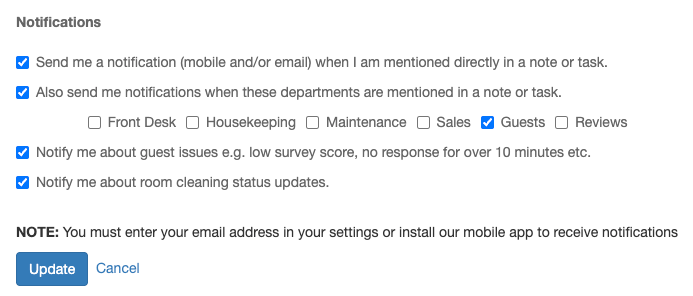
Notification Types
Task Notifications
Guest Message Notifications
Note Notifications
Configuring Settings
Global Settings
Per-Category Settings
Toggle notifications for specific categories:
Guest messages
Tasks assigned to you
Tasks in your department
Notes mentioning you
Mobile App Settings
Notifications also depend on your device settings:
iOS
Open Settings on your iPhone
Scroll to HelloShift
Tap Notifications
Enable Allow Notifications
Android
Open Settings
Tap Apps > HelloShift
Tap Notifications
Enable notifications
Troubleshooting
Not Receiving Notifications?
Check HelloShift settings: Verify notifications are enabled in your profile
Check device settings: Ensure HelloShift has notification permission
You won't be notified about your own actions: This is by design
Try reinstalling: Accept the notification prompt during installation
Contact support: Provide the specific note/task you didn't receive
Too Many Notifications?
Disable categories you don't need
Switch email to daily digest
Set quiet hours for off-duty times
Ask admin to adjust your role-based notifications
Best Practices
Enable push for urgent items: Guest messages, assigned tasks
Use email digest for awareness: Department activity, reports
Set quiet hours: Prevent after-hours interruptions
Review periodically: Adjust as your role evolves