Stripe Payment Setup
Configure Stripe to collect guest payments and deposits during mobile check-in in HelloShift.
Connect your Stripe account to HelloShift to accept deposits during check-in, collect tips from guests, and enable your guest shop.
For an overview of payment features and configuration, see Guest Payments Overview.
Requirements
A Stripe account (create one at stripe.com)
HelloShift subscription with Guest+ plan
Connecting Your Stripe Account
Step 1: Access Payment Settings
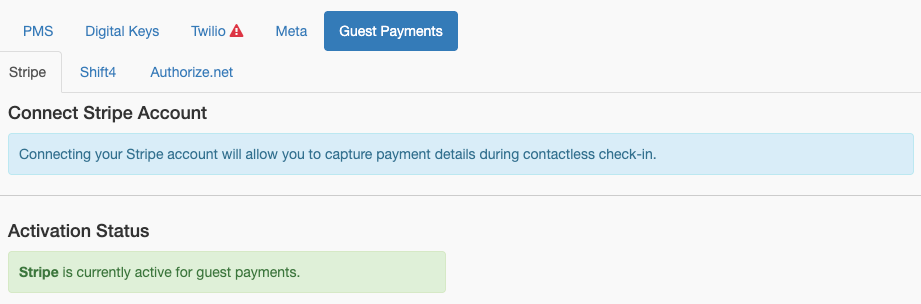
Go to Admin > Integrations > Guest Payments
Click the Stripe tab
Step 2: Connect via OAuth
Click Connect Existing Stripe Account
You'll be redirected to Stripe's authorization page
Log in to your Stripe account (or create one)
Authorize HelloShift to access your account
You'll be redirected back to HelloShift
Step 3: Complete Onboarding
If this is a new Stripe Connect account:
Stripe will prompt you to complete business verification
Enter your business information:
Legal business name
Business address
Tax ID (EIN)
Add your bank account for payouts
Accept Stripe's terms of service
Once complete, you'll see Stripe Account Connected in your settings.
Step 4: Activate Stripe
After connecting, click Activate Stripe to make it your active payment provider
The system will switch from any previously active provider
Stripe-Specific Features
Digital Tipping
Digital tipping is supported by all payment providers in HelloShift (Stripe, Shift4, and Authorize.net).
To enable tips:
Go to Admin > Settings > Checkin
Click the Guidebook tab
Enable Display Tip Button
Guest Shop Card Payments
Guest shop card payments are supported by all payment providers in HelloShift (Stripe, Shift4, and Authorize.net).
Issuing Refunds
Refunds are processed through Stripe Dashboard:
Log in to dashboard.stripe.com
Go to Payments
Find and click the payment to refund
Click Refund button
Enter refund amount (full or partial)
Confirm refund
Refunds typically appear on guest's statement within 5-10 business days.
Releasing Authorizations
For deposit authorizations that don't need to be captured:
In Stripe Dashboard, find the authorization
Click Cancel to release the hold
Funds are immediately available to guest
Viewing Payments
For detailed payment management:
Log in to dashboard.stripe.com
View Payments for all transactions
Click any payment for details, refunds, or disputes
Disconnecting Stripe
If you need to disconnect your Stripe account:
Go to Admin > Integrations > Guest Payments
Click Disconnect my Stripe account
Confirm disconnection
Warning: Disconnecting disables all payment features until a new account is connected.
Troubleshooting
Connect button not working
Possible Causes:
Browser blocking popup
Already connected (check status)
Solutions:
Allow popups for HelloShift
Check if already showing Connected
Try different browser
Deposit not capturing
Possible Causes:
Authorization expired (7 days)
Card declined on capture
Solutions:
Capture within 7 days of authorization
Check card status in Stripe Dashboard
Contact guest for new payment method
Tips not processing
Possible Causes:
Tip button disabled
Stripe not connected
Solutions:
Enable tip button in Guidebook settings
Verify Stripe connection
Shop orders failing
Possible Causes:
Stripe Checkout session expired
Card declined
Solutions:
Guest should restart checkout
Check card with Stripe
For general payment troubleshooting, see Guest Payments Overview.