Smart Lock Integration
Connect smart locks to HelloShift for mobile key access — supported locks, setup guides, and troubleshooting.
Overview
The Seam Device Hub allows you to connect and manage smart locks from multiple providers (August, Yale, Schlage, and more) through a single unified interface. This integration enables automatic key code generation, device-to-room mapping, and master code management for your property.
What is Seam?
Seam is a unified API platform that connects to various smart lock manufacturers, allowing you to manage all your smart locks in one place regardless of the brand. Instead of managing multiple separate integrations, Seam provides a single connection point.
Supported Lock Providers
August
Yale
Schlage
Kwikset
SmartThings
And many more
Getting Started
Step 1: Connect Your Devices
Navigate to Integrations in your site settings
Find the Seam Integration section
Click the "Connect Devices" button
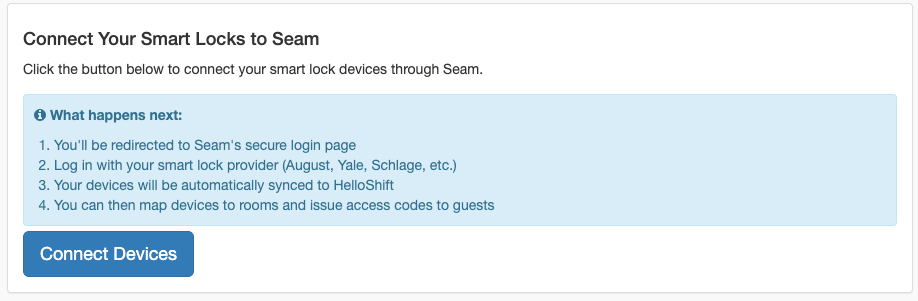
You'll be redirected to Seam's secure login page where you can:
Log in with your smart lock provider (August, Yale, Schlage, etc.)
Your devices will be automatically synced to HelloShift
You can then map devices to rooms and issue access codes to guests
Step 2: View and Manage Your Devices
After connecting, you'll see the DEVICES tab showing all your synced smart locks:
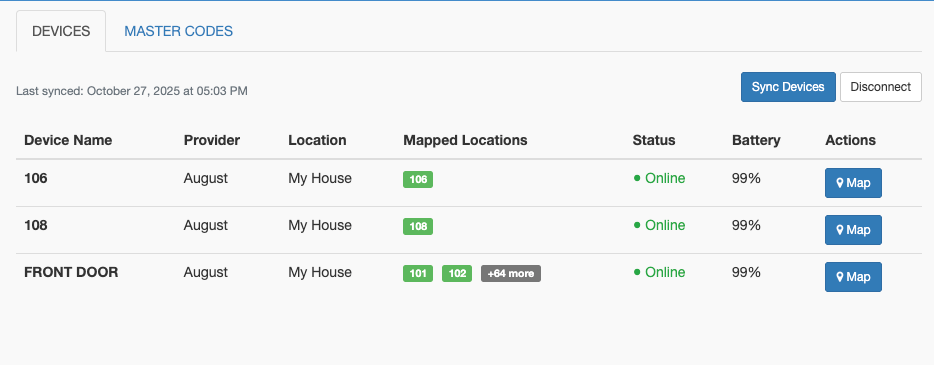
Each device displays:
Device Name: The name of your smart lock
Provider: Lock manufacturer (e.g., August)
Location: Physical location of the device
Mapped Locations: Which room(s) this device controls
Status: Online/Offline indicator
Battery: Current battery level
Actions: Map button to assign device to rooms
Available Actions:
Sync Devices: Refresh the device list from Seam
Disconnect: Remove the Seam connection
Map: Assign a device to one or more room locations
Step 3: Map Devices to Rooms
Click the "Map" button next to any device to assign it to room locations:
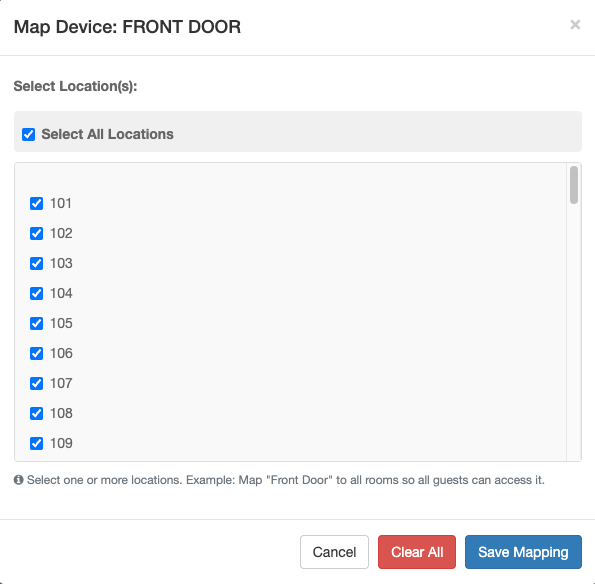
Mapping Features:
Select All Locations: Quickly assign a device to all rooms (useful for master entry doors)
Multi-Room Selection: Assign one device to multiple rooms
Flexible Mapping: Use this for devices that control access to multiple units
Common Use Cases:
Front Door: Map to all rooms so guests entering the building can access it
Individual Units: Map each unit's lock to its specific room
Shared Spaces: Map common area locks to relevant rooms
Click "Save Mapping" to store your configuration.
Master Codes
Master codes are permanent or time-limited access codes that work on multiple devices. These are useful for staff, maintenance, or emergency access.
Viewing Master Codes
Navigate to the MASTER CODES tab to see all existing master codes:
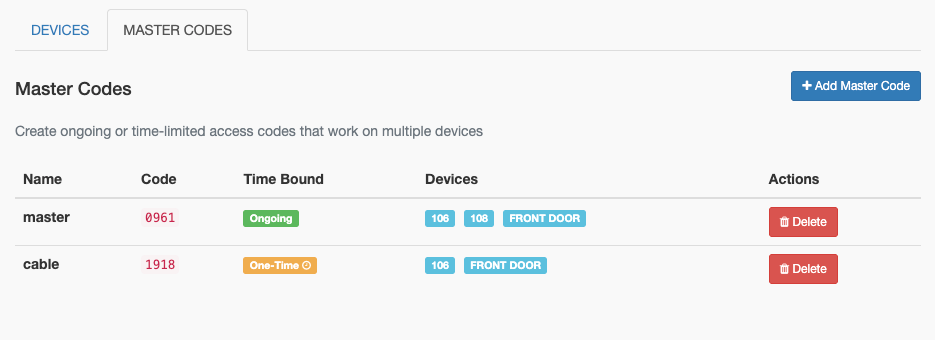
The master codes table shows:
Name: Descriptive name (e.g., "Front Desk", "Housekeeping")
Code: The PIN code
Time Bound: Ongoing or One-Time (time-limited)
Devices: Which devices this code works on
Actions: Delete button
Creating a Master Code
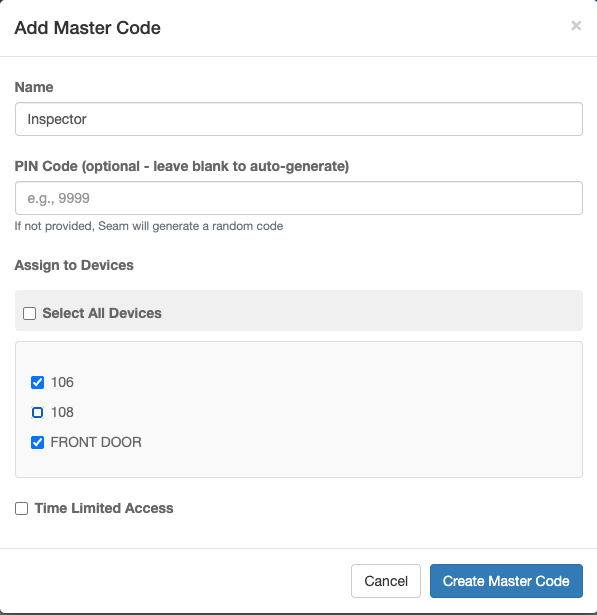
Click the "+ Add Master Code" button to create a new master code:
Required Fields:
Name: Give your master code a descriptive name (e.g., "Inspector", "Maintenance Team")
PIN Code: Enter a code or leave blank to auto-generate
Assign to Devices: Select which devices this code should work on
Use "Select All Devices" for property-wide access
Or select individual devices for limited access
Optional Settings:
Time Limited Access: Check this box to set start/end times for temporary access
Useful for contractors, temporary staff, or scheduled inspections
Code automatically becomes inactive after the end time
Click "Create Master Code" to activate the code on all selected devices.
Master Code Best Practices
Ongoing Master Codes:
Front desk staff access
Housekeeping teams
Property management
Emergency services
Time-Limited Master Codes:
Contractors and vendors
Inspectors
Temporary maintenance staff
Event access
Deleting Master Codes
Click the "Delete" button next to any master code to revoke it from all devices. This immediately removes the code's access.
Guest Access Codes
Automatic Code Generation
Once devices are mapped to rooms, HelloShift can automatically generate access codes for guests:
Automation Options:
Navigate to Guest Automations
Activate the "Issue-Key" automation for arrival day
Activate the "Revoke-Key" automation for departure day
Codes will be:
Generated automatically on arrival day (default: 3:00 PM)
Valid from check-in to check-out times
Sent to guests via SMS/email
Automatically revoked on departure day (default: 11:00 AM)
Manual Code Generation
For immediate access or special situations:
Open the guest's reservation details
Find the "KeyCode" section
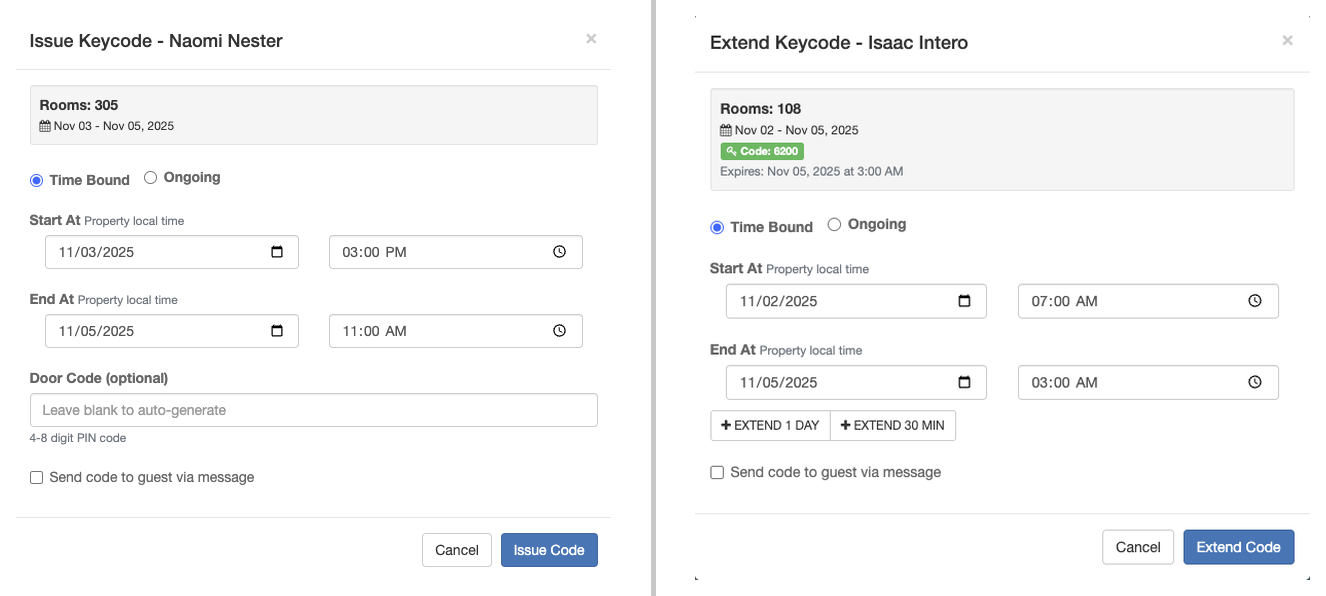
Select "Issue Code" to generate a new code or “Extend Code” to extend existing keycode.
Check the box “Send code to guest via message” to notify the guest
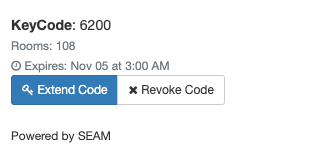
The code will be displayed in format:
KeyCode: 1234
Manual Controls:
Issue Code: Generate access code immediately
Extend Code: Extend an existing access code
Revoke Code: Remove access immediately
View Code: See the current PIN for the guest
Code Security
All access codes are:
Unique per reservation
Time-bounded to the guest's stay dates
Automatically revoked after checkout
The one exception is the backup code below: a shared code, sent only when issuing a guest their own key fails.
Backup Code
Occasionally HelloShift cannot get a guest a working key — Seam rejects the request, the connection has expired, or the lock is offline and the code never finishes loading onto it. Without a backup, the guest arrives with no code at all.
Set a backup code and HelloShift will send one of your master codes instead, so the guest still gets into the room. The failure is still reported in the guest conversation, so your team can fix the underlying cause.
Create a master code first
The backup is one of your master codes. Before setting this up, create one on the MASTER CODES tab:
Name it something like HelloShift Backup rather than reusing a staff code. This PIN goes out to guests, so you will want to change it without disturbing anyone’s own access — and it keeps your access log clear about which entries came from the backup.
Use Select All Devices so the code covers every lock. The backup is only sent when it opens every device on that guest’s stay, shared front doors included — a code missing one of their locks is never used.
Leave Time Limited Access unchecked. An expired code is never used as a backup.
Set the backup code
Still on the MASTER CODES tab, find the Backup Code panel below the master codes table. Pick your code from the Master code list and click Save Backup Code.
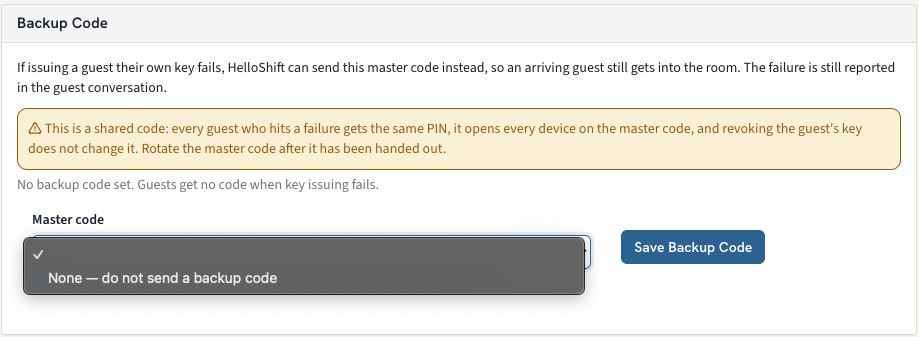
Once saved, the panel names the code in use and how many devices it covers. If any mapped room has a lock the code cannot open, the panel lists those rooms — add their devices to the master code, then choose it again.
If you delete a master code, any backup pointing at it goes away with it. Set the backup again after replacing the code, or the property is left without one.
When the backup is sent
HelloShift falls back to the backup in two situations:
Issuing the key fails. The guest receives the backup PIN in their key message instead of a code of their own.
The key was issued but never worked. No PIN came back from the lock provider, or the code never finished loading onto the locks. HelloShift switches the stay to the backup and, if the guest already received the dead code, re-sends the key message — so nobody is left at the door with a PIN that does not open it.
Either way, a note in the guest conversation records what failed and which code went out. Re-issuing the key successfully replaces the backup with a normal, guest-specific code.
Before you turn this on
A backup code is a shared code. It is a deliberate trade-off — a guest who can get into their room versus a code that is not unique to them:
Every guest who hits a failure receives the same PIN.
It opens every device on that master code.
Revoking a guest’s key does not change it, so a past guest keeps a working code until you rotate it.
Rotate the code once it has been handed out — delete the master code, create a replacement with a new PIN, and select that one in the Backup Code panel. Treat repeated backup fallbacks as a signal to fix the real cause rather than a steady state.
To turn the backup off, choose None — do not send a backup code and save. Guests will then receive no code when key issuing fails.
FLEXIPASS Web Keys: Early Check-in and Late Check-out
With FLEXIPASS web keys, guests open their doors from the Digital Keys page linked in their guidebook (or the {{keyUrl}} link in your messages). By default the keys work from check-in time on the arrival date until check-out time on the departure date, using your property's check-in and check-out times.
When you give a guest an early check-in or a late check-out, adjust their door access so the keys work for those extra hours.
Adjust door access
Open the guest's profile and find the reservation. Below the key code you will see a Door access line with the current start and end times.
Click Adjust access. In the mobile app this opens a separate page.
Change Door access starts for an early check-in, or Door access ends for a late check-out. The quick buttons move the time by 1 or 2 hours earlier, or 1, 2 or 3 hours later.
Click Save access.
The Door access line then shows the new times with an Early check-in or Late check-out badge. The guest's Digital Keys page shows the new times right away, so the link they already have keeps working.
Letting the guest know
Saving does not message the guest unless you tick Also send the Send-Key message to the guest. That sends your Send-Key snippet again. To include the new times in that message, add these variables to the snippet:
{{keyStartTime}}: when the digital keys start working, e.g. "Mar 3, 10:00 AM"{{keyEndTime}}: when they stop working, e.g. "Mar 5, 2:00 PM"
Good to know
One window per reservation. Every guest on the reservation gets the same door access.
Up to 3 days. Access can move at most 3 days from the normal check-in or check-out time. For longer, change the reservation dates instead.
Reservation date changes. If the arrival or departure date changes after you adjusted access, the adjusted time on that side no longer applies and the normal check-in or check-out time is used. The profile shows a note when this happens, so you can adjust again.
Reset to default returns the reservation to your normal check-in and check-out times.
Every change is recorded in the guest conversation, with who made it and the new times.
Only the guest's own doors. Guests can open only the doors mapped to their room (for example their room and the main entrance), and only between the start and end times. Outside those times the page tells them when their keys will start working, or when their access ended.
This applies to FLEXIPASS web keys only. For key codes (Seam and similar), use Extend Code as described under Manual Code Generation above.
Troubleshooting
Device Shows Offline
Causes:
Lock batteries are dead
Lock is out of WiFi/network range
Smart lock bridge/hub is offline
Solutions:
Check battery levels in the Devices tab
Verify lock is connected to WiFi
Ensure bridge device is powered on
Click "Sync Devices" to refresh status
Code Not Working
Possible Issues:
Code hasn't synced to lock yet (locks may be offline during sync)
Guest is trying code before valid start time
Code has expired (past departure date)
Device is not mapped to the room
Solutions:
Issue codes 24 hours in advance when possible
Check device is online and synced
Verify room-to-device mapping is correct
Re-issue the code if needed
Failed to Connect to Seam
Solutions:
Verify you're using the correct smart lock provider credentials
Check that your smart lock account is active
Ensure your locks are set up in the manufacturer's app first
Try disconnecting and reconnecting
Device Not Syncing
Solutions:
Click "Sync Devices" manually
Check your Seam connection status
Verify the device appears in your lock provider's app
Disconnect and reconnect to Seam if issues persist
Best Practices
Initial Setup
Connect to Seam and sync all devices first
Map each device to its corresponding room(s) before guests arrive
Create master codes for staff access
Test a code generation with a test reservation
Enable automations for automatic code issuance
Ongoing Management
Review battery levels weekly
Update device mappings when rooms change
Audit master codes monthly and remove unused codes
Keep time-limited master codes for temporary access needs
Monitor device online status daily
Guest Experience
Issue codes 24 hours before arrival when possible
Include code in pre-arrival messages
Provide code format clearly (e.g., "Your door code is: 1234")
Set up arrival day automation for seamless check-in
Ensure codes are revoked promptly after checkout
Sent before the code exists? On Seam and RemoteLock properties, a message that prints {{keyCode}} while the stay has no code yet is held instead of going out with a blank code. The guest thread shows why, and the message is sent automatically once the key is issued.
Security Notes
Access codes are unique per reservation
Master codes should be rotated regularly (change every 3-6 months)
Time-limited master codes are preferred over ongoing codes for non-staff
Devices must be online to receive new codes
Getting Help
If you encounter issues not covered in this guide:
Contact HelloShift support
Check the Seam status page for API issues
Review your smart lock provider's support documentation
Verify your locks are functioning in the manufacturer's app first
Related Articles
Was this helpful?
Still need help? Ask the team